Table of Contents
Qualification management (Additional module)
SmartProcess Qualification Management enables you to manage all the qualifications required in your company, assign them to roles and users, receive reminders when employee qualifications are about t…

Table of Contents
SmartProcess Qualification Management enables you to manage all the qualifications required in your company, assign them to roles and users, receive reminders when employee qualifications are about to expire, and record and document trainings for the renewal of these qualifications.
Some of these functions can be used with a standard process management installation of SmartProcess. However, the Qualification Management module is required for person-based qualification management.
The following describes how the qualification management can be set up in SmartProcess.
Functions without extra module
Manage qualification catalogue
All possible skills are recorded centrally in the qualifications catalogue in the Catalogues menu, in order to assign them to roles or users later. The creation and administration of qualifications takes place in exactly the same way as described in the article Manage catalogue data.
Some of the catalogue fields take on a special meaning when you work with the Qualification profile workflow (see below):
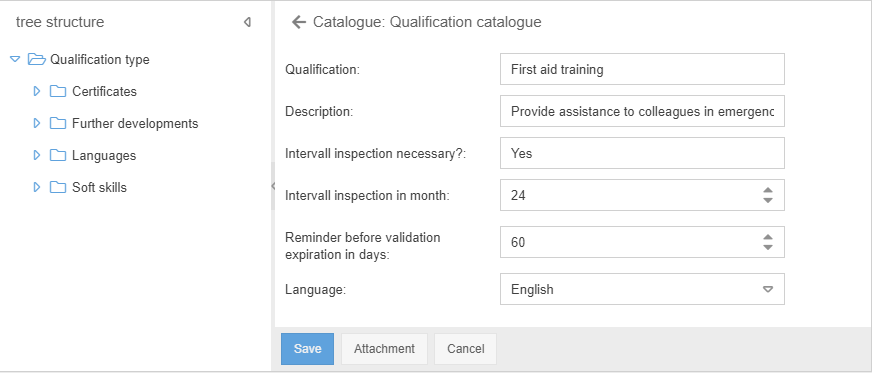
- Intervall inspection necessary? -> Only the selection Yes or No is possible here.
- If you select Yes, this qualification is only valid for a limited period of time after an employee has acquired it.
- If you select No, this qualification is always valid as soon as it is entered in an employee's qualifications profile that he or she has acquired this qualification. For these qualifications, entries in the following two catalogue fields have no effect.
- Intervall inspection in month -> If Intervall inspection necessary? = "Yes", you can specify here how long this qualification should be valid for the employee from the time of acquisition.
- Reminder before validation expiration in days -> If Intervall inspection necessary? = "Yes", a reminder time for the imminent expiration of the validity can be entered here. In the example, therefore, a reminder mail is sent 60 days before the expiration of the valid first aid training.
Assign qualifications to roles
You can assign the skills from the qualifications catalogue to roles from the organizational chart or the roles catalogue. This is useful if selected groups of employees must always have certain target qualifications.
In the following example, it is assumed that all Heads of department in the company require A-levels and first aid training. To do this, open the role properties and click on the button <Add> in the tab "Skills / Qualifications".
The qualifications catalogue opens, from which one or more skills can be selected that each user with the role Head of department must have.
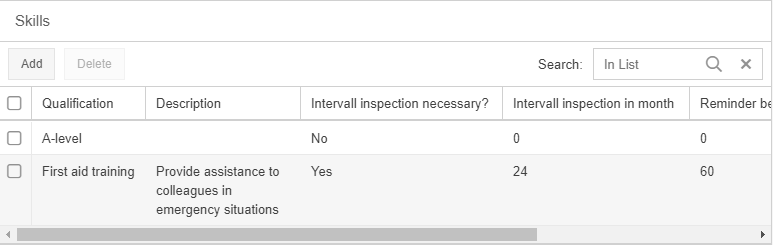
Another major advantage of this assignment is that when a qualification profile is created for a user with the role of head of department, the A-level and first aid training are now automatically transferred to his or her profile (see below for details).
Functions with extra module
Create qualification profile for user
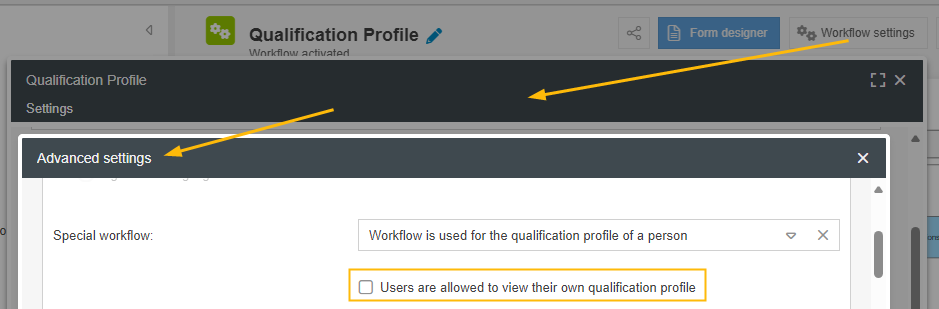
If the module Qualification management is installed, you have the possibility to create a new qualification profile for each user in his user profile. If desired, this profile can be made read-only for the respective user (see second image). No special workflow rights are required for this. The corresponding button can then also be found in the user details.
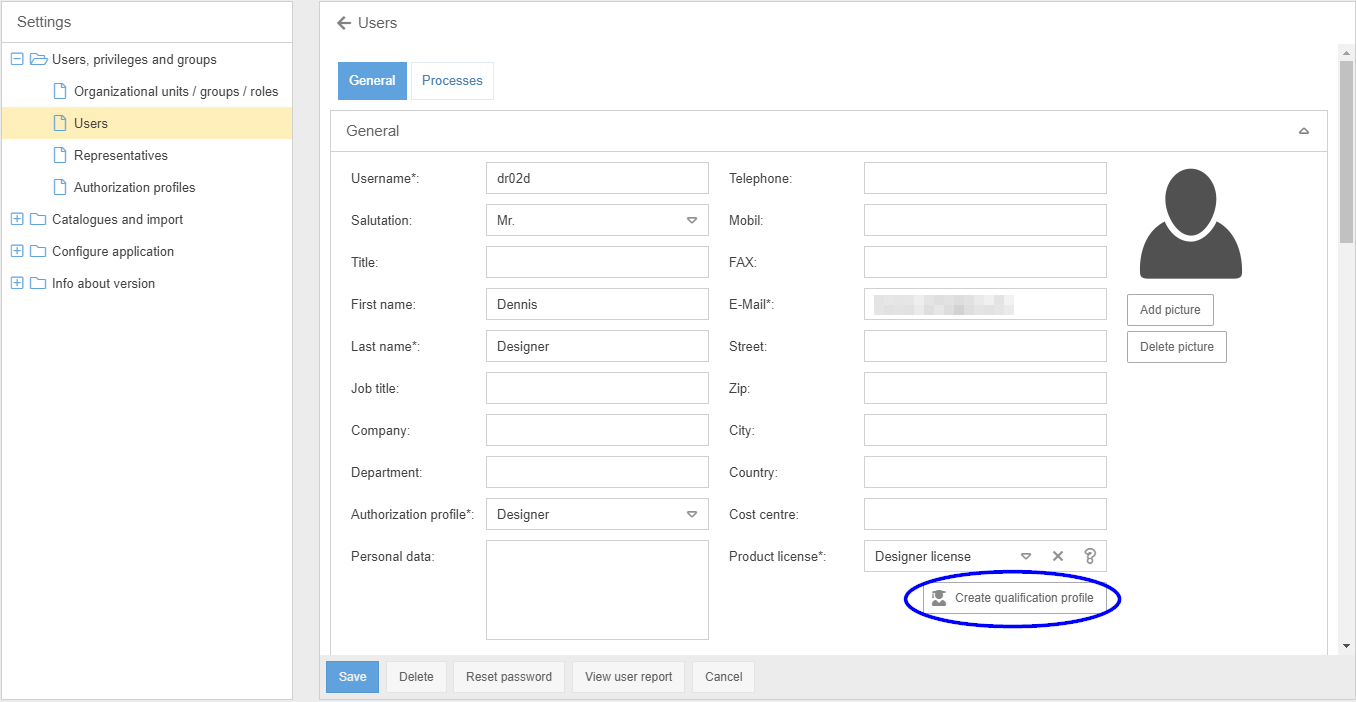
Change workflow setting: Each user can see their own qualification profile
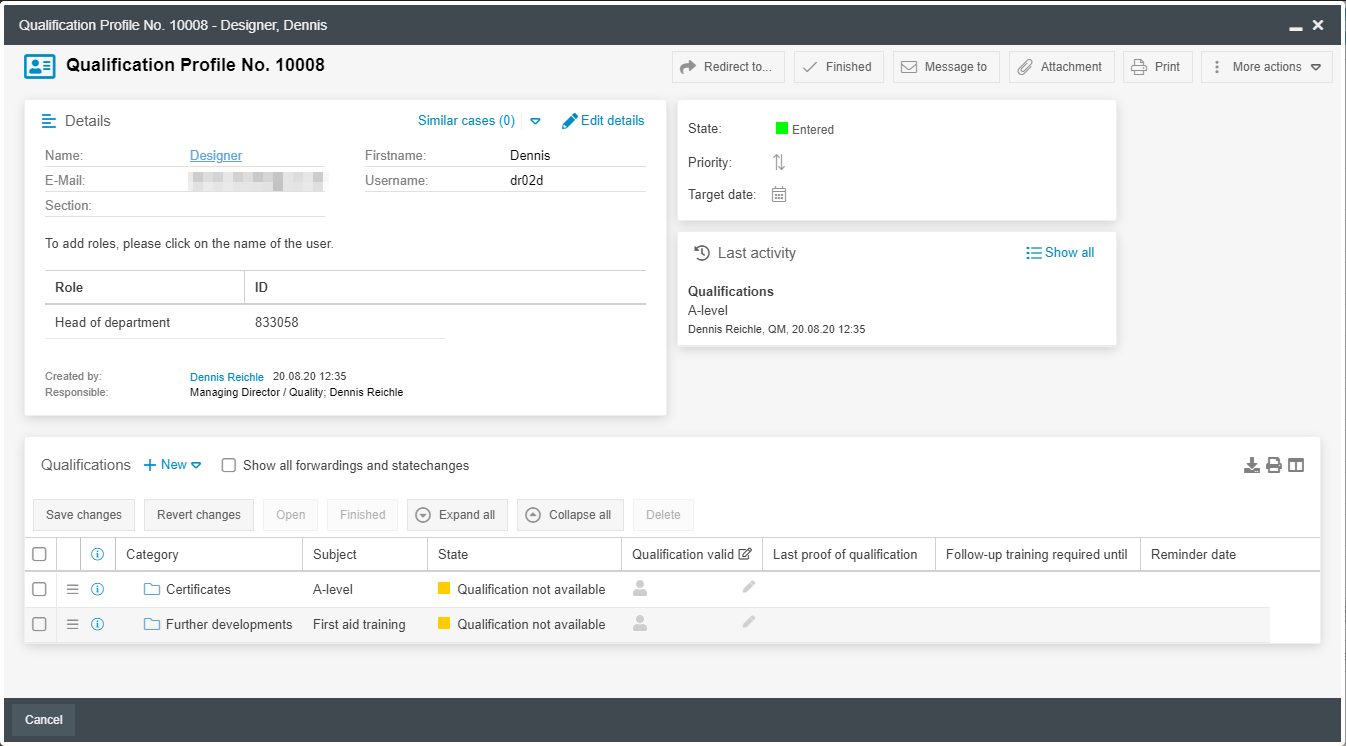
Since the qualification profile of each user is a separate workflow case, the case window appears as usual and offers the following information and options:
- In the Details area, the master data of the user is listed, among other things. The information Responsible is decisive here. The person or organizational unit that is listed there:
- Can see the qualifications profile of this employee
- Can edit the qualifications of the employee (prerequisite: editor license)
- Will be notified by e-mail when this employee's qualifications are about to expire.
- The employee's qualifications are listed in the activity list. You can use the state of the qualification to check whether it is still to be acquired or whether it is currently available.
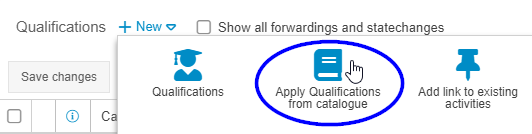
Via the button <+ New> in the activity list, further personal qualifications can be transferred from the catalogue to the profile, independent of the assigned roles for the user.
Synchronization of qualifications for roles
The target qualifications in the qualifications profile, which were entered automatically on the basis of a role assignment, behave dynamically. This means that:
- If a new target qualification is assigned to a role, it is also transferred to the qualifications profiles of all users with this role
- If the user is assigned a new role, all qualifications required for this role are transferred to his or her qualifications profile
When deleting assignments, there is a special aspect to be considered:
- If a target qualification is removed from a role, it is also deleted from the qualifications profile of all users with this role if they have not yet acquired this qualification.
- If a user's assignment to a role is deleted, all the qualifications that he or she would have required for this role are removed from the user's qualifications profile, if the user has not yet acquired these qualifications
Confirm qualifications and enter proof
To manually document that a qualification exists for an employee, you can edit the Qualification valid field directly in the activity list. Activate the checkbox and click <Save Changes> to confirm the entry. Depending on whether the qualification requires a interval inspection, the state changes:
- Interval inspection not required -> State = Qualification exists -> The qualification will always remain on this state, unless it is manually removed from the profile.
- Interval inspection required -> State = Qualification valid -> The qualification is valid from the time of the proof of qualification for as long as specified in the qualifications catalogue. Afterwards, the system changes the state to Validity exceeded and a new proof of qualification must be provided.

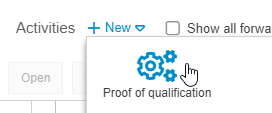
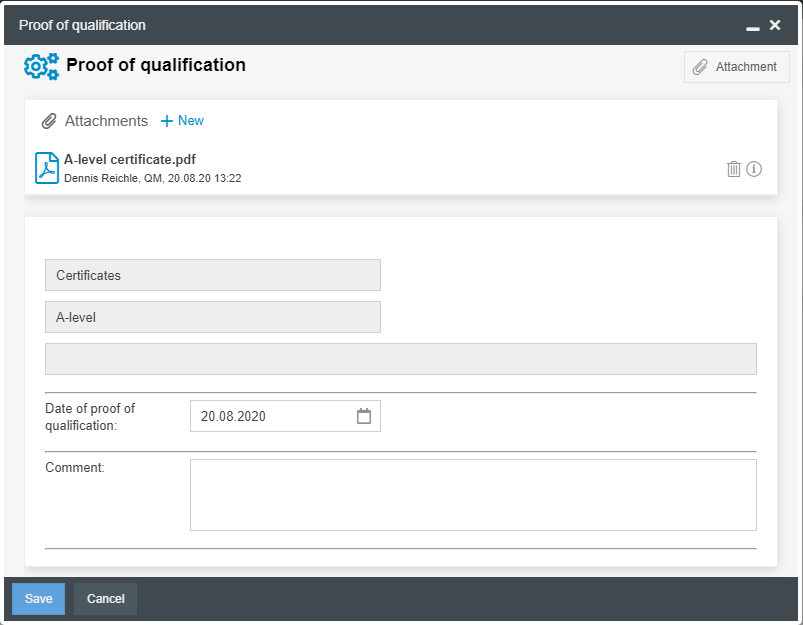
To store such a proof of qualification, open one of the qualifications by clicking on the corresponding line. In the activity list of the individual qualification, you can now store a new qualification certificate by choosing <+ New>.
For example, a certificate can now be inserted into the task as a file attachment by drag & drop, which proves the user's qualification. The date entered in this window is also used to calculate the validity.
- The qualification was entered on 20.08.2020
- Since the inspection interval for first aid training is 24 months according to the catalogue, the qualification is valid until 20.08.2022
- Since a reminder for first aid training should be sent 60 days before the expiry date, the reminder date has been set to 21.06.2022
Processes and documents as qualifications
Qualification management can be set up in such a way that processes and documents are also transferred to the users' qualification profiles as target qualifications. In this way, it can be proven that the employee has been trained in the processes and documents relevant for him.
If you want to use this function, various prerequisites must be fulfilled in the system:
Settings in the Qualifications Profile workflow | Navigate via the menu Processes -> "Workflows" folder in the Process Explorer -> Qualification profile -> Workflow settings. There you can now select whether and which processes and documents should be synchronized with the qualification profiles. 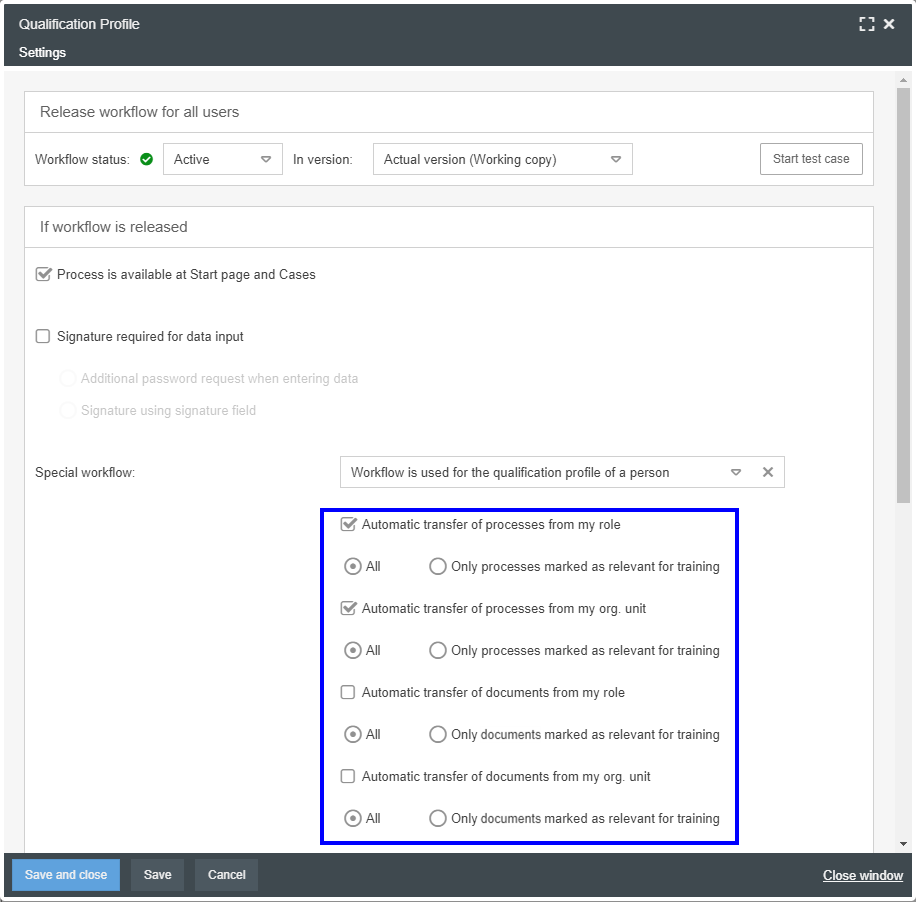 When the 1st checkbox is activated, the following applies: If a role has been entered as a process participant, this process is generally transferred to the qualification profiles of all users with this role. A distinction can be made between whether all processes are to be transferred to the qualification profiles or only those in whose details the property "Training relevant" was set to "Yes". The property is only visible in the details if this option is active. The other settings behave analogously. As soon as this automatic transfer of processes / documents to qualification profiles is activated, processes / documents can not be added manually to qualification profiles. |
Maintain Process participants and document users | Decisive for which processes and documents are transferred to the qualification profile for which users are the organizational units and roles entered in the list of process participants or document users. If, for example, the organizational unit Production is included in the Process Participants list for a training-relevant "Product Development" process, this process is transferred to the qualification profiles as a target qualification for each user from Production ( provided that the above-mentioned setting is made in the Qualifications Profile workflow.) |
Settings in the qualification catalogue | In order that processes and documents can also be trained and documented in a training workflow, the configuration of the qualifications catalogue must be configured so that processes and documents are transferred to the qualifications catalogue. 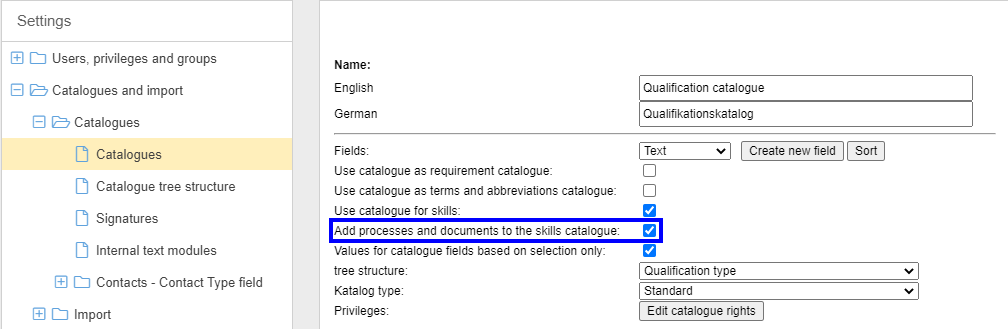 The published versions of processes and documents are always transferred to the catalogue as qualifications. |
Training workflow
By documenting trainings with the training workflow it is possible to create or update proofs of qualification for the profiles of users.
In the workflow, the qualifications to be trained are selected from the qualifications catalogue and any number of participants are added from the user administration. If a user has successfully completed the training, all of the qualifications trained are automatically transferred to his or her qualifications profile with the state Exists or Valid.
The training course that has been completed thus serves as a new proof of qualification. For qualifications with a inspection interval, the expiration date and reminder date are also recalculated.
Reporting
In the Reporting menu and also in the Qualification profile menu, you can call up and view the saved reports supplied by CWA. These include the Qualification matrix, which displays in a cross tab for each user with a qualification profile the qualifications that he or she possesses (green icon), has to acquire (gray icon), or does not need (empty cell).
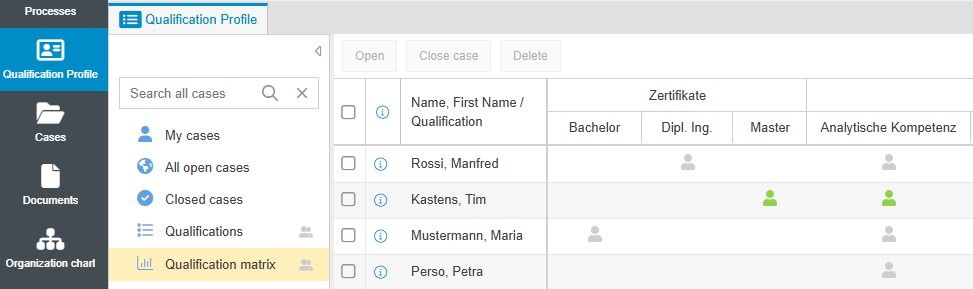
To create your own reports for qualification profiles and qualifications, proceed as described in the article Reporting for cases. The fields from the relevant workflow are always available for filtering the cases - in this case, the fields from the main form of the Qualification profile workflow.
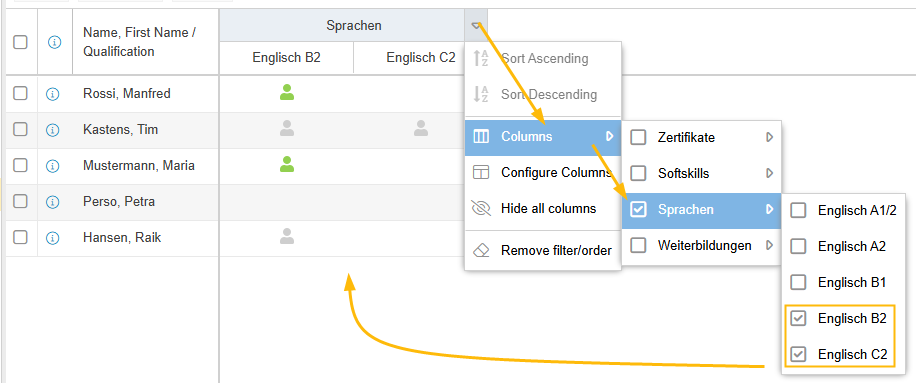
The following example shows the configuration and results view of a cross tab to filter out an employee with English skills of at least B2 who can be used as a lecturer for a speech in English.
How did we do?
KPI management
Training management
