Table of Contents
Documents - menu structure
The Documents menu allows you to view, create and manage documents independently of processes. The menu is divided into different areas: Navigation area. Content area. Preview area. Header area. The…

Table of Contents
The Documents menu allows you to view, create and manage documents independently of processes. The menu is divided into different areas:
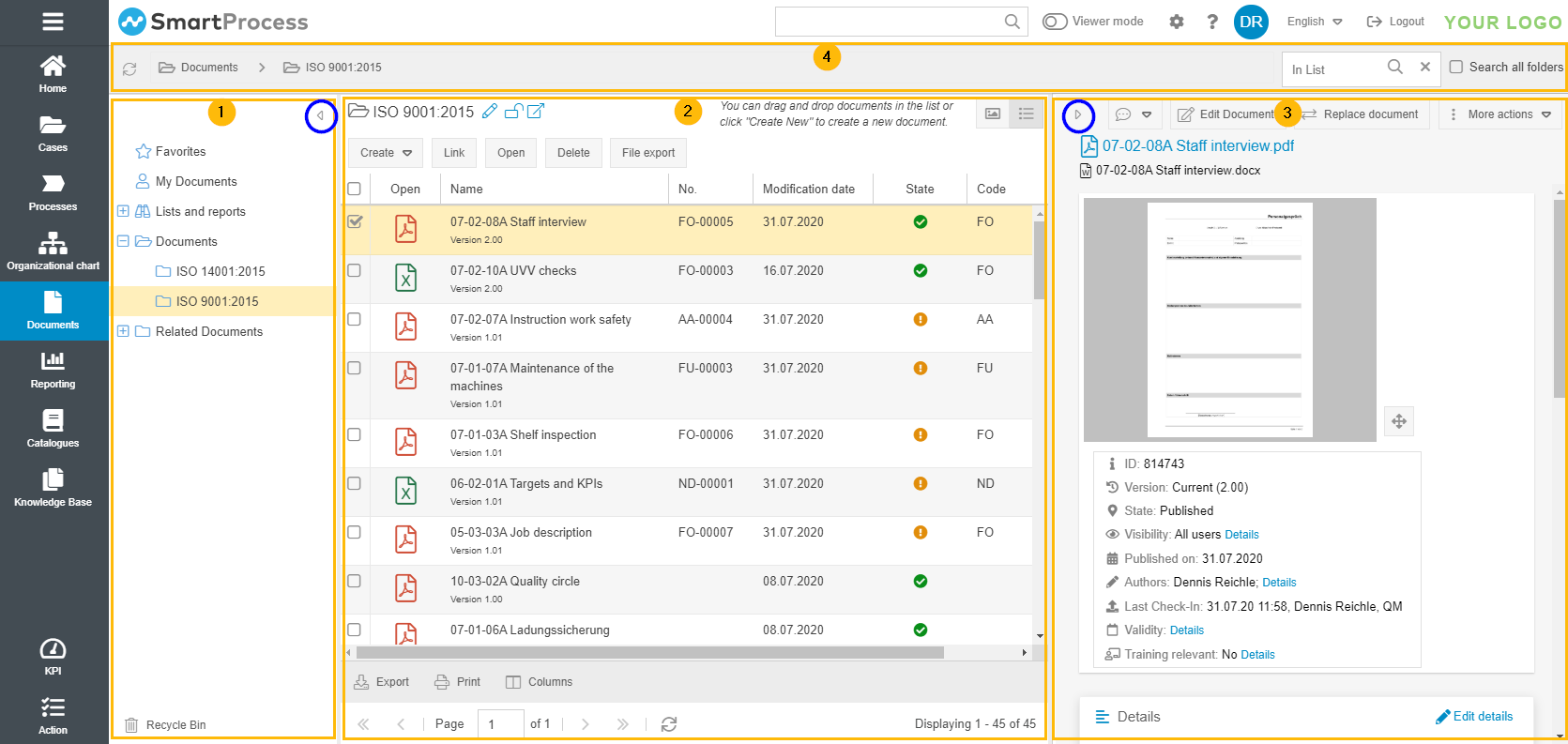
- Navigation area
- Content area
- Preview area
- Header area
Navigation area
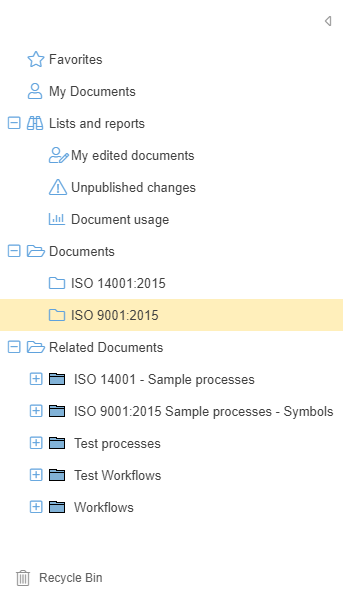
In the navigation area you select what you want to be displayed in the content area as a list or with thumbnails. Various lists and folders are available:
Favorites | Lists the documents that you personally have stored as favorites. You can display these either as a list You will be notified by e-mail when a document from your favorites is published in a new version. You can right-click on an existing favorite to remove the document from your favorites. 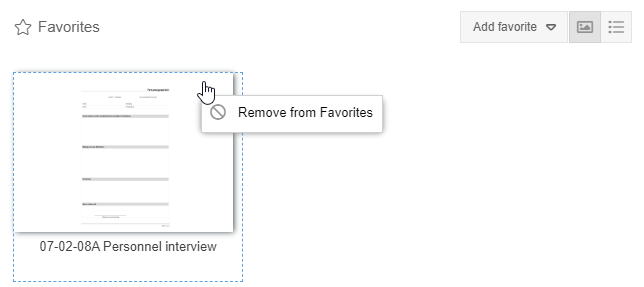 |
My documents | This list shows each user the documents that are relevant for him. This includes all documents for which an organizational unit/role of the user has been entered as the responsible or document user. This information is maintained in the document details. If a new version of one of the documents in this list is published, the user is notified by e-mail. |
Lists and reports | In the expandable Lists and reports area, predefined lists from SmartProcess are displayed in which the last documents you edited and documents for which changes have not yet been republished are shown. Additionally, all saved reports that refer to document data are listed here. Clicking on an entry opens the list or report in the content area. By right-clicking on an entry, the lists and saved reports can be displayed outside the expandable area (as in the example Favorites and My documents). In the same way, these lists can be moved back into the expandable area. |
 or as a file preview
  . With the button <Add favorite> you can search a list of all existing documents and add new favorites for yourself.
In addition, you will see two folders with different meanings.
Documents folder
In the Documents folder, any number of folders and subfolders can be created in a freely definable structure. New documents can be created and existing documents deleted in these folders..
The functions of the recycle bin are identical for documents and processes and are described in the article Menu Processes - Structure & Terms.
If you select a folder, the contained documents are listed in the content area.
It is also possible to store one or more documents from this list view in another folder in the tree structure using drag and drop. In this case, you can decide whether you want to move the selected documents from one folder to another, or whether the documents should also be displayed in the other folder and therefore linked there.
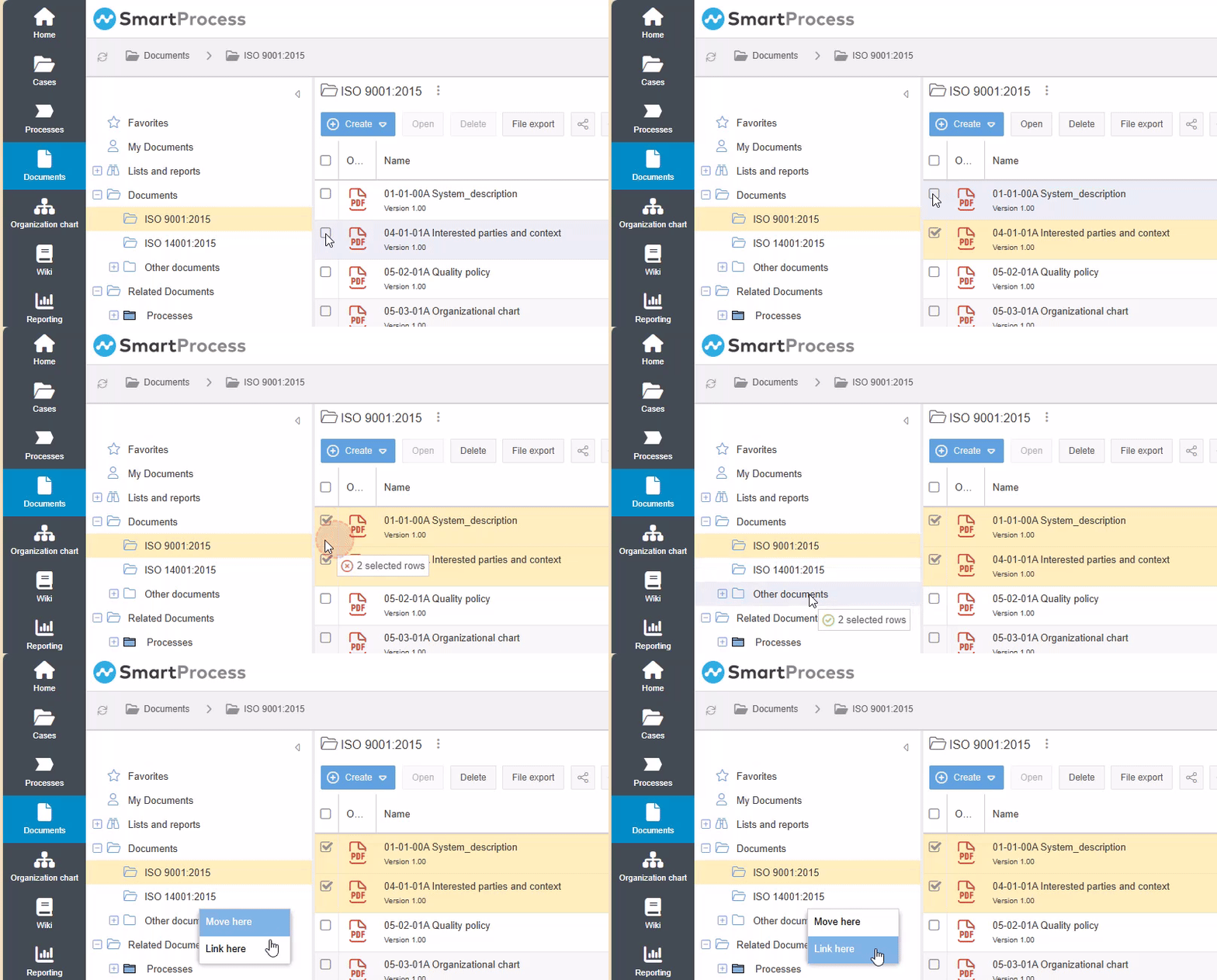
By right-clicking on an existing folder, you can also rename or delete it, or define read and edit rights for the folder.
Related documents folder
The Related documents folder contains an automatically generated folder structure that corresponds to the structure from the Process Explorer. At this point, you cannot add additional folders or create documents. Instead, the folder structure changes automatically when process groups and processes are created, deleted or moved in the Processes menu.
If an entry is selected in the folder structure, the content area lists the related documents that were linked in the process group or process.
Optionally activate the checkbox <Include documents of dependent elements> to show not only the related documents of the selected process group, but also the related documents that have been linked in the subordinate process groups and processes.
Content area
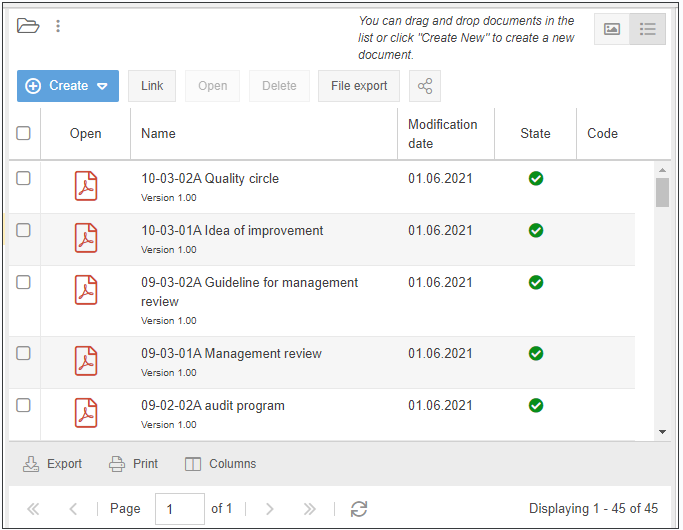
In the content area, the documents of the selected folder or list are displayed either in a list view  or in a preview
  of the file.
If the user has editing rights for the report, you can switch to the configuration of the report in the Reporting menu.
As in many other places in SmartProcess, you can use the column headers of the table in the list view to filter and sort the entries and to specify the visible columns. Below the table you can export all or only selected entries of the list as .xls file, .csv file, or .txt file, generate a PDF file using <Print>, or specify the column configuration.
To export the file attachments of the documents, you can use the file export (see below).
Above the table, the name of the opened folder is displayed. Next to it you will find a menu to edit the folder name, to change the read and edit rights for the folder or to call up the unique link to this folder and copy it to the clipboard.
With the buttons <Create New>, <Open> and <Delete> you can create new documents or open or delete documents selected by checkbox. The  - button leads to a list of all documents in the system that can be linked to the selected folder and thus reuse them.
Delete documents
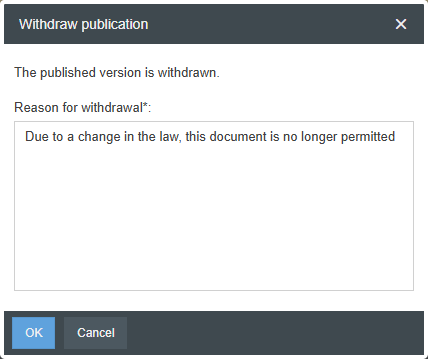
Documents cannot be easily deleted from the list if they are in published state and/or are being used in various locations within the system (e.g. in multiple document folders or in processes).
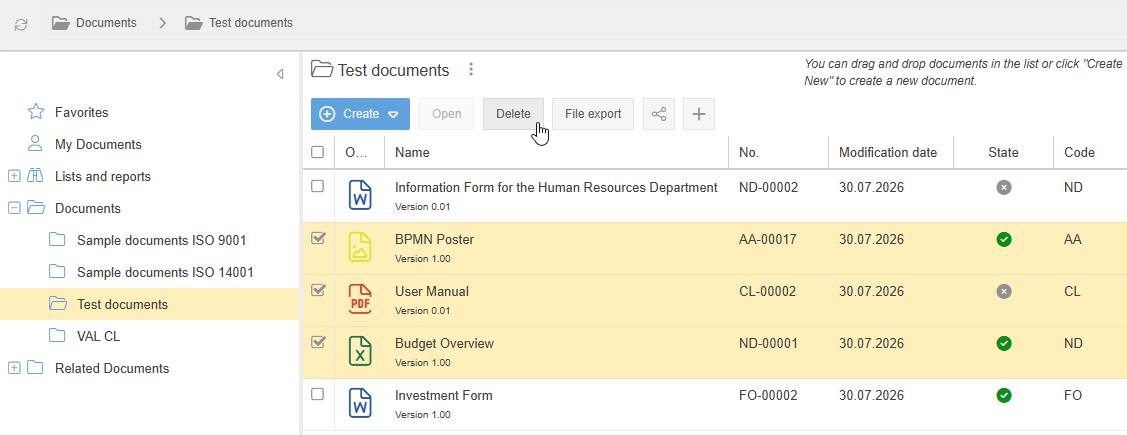
For this reason, when you attempt to delete published and/or reused documents, a window appears that transparently lists the document’s state and any locations where it is reused. Based on this information, you can decide individually for each item how to proceed with the document.
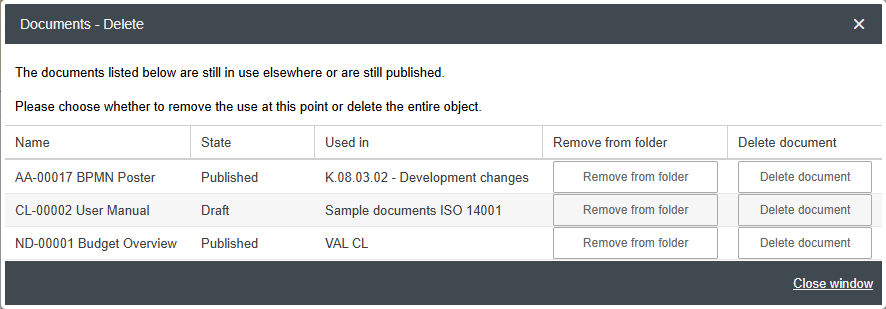
- Selecting Remove from folder simply removes the document from the folder from which the deletion was initiated. The document remains in all other locations in the system with its existing state, version and other data.
- Selecting Delete document removes the document from all locations where it is used in the system and moves it to the Recycle Bin.
File export
With the button <File export> the file attachments of several documents can be exported from SmartProcess at the same time.
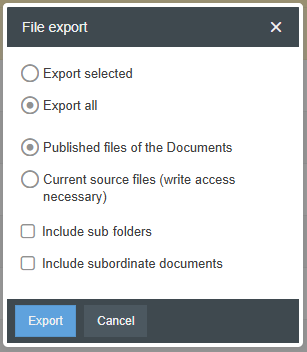
If you have selected some documents in the content area and then start the file export, you can decide whether only the file attachments of the selected documents or of all documents in the folder are exported. If you select “Export all”, you can also export the file attachments of all documents in the subfolders. You can also include subordinate (linked) documents in the export.
Users without editing rights can only export the file attachments of published versions.
Users with editing rights can optionally download the source file (current working version) of the document that have not yet been published.
When clicking on <Export> a .zip file is created which contains all available file attachments and can then be downloaded. Documents to which no file attachment is assigned are automatically skipped during this export.
Share document
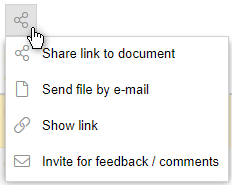
The <Share> button can be used to make a document available to others. Thereby you can
- Send the link to the document by e-mail
- Send the file itself as an e-mail (Open the generated .eml file and in your default e-mail program a new e-mail will be created with the document as attachment)
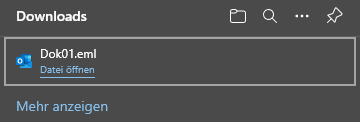 This function is only available for published documents.
 - Display the link to the file to use it elsewhere
- Invite other users to provide feedback and comments
Preview area
The Preview Area displays the details of the selected document from the list in the content area.
Header area

The header area contains the Refresh button to retrieve the contents of all document folders from the database.
Next to it, the path shows which folder you have currently opened. You can also use this path to navigate between the folders.
The search bar allows you to search all documents in the currently open folder for any keyword. If the checkbox <Search all folders> is activated when you execute the query, all documents in the entire system are included in the search.
How did we do?
Create documents
