Table of Contents
Object: Artifact Related document
Related document Applicable document s (Document folder) Related document. The artifact "Related document " is used in the process model to indicate that a document must be used / filled in during th…

Table of Contents
 | Related document |
 | Applicable document s (Document folder) |
Related document
The artifact "Related document " is used in the process model to indicate that a document must be used / filled in during the execution of a process or a task.
With the artifact, the document is placed in the process model so that it is visible to the user, who can open it and download it for editing.
When a document has been linked to a process or task, the link can be seen at various places in SmartProcess:
- In the details of a document, the 'Used in process' area shows the processes in which the document was inserted as a related document
- In the menu Documents in the folder 'Applicable documents' it is listed in the structure of the process explorer, in which processes which documents were linked
- In the details of a process beneath the process model, all linked documents are listed in the list 'Documents'
- In the menus Reporting and Documents, you can call up the saved report 'Document usage' to view for all documents application-wide in which processes they were linked
Link already created documents to the process
Open the desired process and switch to the Process Designer via <Edit model>. Already created documents can be linked in the process model in different ways:
|
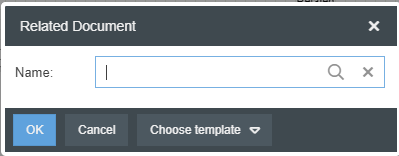
The related document can be opened directly from the user with a click on the corresponding icon. |
|
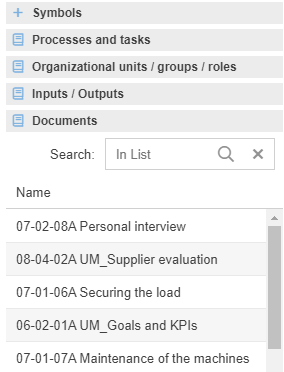
The related document can be opened directly from the user with a click on the corresponding icon. |
| This method is only suitable if a document is to be linked directly to a task instead of just to the process in general.
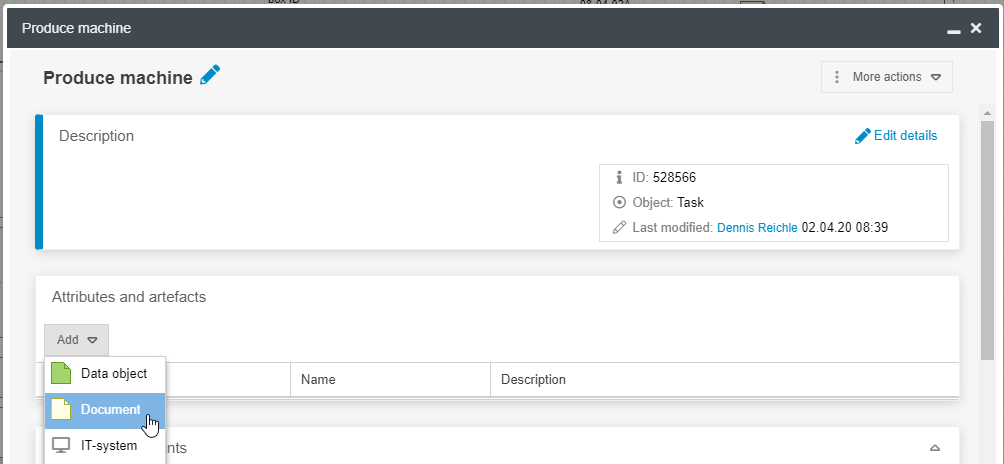
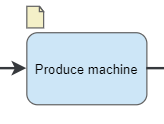 In this case, the user can view and open the linked document via the 'Artifacts' table in the task properties. |
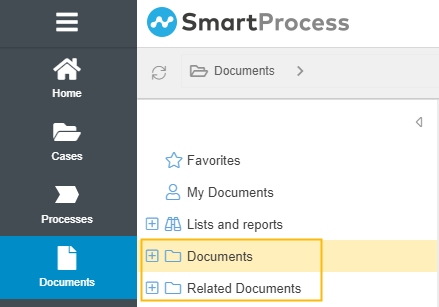
After the linking, it also appears in the folder 'Related documents', in which it is listed, based on the structure in the process explorer, which document was linked in which processes.
Create new documents during process modeling
If the documents to be linked have not yet been created in the 'Documents' menu, it is also possible to create new documents during modelling in the Process designer:
|
If document templates have been created in SmartProcess, a new document can also be created based on a template via <Choose Template>.
The related document can be opened directly from the user with a click on the corresponding icon. |
| This method is only suitable if a document is to be linked directly to a task instead of just to the process in general.
In this case, the user can view and open the linked document via the 'Artifacts' table in the task properties. |
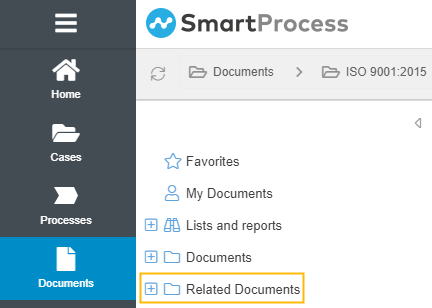
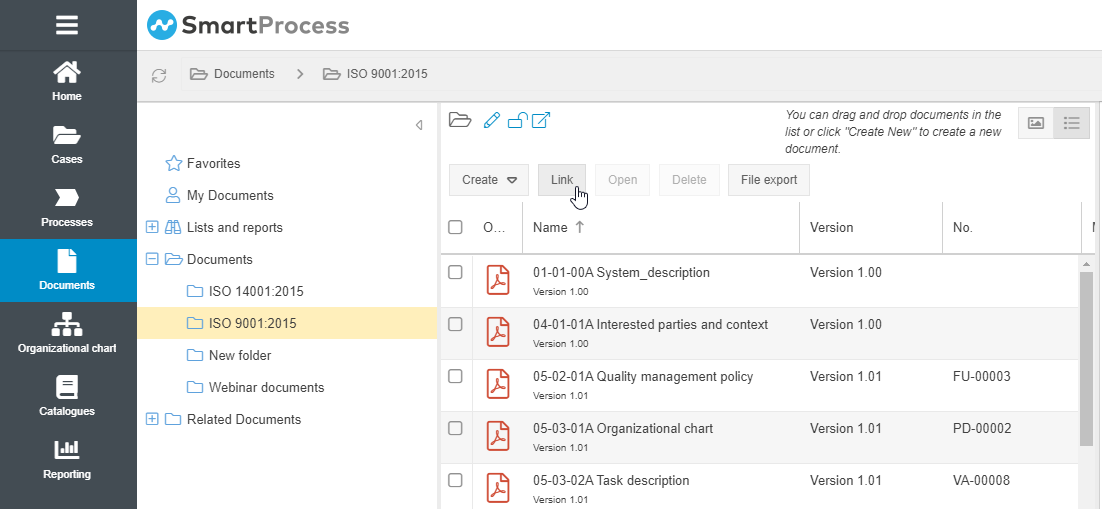
To additionally place the document in any subfolder of 'Documents', the corresponding folder can be opened (in the example ISO 9001:2015).
The <Link> button opens a list with all documents from SmartProcess, in which the desired document can be searched for with a quick search and linked to the selected folder.
Difference in linking to a process or a task
A related document can either be linked to a process or to a task of a process.
If the object was placed in the process model using Drag & Drop, it is generally linked to the process.
To link a document to a task, there are various ways to do so:
- The document was linked directly via the 'Artifacts' table in the properties of a task (see description above)
- A document inserted in the process model is subsequently linked to a task using an association link.
Depending on how the document was linked, it is displayed at different places in SmartProcess:
Document linked to a process | Document displayed:
|
Document linked to a task | Document displayed:
|
Applicable documents (document folder)
Changes to the content of the folder, i.e. adding and removing documents, do not result in a new version of the process!
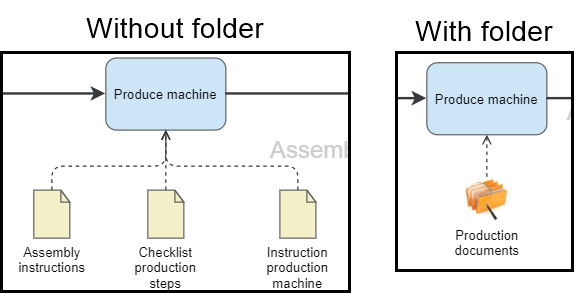
The object 'Applicable Documents' is used in the process model, for example, if several documents are to be linked to a task or process without a separate symbol appearing in the process model for each of these documents.
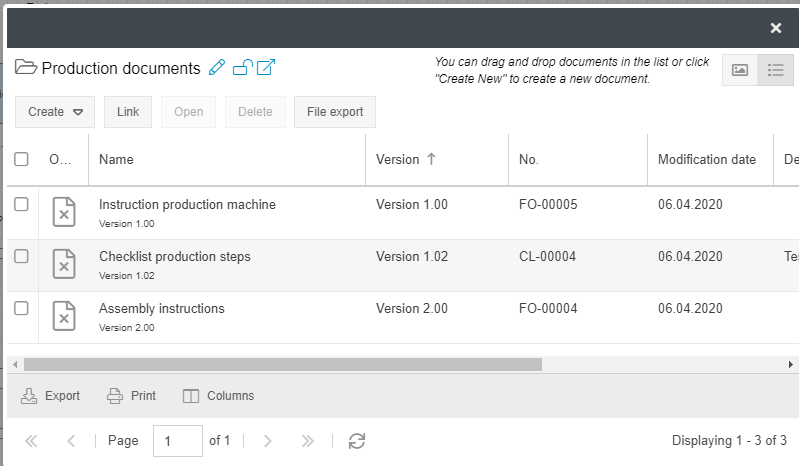
A document folder is created by placing the symbol in the process model using drag and drop. In the creation window that appears, there are various options:
- You can use the magnifying glass symbol to access document folders that have already been created in other processgroups/processes and reuse them
- By entering a name, a new document folder can be createdn
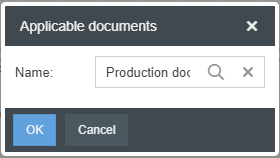
If the folder has been newly created, it can then be opened by double-clicking on the icon in the process model.
- Via <Create> new documents can be created in SmartProcess and stored directly in the document folder of the process.
- It is also possible to create new documents by dragging and dropping a file into the window of the document folder
- Via <Link> you can access documents already created in SmartProcess and add them to the document folder.
This enables an alternative display of several documents that are applicable for a process or task.
How did we do?
Object: Artifacts KPI, Risk, Control, Opportunity
Additional modelling objects
