Table of Contents
Version 22.3 Release Notes
Permissions. In this version, the functions and the display of the authorization profiles and the rights of workflow participants have been fundamentally revised. Processes / Documents. An icon above…

Updated
by Dennis Reichle
Table of Contents
Permissions
In this version, the functions and the display of the authorization profiles and the rights of workflow participants have been fundamentally revised.
Processes / Documents
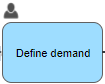
- An icon above the task in the process model now indicates when additional process participants have been added manually within the task (as it is already the case for artifacts).
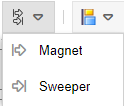
- The 'Magnet' and 'Sweeper' functions can be used in the process designer to move multiple objects simultaneously starting from a selected point to insert a variable space in the process model.
- If a swimlane is enlarged or reduced during process modeling, swimlanes directly adjacent to it are also moved to prevent different swimlanes from overlapping.
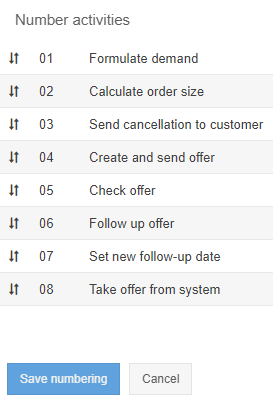
- Numbering of activities in the process model has been improved - Clicking the <No.> button in the process designer now activates a numbering mode in which modeled tasks and sub-processes can be dragged and dropped to assign a number to them. The previous options for manual numbering outside the Process Designer remain.
- With the button <Sort user-defined fields> the order of displaying user-defined fields can now be adjusted.
- When publishing manually without the approval workflow, reviewers and approvers can be adopted from the last published version.
- When publishing manually without an approval workflow, reviewers and approvers can be selected from the user administration.
- The selection field 'Training relevant' is now only displayed in the details of processes and documents if the module Qualification management is also used.
- Placeholders are now available for gateways used in the process model in order to output them in the process description.
- In the content area of the Documents menu, the fields Valid from, Valid until and Validity exceeded are now available as columns for the list view.
- When creating a document with a .docx or .doc file as an attachment, it is now possible to decide whether this file should be published as a text file or as a PDF.
- When importing metadata for a document, it is now possible to add organizational units and roles as document users via import.
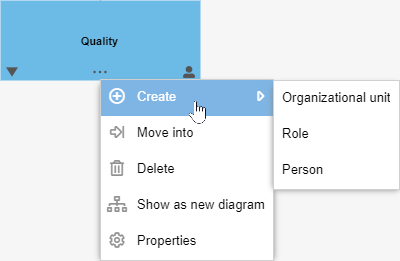
- When creating new objects in the organization chart, only the three objects organizational unit, role and person are offered. The selection of a type for the organizational unit object (e.g. group, company) is then made in the properties of the organizational unit.
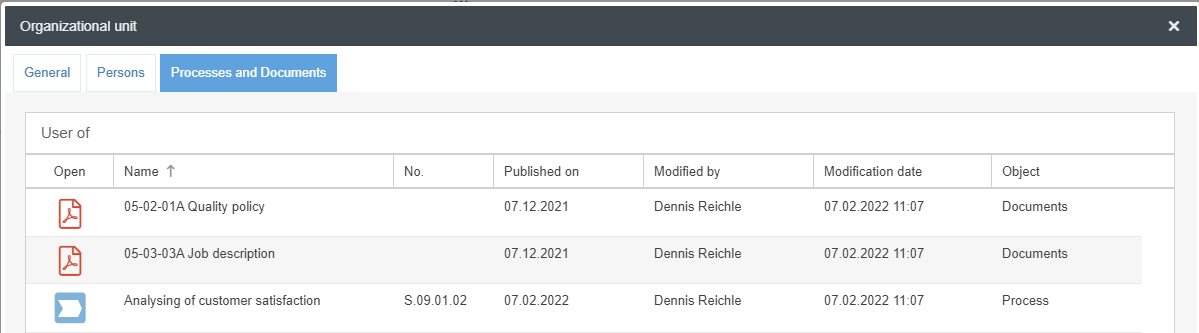
- In den Eigenschaften von Organisationseinheiten und Rollen gibt es einen neuen Reiter 'Prozesse und Dokumente'. In der dortigen Tabelle 'Anwender von' wird aufgelistet, bei welchen Prozessen diese Organisationseinheit / Rolle als Prozessbeteiligter und bei welchen Dokumenten als Dokumenten-Anwender eingetragen wurde.
Case processing
- A new list "Closed cases" is now available in the menu of the individual workflow applications. In the Actions menu, for example, this list displays all closed actions to which the logged-in user has read access.
- When reopening a closed case, the workflow is now only restarted after an additional manual saving of the case details, so that the case can be edited before any automated workflow steps are executed.
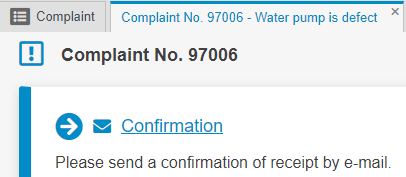
- When the workflow steps Forward case or Send email are executed manually in the case window, an icon is now displayed in the task link to better distinguish these actions visually from normal activities. For e-mails, the name of the activity from the process model is now displayed instead of the previous standard text 'Create message'.
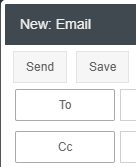
- When sending ad-hoc emails from the case window, contacts or users are now selected using the <To> and <Cc> buttons instead of the magnifying glass icon.
- The error message for input errors in forms is now displayed directly below the affected field (This also applies to input errors in all other menus besides workflow forms). For workflow forms, a banner additionally summarizes which input errors were made.

- In forms, the handling of date fields with time has been optimized. The date and the corresponding time are now entered in two separate fields.

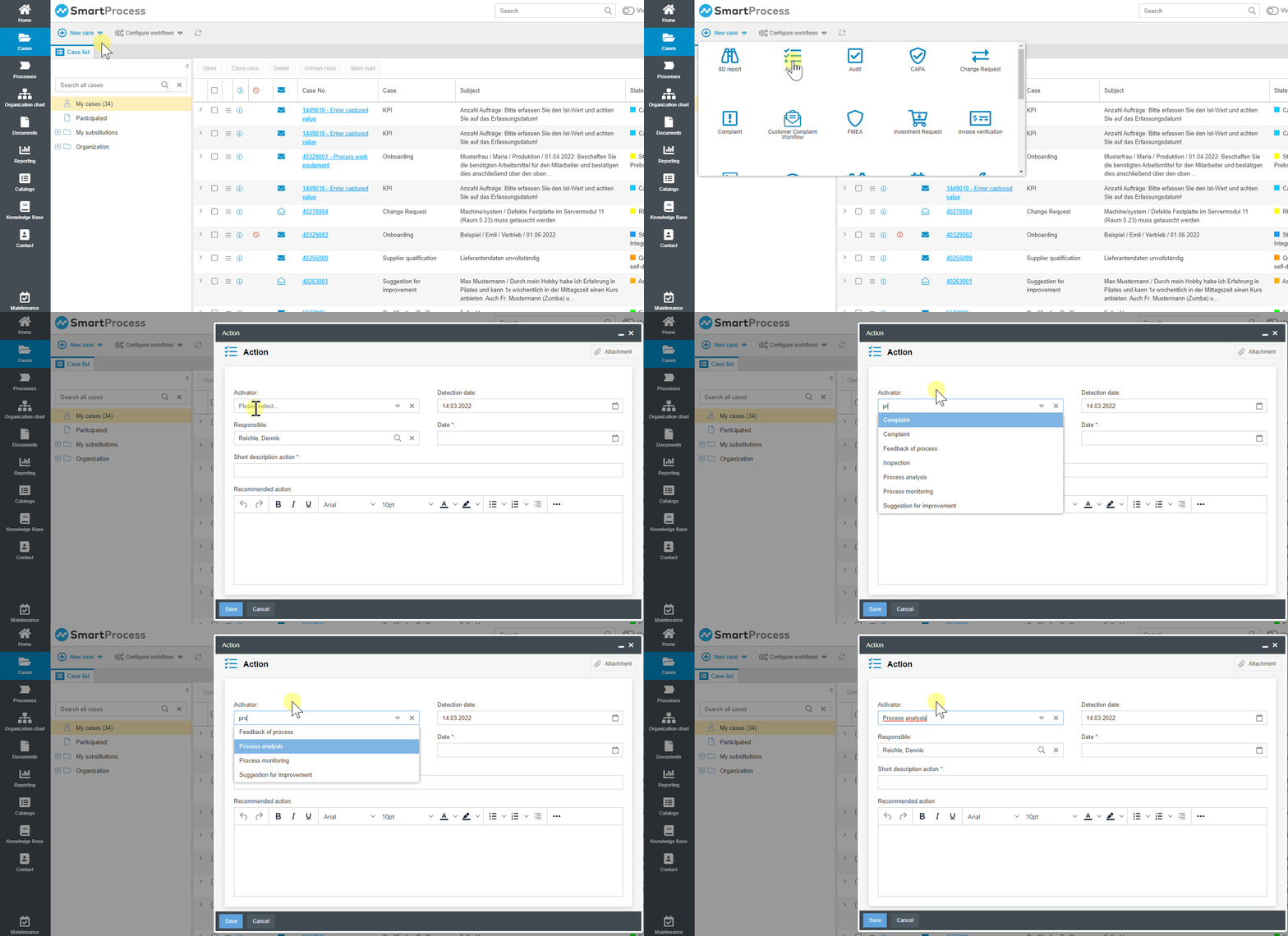
- In drop-down lists with single selection, it is now possible to filter the list entries by keyboard input (this applies not only to workflow forms, but also to almost all other menus in which drop-down lists occur).
Workflow modeling
- Form Designer - If a checkbox has been configured as a mandatory field in the field properties, this checkbox must now be activated before saving the form.
- Form designer - The new Validation function in the general field properties can be used to define conditions that must be true in order for the form to be saved (e. g. that an end date cannot be before the start date or that a field must be filled under certain conditions).
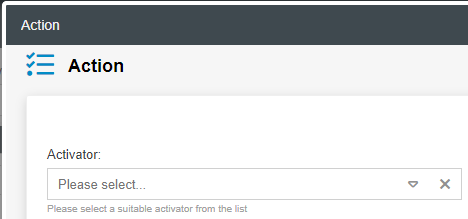
- Form Designer - In the properties of a field, it is now possible to enter an input hint that is displayed to the user directly below the field when filling out the form.
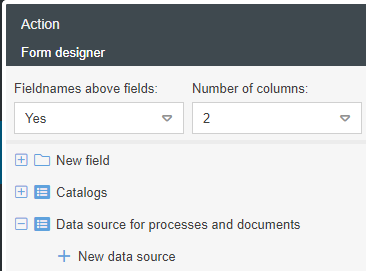
- Form designer - In the area of available fields there is a new field type "Data source for processes and documents". With this, the information from each object that can be evaluated in the reporting for processes and documents can be integrated as fields in the workflow form, e. g. in order to select a process, document or IT system just like from a catalog.
- Form designer - With the function 'Visibility same as field' free inputs can be shown/hidden together with another field or field group.
- Form designer - For catalog fields there is now a field property 'Create new activity from the catalog'. This can be used to determine whether or not users should be able to create new activities by selecting multiple catalog entries at once (e. g. audit questions for an audit case).
- Form designer - In the work area of the form designer, only free areas are marked with a dashed frame. If a field has already been placed in an area, the dashed frame is omitted.
- Form designer - Fields in the "Invisible fields" area can now also be deleted directly via the context menu (right-click).
- The workflow hint for activities, forwardings and decisions can now be formatted with an HTML editor.
- In the menu Cases and on the start page in the element 'My applications' it is possible to switch to the configuration of active workflows via the new button <Configure workflows> or to create a new workflow.
- The design of the Workflow settings window has been revised and in the course of this the selection of the icon for the workflow has been improved.
- New placeholders have been added for Word reports of cases, among others for the current responsibility of the case, for the creator of the Word report and for case attachments including images from e-mail traffic.
- When importing workflows, text modules that have been configured for the workflow are now also imported.
- When importing workflows, Word reports that have been configured for the workflow are now also imported.
- When importing workflows, catalog configurations are now also imported if catalog fields are used in the forms.
Mobile Web App
- Mobile Web App - Date fields with time information in workflow forms are now supported in the mobile web app.
- Mobile Web App - Text fields with data source 'Organizational unit' are now supported in the mobile web app so that an organizational unit or role can be selected for subsequent forwarding, for example.
- Mobile Web App - The field properties visibility constraint, set values and validation are now supported in workflow forms.
- Mobile Web App - Manual forwarding of cases is now supported.
- Mobile Web App - The details of a case now show who is currently responsible for the case and by whom and when the case was created or last modified.
- Mobile Web App - Unique URLs to processes, documents, and cases can now be opened directly from the mobile web app.
Reporting
- The display of diagrams in reporting and the resulting Excel exports have been modernized.
- In reporting, evaluations for the area of process and document management can now be displayed as diagrams.
- In crosstab reports, the first column now remains fixed when scrolling horizontally. This means, for example, that the employee names in the qualifications matrix remain visible when the user scrolls horizontally through the qualifications.
- The properties of standard reports and folders in the Reporting menu now show when and by which user the item was created and last modified.
- In reporting for processes and documents, it is now also possible to evaluate the "Applicable documents" object (document folders from process modeling).
- The 'Tasks' field from the properties of an organizational unit can now be displayed as a column in reporting.
- In list reports, the buttons for export and column configuration have been integrated into the footer for browsing through multiple results pages.

General
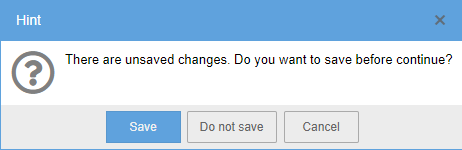
- The display of the hint window asking whether unsaved content should be saved when closing a window has been standardized application-wide.
- A REST/OData interface has been defined for SmartProcess, with which third-party applications can trigger actions in SmartProcess. To start with, catalog entries can be read, created, modified and deleted via this interface.
- In the new Date and Time setting, the default format for displaying date and time values can be defined for the entire application.
- Changes to the main menu
- The link to the Help Center is now anchored at the bottom left of the main menu.
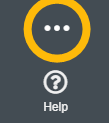
- The extended main menu can now be accessed via the icon with the three dots in the lower left corner.
- In addition, the behavior in the main menu has been adjusted when a large number of menu items are displayed. A scroll bar no longer appears - instead, icons for which there is no more space are automatically moved to the extended area and can be called up via the three dots.
 Vorher: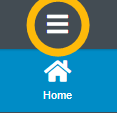
- Every knowledge base entry can be exported and saved as a PDF file.
- When creating new users, a language can initially be selected in which the e-mail with the access data is sent.
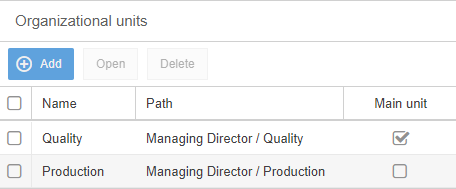
- The assignment of organizational units to users has been revised. Instead of drag & drop assignment, organizational units in the user profile are now assigned in a list.
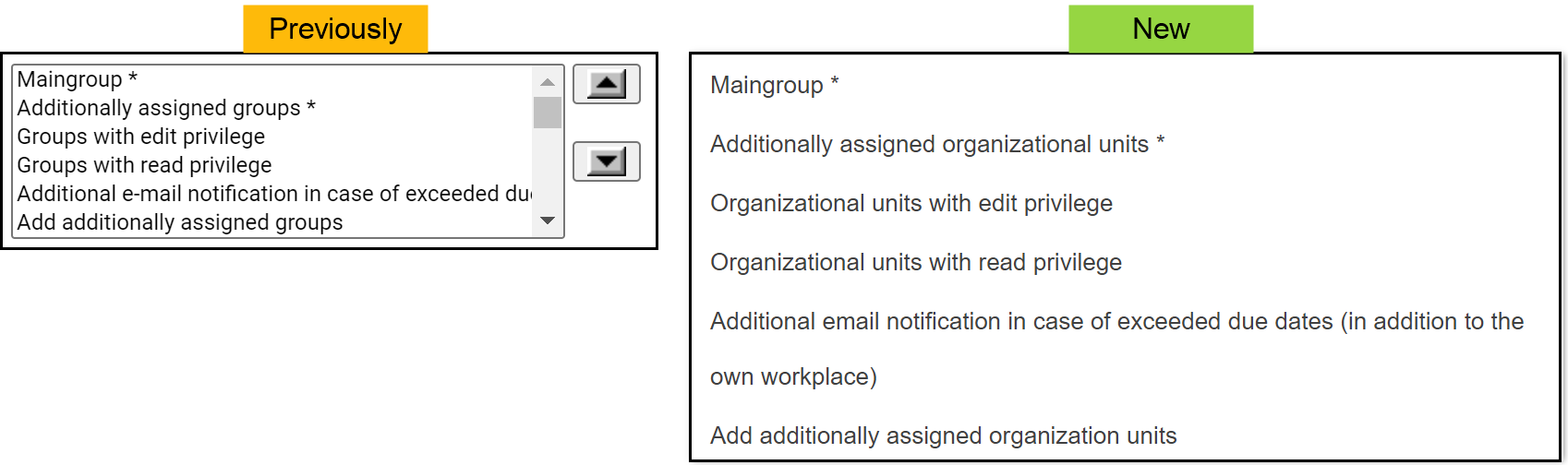
- The terms organizational unit, org. unit and group have been unified application-wide with the term organizational unit. This has also changed the names of some columns for user import. Existing templates for user import should be checked for these new column names.
- In the user administration, it is now possible to create a qualification profile for several users at the same time (Only available with the Qualification Management module).
- In the settings for process management and document management, the fields Process owner and Document responsible can now be declared mandatory fields for the entire application.
- In text modules for system e-mails and case e-mails, there is a new placeholder "Recipient salutation (complete with title)", which can be used to address the e-mail recipient including his title.
- E-mail settings - When new cases are automatically created from imported e-mails, the mail address of the sender, the recipient and the CC recipient can now be stored in fields in the form, e. g. to send targeted responses to the senders and all recipients.
- If a unique catalog field in the form is automatically filled by creating a case via a read-in e-mail, the other catalog fields in the form are automatically filled as well.
- For SaaS solutions, it can be set that the URL can only be opened by certain IP addresses (IP filter).
- Various windows have been adapted to the more modern design of other SmartProcess menus (including column configuration in lists, catalog configuration as well as the setting pages import dialogs, languages, unavailability)
You can see your current version in the menu Settings - Info about version - Version.
How did we do?
Version 22.5 Release Notes
Version 21.3 Release Notes
