Table of Contents
E-mail settings
The e-mail settings are required to send e-mails from SmartProcess and to receive and read e-mails into SmartProcess. When SmartProcess is installed, a standard email profile is set up, but this only…

Table of Contents
The e-mail settings are required to send e-mails from SmartProcess and to receive and read e-mails into SmartProcess. When SmartProcess is installed, a standard email profile is set up, but this only covers sending and cannot be configured for receiving.
In addition to the server settings, you can also define rules for handling incoming e-mails.
New Mail Profile
Outbox
The following outbox settings can be made.

- Name -> A custom name for the e-mail profile in SmartProcess
- Host -> The computer name (e.g. mail.yoursmtpserver.de) or IP address of the SMTP server.
- Protocol -> Selection of the e-mail transmission protocol (smtp or smtps)
- Port -> Port -> Determine the network port used. The default ports are:
- smtp -> 25 (not encrypted) or 587 (with authentication)
- smtps -> 465 (encrypted)
- SMTP-Login -> The login name for the SMTP server
- SMTP-Password -> The password for the SMTP server
- E-Mail sender -> The e-mail address to be used as the sender in outgoing e-mails.
- E-Mail sender name -> A custom name that the e-mail recipient reads in his or her e-mail account as the sender of the e-mail (leave this field blank, the address in the "E-mail sender" field will be displayed)
- Use as default setting -> If this is activated, all automatic system e-mails are sent from this e-mail account. If an e-mail is sent ad-hoc from a case, this e-mail account is preset as the default sender. Only one e-mail profile can be set as default for sending.
- Test settings -> When you click on the button, a window appears in which you can enter an e-mail address. If the settings for the outbox are configured correctly, you will receive a confirmation message and the test e-mail will be sent. Otherwise you will receive an error message and have to adjust the settings.
Inbox
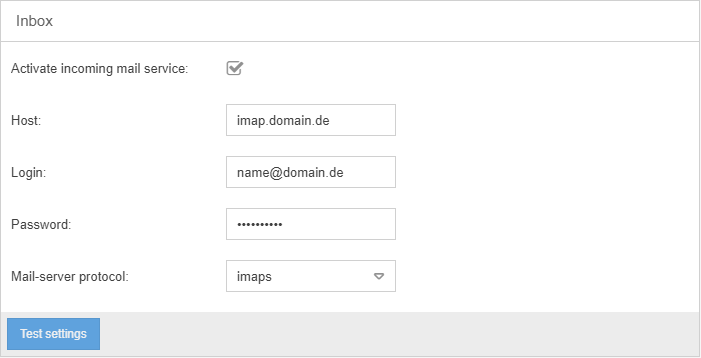
- Activate incoming mail service -> With this checkbox you can make CWA SmartProcess check the mail server for new e-mails
- Host -> The host name or IP of the POP3 or IMAP server
- Login -> The login name for the POP3 or IMAP server
- Password -> The password for the login
- Mail-server protocol -> The server protocol for incoming e-mails (POP3 or IMAP)
- Test settings -> SmartProcess tries to connect to the e-mail server. If this is successful, you will be shown how many e-mails are currently in your inbox. Otherwise you will receive an error message and can adjust the settings.
If a received e-mail contains a case number in the subject line for which a case exists in SmartProcess, the e-mail is assigned to the case. The following happens:
- The incoming e-mail is scanned from the server into SmartProcess.
- The content and the attachments of the e-mail are created as an item in the activity list of the corresponding case.
- The person/organizational unit currently responsible for the case is notified by e-mail that a new message has been received for the case.
- After scanning, the e-mail is removed from the inbox of the server.
Processing incoming e-mails
If the incoming mail service is enabled in the Inbox settings, you can specify how SmartProcess should handle the e-mails in the server's inbox.
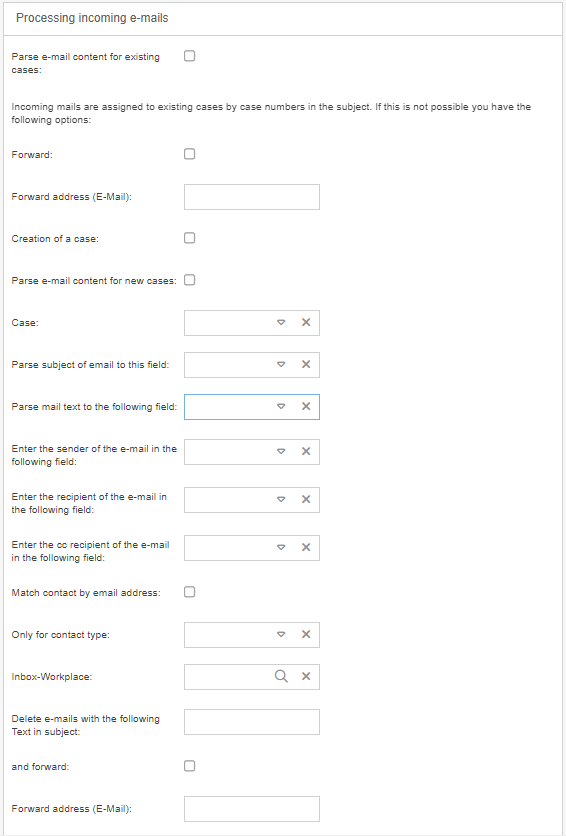
Parse e-mail content for existing cases
If a received e-mail contains a case number in the subject line for which a case exists in SmartProcess, the e-mail is assigned to the case. The following happens:
If the subject of a received email contains a process number for which a process already exists in SmartProcess, the content from the email is assigned to the fields of the same name in the main form and overwritten if necessary.
For example, if the mail contains the text "Name = Sample", an existing "Name" field in the form is filled with the value "Sample".
If it is not possible to assign the e-mail to an existing case using the subject, you can process the e-mail differently:
Forward | You can set up a forwarding so that the received e-mail can still be processed. In the Forward address (e-mail) field, you can specify the recipient of the forwarded e-mail. |
Automatically create a new case | In those situations where the e-mail cannot be assigned to an existing case, you can make SmartProcess create a new case automatically. This function can be used to implement ticket systems as a workflow, for example. The following parameters are available for this purpose (required parameters for this function are marked with an *):
Only active workflows are available in the drop-down list.
The following settings can be usefully combined with the workflow object Send e-mail, e.g. to reply directly to the sender of a complaint later.
If the following prerequisites are given, a contact from the contact management can be added directly to the new case:
If no contact is found for the e-mail address, the contact fields remain empty when the case is created. If several contacts are found for the e-mail address, the fields are filled with the data of the first contact found.
In the Inbox work place* field, specify an organizational unit/role from the organizational chart to which this case should first be assigned. If you do not make an entry, the case is created but not displayed to any user in his or her case list. The responsibility for the case can be changed again by subsequently modeling forwardings in the workflow.
Among other things, this setting can be used to prevent automatic out-of-office messages or spam mails from being scanned into the system.
|
New Exchange Profile
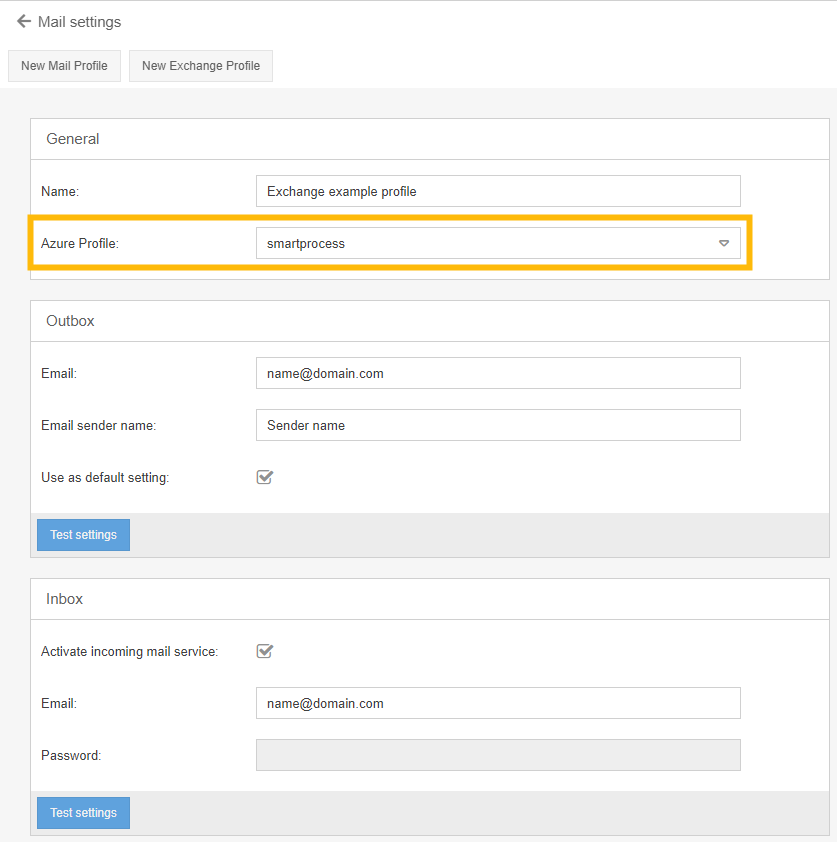
Instead of an email profile with authentication via smtp, pop3 or imap, profiles for an Exchange account can also be defined in SmartProcess.
In this case, the account is authenticated via an Azure profile, which is why no computer name, login name and password are requested in the mask. For this purpose, the Azure profile must be created in the Directory Services and Single Sign-On settings item and prepared for use.
How did we do?
Signatures
