Table of Contents
Full text search
General. The full text search in the application header allows you to search several menus simultaneously for keywords. These include: Process groups, processes and tasks. Documents. Cases. Wiki. All…

Table of Contents
General
The full text search in the application header allows you to search several menus simultaneously for keywords.

These include:
- Process groups, processes and tasks
- Documents
- Cases
- Wiki
All fields belonging to the object are searched, i.e. for processes and documents also the details and for cases every form field.
Working with the search
The default behavior of the full text search is to look for an exact match when searching for a word.
Example: A search for vacation will only search for this exact term and will not return results that contain the plural vacations.
Using operators
To optimize the result output, different search operators can be used in the full text search. The following table lists some examples:
Search term | Result |
 | Shows results that contain the exact word "business", e.g. not "businesses". |
 | Shows results that contain either the term "business" or the term "trip". |
 | Shows results that must contain the term "trip" (this is caused by the operator +) Results that also contain the term "business" are ranked higher in the results list, but the term is not mandatory for the search result. If both terms should be included in the result, the required search term would be "+business +trip" |
 | Shows results that contain the term "business" without the term "trip" appearing in the same result (This is caused by the - operator). |
 | Shows results that contain the word "business" either exactly or with any number of following characters, i.e. also "businesses" (This is caused by the operator *) The operator * cannot be used as the first character of a search query. |
 | Shows results that contain the word "business" either exactly or with exactly one following character, so "businesses" will not be found (This is caused by the operator ?) The operator ? cannot be used as the first character of a search query. |
 | Shows results that contain exactly the (partial) phrase in quotation marks. Without the quotation marks, the system would search for results that contain either the term "business", "trip", "to" or "Tokyo" |
The result view
After running the search, a list of results is displayed.
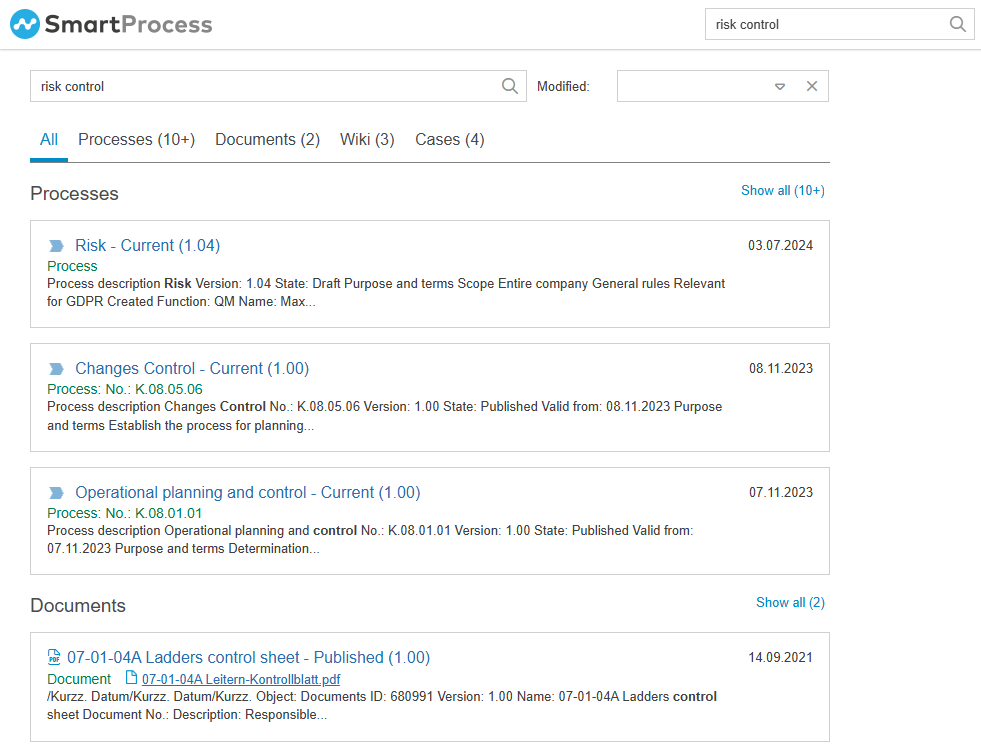
So, if the search is started from the Processes menu instead of the home page, the tab with the results for processes is automatically in focus first.
In the results view there are different options for more actions:
- Some actions depend on the focused tab:
- In the All tab, the Show all button can be used to open the results list of a specific menu.
- In the Processes tab, you can decide whether process groups, processes, sub-processes and tasks are to be included in the results list.
- In the tab Cases the displayed cases can be filtered in detail by the case type.
- The search can be executed again with a different search term.
- The displayed results can be filtered according to when they were last edited. The options are Last modified within the last week, the last month or the last year.
- Clicking on a search result opens the process, document, case or Wiki item.
Since 10 results are always displayed per page, it is possible to browse using the page navigation if there should be more search results.
How did we do?
Customize main menu
