Table of Contents
Scope and structure of the organization chart
Introduction and meaning. The organization chart can be opened from the main menu by clicking the <Organization Chart> button. In addition to displaying the organizational structure of a company, it…

Table of Contents
Introduction and meaning
The organization chart can be opened from the main menu by clicking the <Organization Chart> button. In addition to displaying the organizational structure of a company, it is an integral component in the
- Control of authorizations
- Personalized display of processes and documents
- Delivery of personalized notifications
- Assignment and editing of workflow processes
Use of the organizational structure in process management and document management.
Organizational units, groups and roles from the organization chart can be assigned to swimlanes and thus tasks in a process. This makes it visible to external parties who performs which tasks in the processes, and to stakeholders which processes are relevant to them (e.g., in My Processes).
Via reporting, you can evaluate which organizations and roles perform which tasks or are responsible for them.
Similar to processes, organizational units and roles can be defined as Document-Users in a document. Using this assignment, the system determines which users a document is displayed to in the My Documents list and which users are notified by e-mail when a new version of the document is published.
Structure of the organization chart
The application page is structured in three parts:
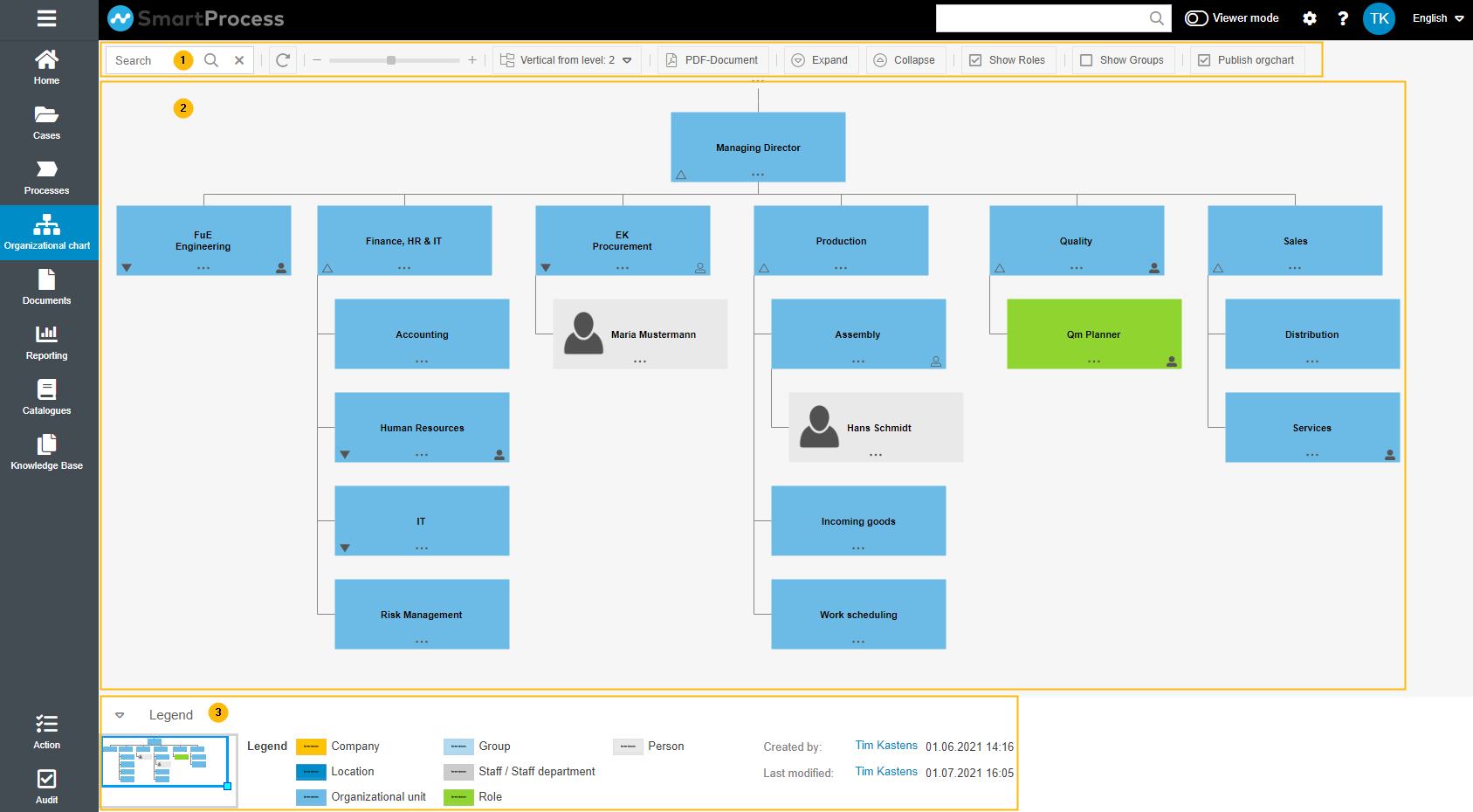
|
The initial state can be set in the settings
Which logo is used in the printout and how it can be customized, we explain here
Hidden objects cannot be found via the search function The initial state can be set in the settings
|
| Here you can view and edit the organization chart 
|
|
You can customize the color scheme in the settings
|












Object types in the organization chart
The organization chart consists of three different object types:
Organizational Unit and Group.
The Organizational Unit object can be either an organizational unit, a company, a group, a location, a staff unit or a staff department.
Role
The Role object denotes a position within a department and can also be understood as a function.
Person
The person is the user assigned to the corresponding object.
How did we do?
Editing the Organization chart
