For general information on managing authorization profiles, see the Introduction to authorization profiles article. In the Administration tab, you assign general access rights for basic settings of t…
In the Administration tab, you assign general access rights for basic settings of the application and for the possibility to import data into the application.
Application
These permissions can be executed only by users with a Designer license.
Configure basic settings of the application
If this option is enabled , the users are allowed to change various basic settings of SmartProcess in the Settings menu. These include:
Create and edit reports with the Word Report Designer
If this option is enabled , the entry Word Report Designer for printouts will be displayed to the users in the settings. This can be used to edit Word reports, such as the process description or the audit report.
To create new and own Word Reports for cases, the separate module Word Report Designer is necessary.
Create and edit news on the start page
If this option is enabled , the users are allowed to create new entries, edit existing entries, and configure read and edit access for news entries to specific organizational units in the News window on the start page.
Set customizations of the main menu and start page as the default for the application
If this option is enabled , the users are allowed to set the items displayed and their order for the start page and the main menu on the left side of the screen as the default for all users. To do this, users can arrange the elements as they wish and then right-click to select <Save as standard>.
This action will overwrite the previous appearance of the start page and main menu for all other users.
Set column settings in tables as default for other users
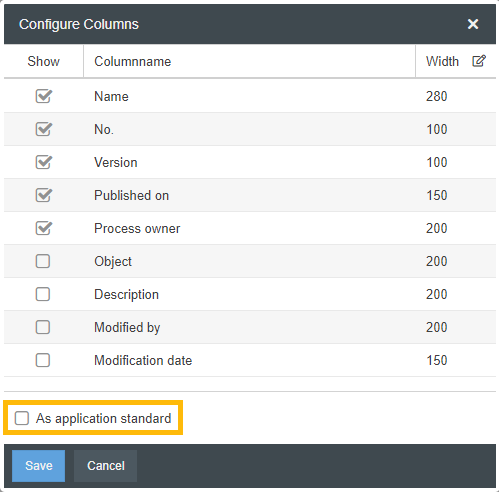
If this option is enabled , users are allowed to set the arrangement of table columns in various lists (e.g. My Cases) as a default configuration for all users.
To do this, the user can show and hide columns as they wish, as well as change the column width and order using drag & drop, and then save this arrangement as the standard using the <Columns> button.
This action will overwrite the previous column arrangement in the affected list for all other users.
Export and print tables
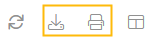
If this option is enabled , users are offered the buttons for exporting and printing in lists from various areas, e.g. cases, reports or catalogs:
If this option is enabled , the Audit Trail option will be displayed to the users in the Settings menu.
Create and edit text modules for case emails, system emails and signatures
If this option is enabled , the following options are displayed in the Settings menu for the users to access:
Text modules - Case emails --> To define e-mail text modules that can be sent automatically as part of the workflow configuration or manually during case processing.
Text modules - System emails --> For editing the wording of e-mail text modules that are sent by the system when certain events occur (e.g. sending login data to new users or notification when a new case is received).
Signatures --> To define uniform signatures that can be attached to text modules for case e-mails.
Manage maintenance access
If this option is enabled , the Manage maintenance access item is displayed to users in the Settings/Configure application menu. Corresponding changes can now be made there.
Rights for import of data
These permissions can be executed only by users with a Designer license.
In this section you define which import masks users are allowed to see and operate in the Settings menu under "Catalogs and Import" --> "Import". The procedure for importing data is identical regardless of the imported content and is explained in the article Import of data.
Importing data can significantly change and delete the data of the entire application. Only very experienced and trained users should have access to the import masks.
Import users
If this option is enabled , the users are allowed to create and edit users by import under "Settings -> Catalogs and import -> Import".
If this option is enabled , the users are allowed to create profiles in each import area, which can be used to automatically import data from .xlsx and .csv files into SmartProcess on a scheduled base.

 , the users are allowed to change various basic settings of SmartProcess in the Settings menu. These include: