Table of Contents
- 1 - Defining basic settings
- 2 - Organization chart
- 3 - Catalogues
- 4 - Modelling conventions
- 5 - Standard format for modeling objects
- 6 - User-defined fields
- 7 - Document templates
- 8 - Automatic document numbering
- 9 - Handling file attachments
- 10 - Multilingualism
- 11 - Prepare data structure & insert contents
- 12 - Check authorization structure
- 13 - Define standard views
- 14 - Create user & roll out system internally
Initial configuration SmartProcess - Process and document management
After installing CWA SmartProcess, some preparatory steps are recommended before the system is filled with processes and documents. This chapter shows a possible approach to the content structure of…

Table of Contents
- 1 - Defining basic settings
- 2 - Organization chart
- 3 - Catalogues
- 4 - Modelling conventions
- 5 - Standard format for modeling objects
- 6 - User-defined fields
- 7 - Document templates
- 8 - Automatic document numbering
- 9 - Handling file attachments
- 10 - Multilingualism
- 11 - Prepare data structure & insert contents
- 12 - Check authorization structure
- 13 - Define standard views
- 14 - Create user & roll out system internally
- 1 - Defining basic settings
- 2 - Organization chart
- 3 - Catalogues
- 4 - Modelling conventions
- 5 - Standard format for modeling objects
- 6 - User-defined fields
- 7 - Document templates
- 8 - Automatic document numbering
- 9 - Handling file attachments
- 10 - Multilingualism
- 11 - Prepare data structure & insert contents
- 12 - Check authorization structure
- 13 - Define standard views
- 14 - Create user & roll out system internally
After installing CWA SmartProcess, some preparatory steps are recommended before the system is filled with processes and documents. This chapter shows a possible approach to the content structure of CWA SmartProcess.
1 - Defining basic settings
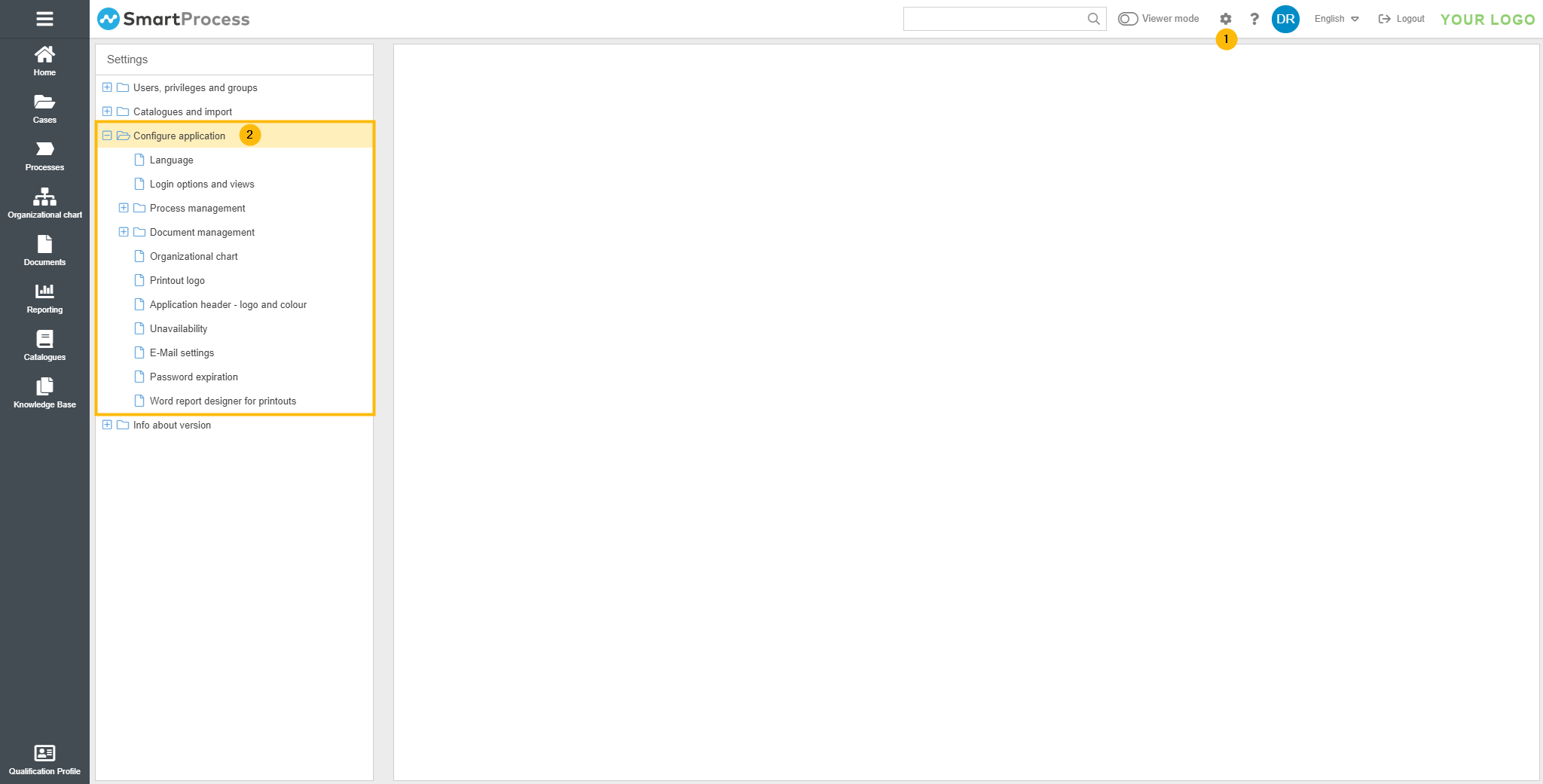
Make default settings for process and document management. To do this, navigate to the Settings menu (1) and configure Process and Document Management options as required.
2 - Organization chart
- Clarify which object types you require (object type 1 = organizational unit | object type 2 = role).
- Create the basic structure of your organization chart.
3 - Catalogues
Edit the catalogues you need for the data maintenance of processes and documents. This includes in particular:
- Terms & Abbreviations
- Standards & Requirements
Maintain the contents for these catalogues in the Catalogues menu. You can also add contents of these catalogues directly in the process details during process modeling.
You can also create a mini-wiki for users in the Knowledge Base menu.
To manage documents, you need to define the Document Types first.
4 - Modelling conventions
- In the settings for process management, specify which symbols are to be used for modeling processes and process groups.
- If several independent persons are to act as process designers in SmartProcess, we recommend that you define modeling conventions that are valid for all designers. This includes, for example
- The modeling orientation (horizontal or vertical)
- the maximum number of levels in the Process Explorer and
- whether the process models are unlimited in size or should be limited to one DIN A4 page.
In this way, you promote a uniform appearance for your process models, independent of departments.
For this purpose, you can also create templates for processes and process groups that will be used later during modeling.
5 - Standard format for modeling objects
Set the desired default formatting for the symbols in process modeling, including processes, process groups, sub-processes, tasks, and intermediate events.
6 - User-defined fields
If you want to collect information on processes and documents for which no fields exist in the standard installation of SmartProcess, create user-defined fields for this purpose. The user-defined fields can be created separately for processes and documents.
7 - Document templates
If you want to create the documents in SmartProcess based on templates, add these templates in the setting Document Templates, which you can find in Administration below the settings for document management.
8 - Automatic document numbering
In the Document Management settings, you can specify whether you want documents to be numbered automatically based on their document type. If you intend to work with country-specific documents, we also recommend that you enable the option "Append language code to automatically generated document number".
9 - Handling file attachments
Specify whether the editing and versioning of files in the Documents menu should take place in SmartProcess or whether you edit the file attachments of documents externally and link them to this editing location in SmartProcess (for example, if you have already established a well-working document management system).
10 - Multilingualism
If you want to capture your processes in more than one language, the procedure for translation should be clarified in advance.
- Option 1: Enter multilingual content directly when creating the process or document
- Option 2: Initially, enter the contents in one language only and carry out the translation using translation export and import
11 - Prepare data structure & insert contents
In the further course it depends on the procedure for linking documents whether documents or processes are created first.
Alternative 1: Create documents and subsequently link them in processes | Alternative 2: Create documents during process modeling and link them immediately |
|
|
12 - Check authorization structure
Before the internal rollout, it should be checked whether the reading and editing rights are configured as desired. This includes:
- Which different authorizations are required for access (e.g. viewer, editor, designer, administrator)? Do authorization profiles exist for these different authorization types?
- If not all contents of the system should be available to all users -> Have the corresponding process groups/processes and document folders/documents been equipped with the required reading and editing rights?
- Are sufficient licenses of the required type available for the employees?
13 - Define standard views
To ensure that your users find a well-organized system after their first login, you can define standard views in some areas of the system, e.g. for:
- Homepage
- Simple start page (view for users with a viewer license)
- Main menu
- Column configurations in lists (including operation lists, process lists, document lists)
- Saved reports for evaluations that should be available to all employees
14 - Create user & roll out system internally
After the preparations have been made, you can add users in the User submenu of the Settings. This is also possible via import. However, you can also synchronize users from Azure Active Directory.
How did we do?
