Table of Contents
Object: Task
A task is a self-contained sub-step of a process. During modeling in the Process Designer, a double-click on a task icon opens its properties. Task details. Window Properties Description / Details Vi…

Table of Contents

A task is a self-contained sub-step of a process. During modeling in the Process Designer, a double-click on a task icon opens its properties.
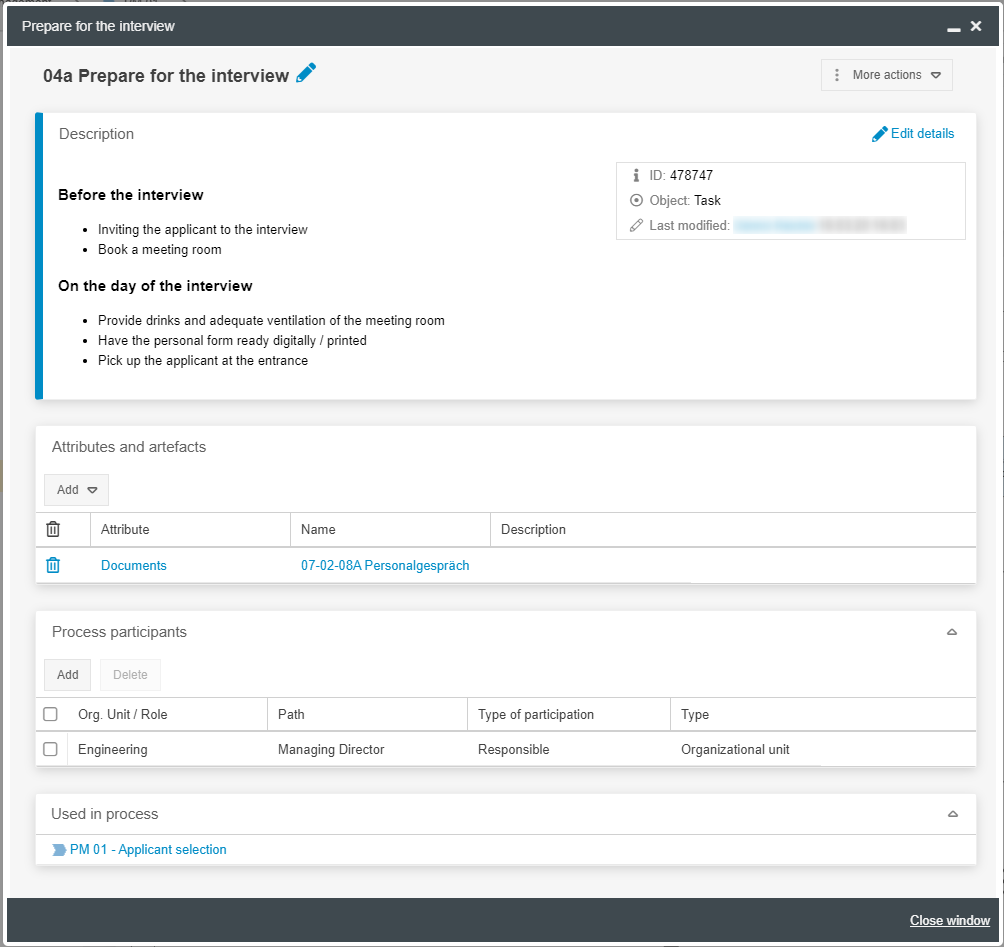
Task details
Window | Properties |
Description / Details | Via <Edit details> the name and numbering of the task can be changed. A detailed task description including images and links can be entered in an HTML text field. The small  icon in the upper right corner of the task icon shows that a task description has been entered. icon in the upper right corner of the task icon shows that a task description has been entered.The defined numbering is visible at the bottom left of the task icon. 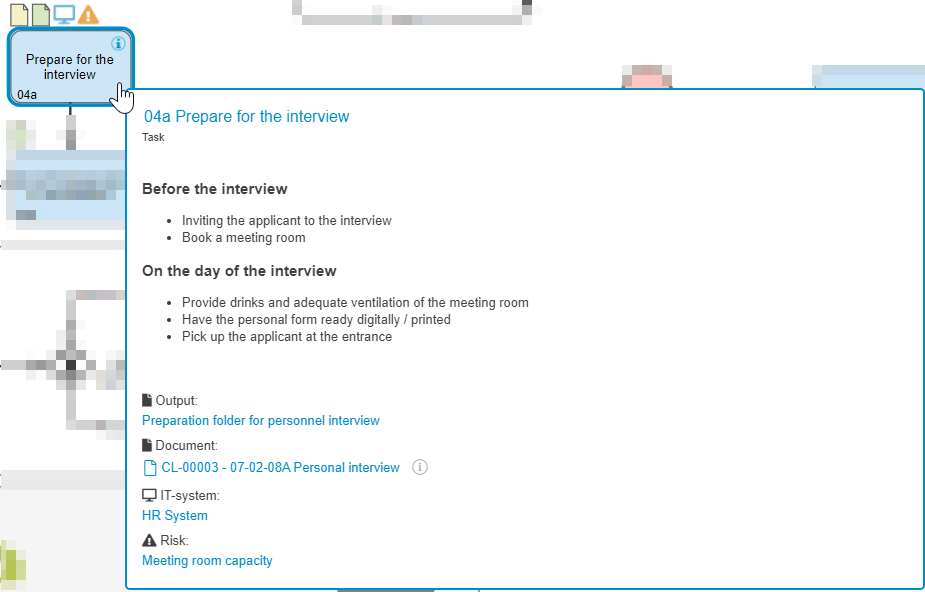 If the user points at a task with the mouse in the read-only view of the process, the description and artifacts linked to the task are shown without clicking on the task. |
Attributes and artifacts | With <Add> in the Attributes and Artifacts area, various artifacts can be linked to the task. Which artifacts were linked to which task is also visible in the PDF template process description. |
Process participants | Via <Add> in the Process Participants area, you can define which organizational units from the organizational chart perform this task. The Process participants table in the details of a task should only be used in exceptional cases. To determine which organizational units are responsible for performing a task, use swimlanes. |
Used in process | The 'Used in process' area shows the different processes in which this task was modeled (see Reusing & copying objects) |
Numbering of tasks
A number can be assigned in the details of tasks and sub-processes. The tasks and sub-processes are sorted in ascending order in the list Actions of the process details and in the process description according to the numbering.
The number is a text field, so letter/number combinations can also be used for numbering. There are 2 numbering options:
Manual numbering in the task details | To do this, open the properties of each task and enter a number via <Edit details>. SmartProcess sorts numbering by the leading digit only. Therefore it is recommended to use a 'leading zero' to ensure that tasks are sorted correctly, that is, '01' instead of '1'. |
Numbering mode in the Process designer  | By clicking on the <No.> button in the formatting bar of the Process designer, a list of all activities in the process model opens on the right-hand side of the screen. 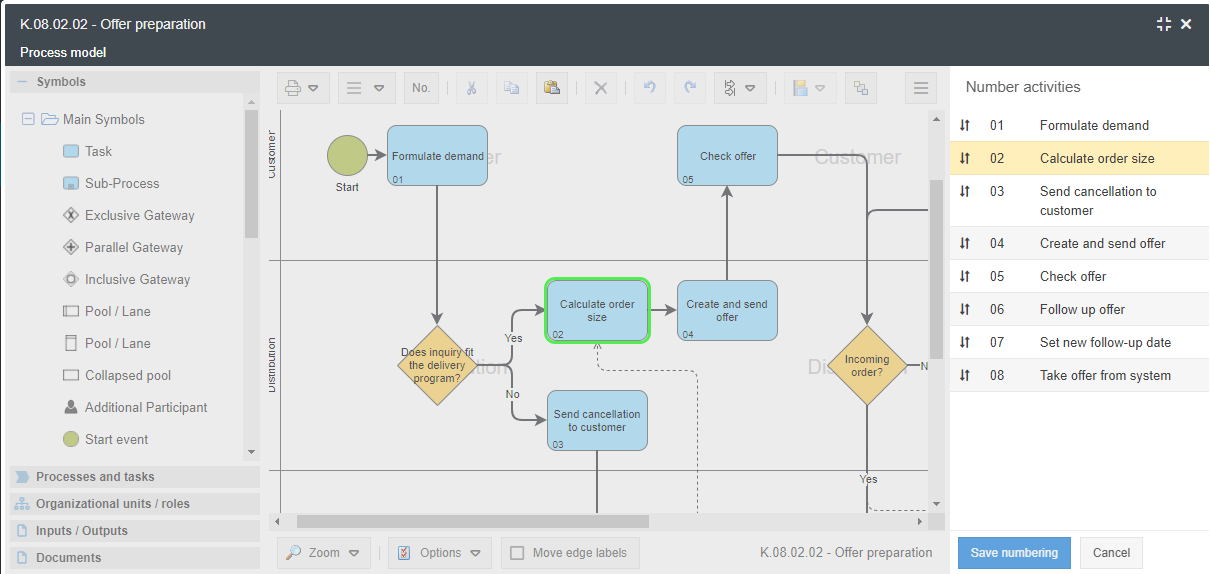 You can now drag and drop the tasks into the desired order. The currently selected task will be highlighted in the process model. You can accept the new numbering with <Save numbering> or discard it with <Cancel> and return to the previous state. The numbering made here can subsequently be overwritten again at any time via the manual numbering of the tasks. |
Task Types
By right-clicking on the task in the process model, you can optionally select a task type to specify the kind of the task.
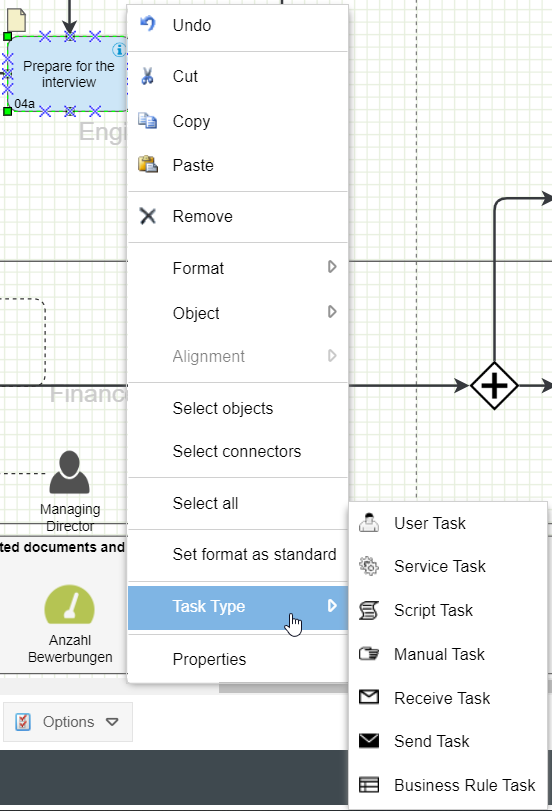
Available for selection:
User Task | Marks a task that a person performs manually after being requested to do so by an IT system. For example: An employee is prompted by the ERP system at the beginning of the month to enter a key figure and then enters the current value into the system. |
Service Task | Marks a task where service tasks are performed by automated applications or web services. |
Script Task | Marks a task that can be executed directly by the Business Process Engine. |
Manual Task | Marks a task that a person performs manually after being manually requested to do so by another person. For example: An employee receives a request from a colleague by telephone to search for documents from the archive. |
Receive Task | Marks a task that only starts when a message is received from a third person. Example: The task "Process request" can only be executed after a customer has sent a request via e-mail. |
Send Task | Marks a task that ends with a message being sent to a third person. For example: The task "Create offer" ends with the offer being sent to a prospect via e-mail. |
Business Rule Task | Marks a task to which a business rule is applied. For example: The determination of the discount for a customer depending on the duration, running costs and the order amount. |
Activity marker
Right-click on the task to specify whether and how a task is performed repeatedly.
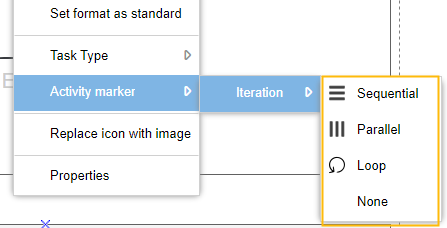
Sequential | A task that is repeated as many times as the given situation requires. Executions are done one by one and the amount of repetitions can be determined right at the beginning.
|
Parallel | A task that is repeated as many times as the given situation requires. Executions are all done in parallel and the amount of repetitions can be determined right at the beginning.
|
Loop | A task that is performed repeatedly until a defined goal is achieved. Performances occur one at a time and the amount of repetition is not predictable at the beginning.
|
None | A task that is performed once. |
How did we do?
Overview: BPMN objects
Object: Sub-Process
