Table of Contents
Risk management
With the standard application Risk, you can centrally record your corporate risks, review and assess them at regular intervals, and initiate actions to address the risks if required. The standard wor…

Table of Contents
With the standard application Risk, you can centrally record your corporate risks, review and assess them at regular intervals, and initiate actions to address the risks if required.
However, the sequence of workflow steps and the forms (input masks) can also be flexibly adapted to individual company requirements in the Processes menu.
Sequence of the risk workflow
Create
There are several ways to create a new risk case:
- Via the start page window My applications -> Risk -> Create
- Via the menu Cases -> Create -> Risk
- Via the menu Risk -> Create
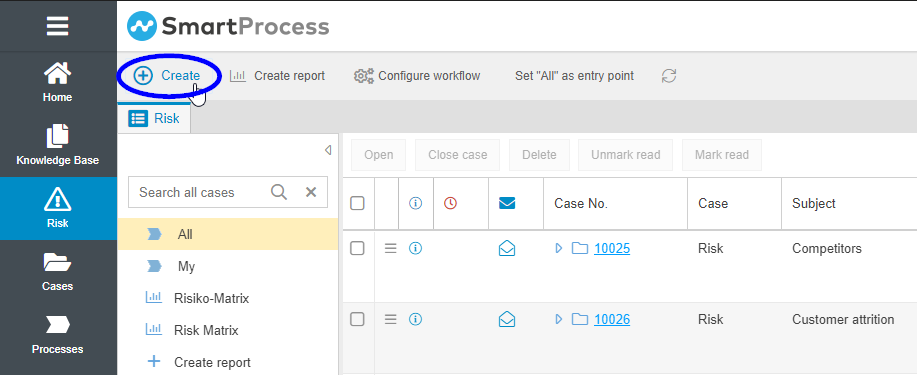
If you do not find the menu item there either, you are not authorized to create new Risk cases.
When a new risk is created, the main form opens first, where the master data is entered. The crucial fields for the further processing of the risk are:
- Risk Owner -> With a click on the magnifying glass a SmartProcess user can be selected. The risk case will be forwarded to this user after it has been created.
- Interval -> After the risk owner has performed the first risk assessment, he will be reminded by SmartProcess via e-mail at the specified interval to review the last assessment performed. So, in the example, the risk owner will be asked to check the assessment every week.
- Reminder before due date + Unit -> This selection can be used to control how many days/weeks/months before the next due date the risk owner should be reminded to review the risk. So, in addition to a due date, a reminder date will also be calculated by SmartProcess.
- Perform initial assessment immediately + Date -> This selection is only relevant for the period directly after the creation of the risk. If Yes is selected, the next activity Assess risk is triggered immediately after risk creation. If No is selected, the workflow waits in the state "Waiting for date for initial assessment" and does not make the Assess risk activity available until the specified date is reached.
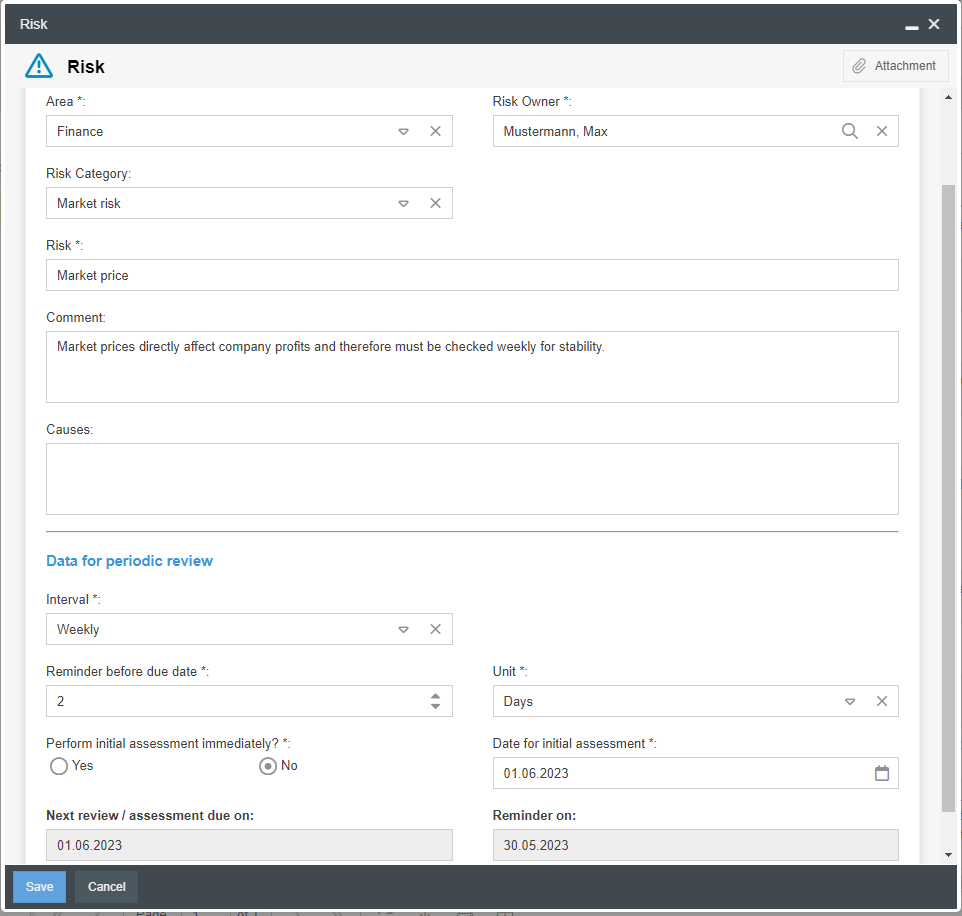
The other fields are suitable for filtering in later evaluations (Area) or serve to describe the risk (Comment & Cause).
In the area 'Display from the last risk assessment' the last recorded risk values are displayed, if an assessment has already taken place. The meaning of the fields is explained in the following section 'Risk assessment'.
Assess risk
After creating and forwarding, the first task of the risk owner is to evaluate the risk for the first time. When clicking on the 'Risk Assessment' task, the following inputs are possible:
- Effect -> This is the 1st part of the risk assessment. The effect describes in 5 assessment levels how serious the negative consequences for the company would be if the risk were to occur.
- Occurrence -> This is the 2nd part of the risk assessment. The probability of occurrence describes in 5 assessment levels how likely it is at the time of the assessment that the risk will occur.
- Risk priority -> The Risk priority is calculated as the product of the effect and the probability of occurrence. This number enables a comparison at first glance of how urgent the threat posed to the company by various risks is.
- Risk level -> Based on the effect and probability of occurrence, SmartProcess automatically determines a risk level. This has an effect primarily in reporting in the risk matrix (see section on evaluation).
- Finance effects -> If possible or necessary, the possible financial loss when the risk occurs can be recorded here.
- Assessment time -> Whether the assessment was recorded before or after actions were taken provides information on how urgent attention is needed with regard to the risk. For example, a poor assessment can be put into perspective somewhat by the fact that it was recorded before actions were taken to reduce the risk.
- Action necessary? -> Here you can select whether an action is required on the basis of the current assessment.
- If No, the next step is the 'Review Risk' task (see below)
- If Yes, the next step is the action workflow. If the risk assessment is too negative, you can use it to assign tasks to a user to deal with the risk. After creating the action, the next task in the risk workflow is then also 'Check Risk'. Meanwhile, the action can be processed by another user independently of the risk case.
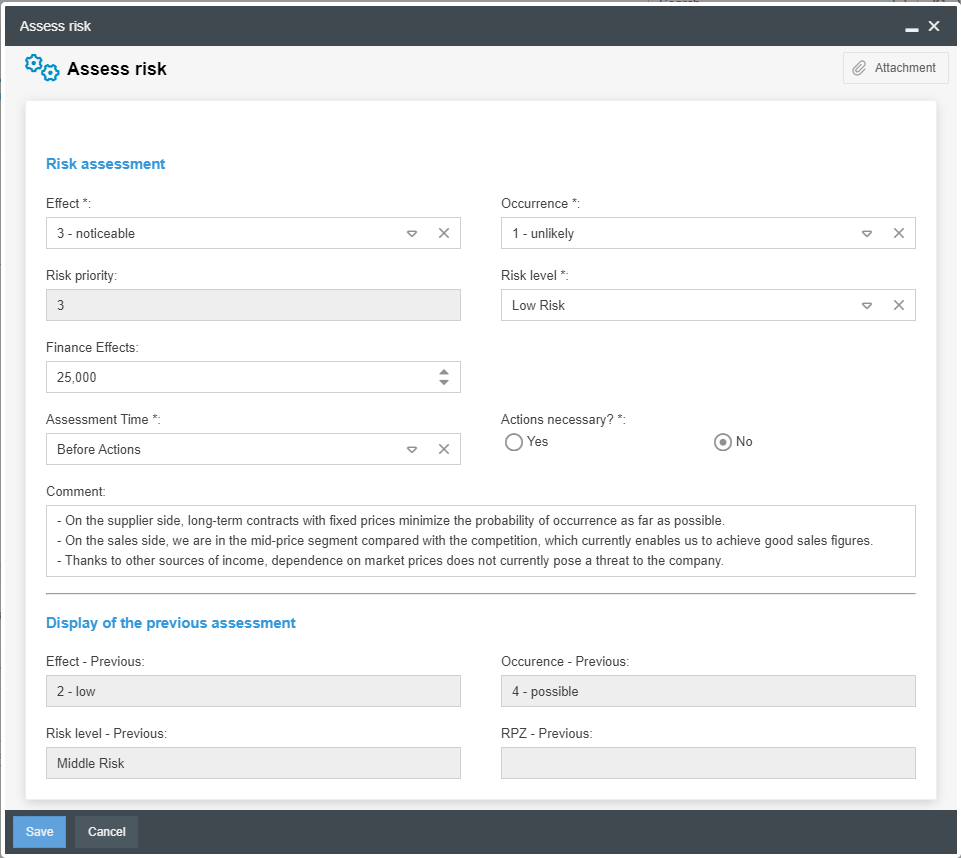
In the area 'Display of the previous assessment' the last recorded risk values are displayed, if an assessment has already taken place.
Review risk
After the first assessment, a date is calculated based on the interval, on which the risk owner is automatically reminded by e-mail to check the risk (so in the example from this help article, one week after the initial assessment).
This makes it possible to react flexibly to changed circumstances that require a check and reassessment of the risk even before the regular interval.
If such an acute case does not exist, however, the task can be ignored until the next review cycle is due.
When the risk case is opened, the 'Review risk' task can be performed with the following inputs:
- New Assessment necessary?
- Select Yes if the last assessment needs to be revised. In this case the task 'Assess risk' will be executed again (see above).
- Select No if the last assessment does not need to be revised. In this case, the 'Assess risk' task is not triggered again and the field 'Action necessary?' appears
- Action necessary?
- Select Yes if no new assessment is required, but actions are to be initiated based on the current assessment.
- Select No if the current risk assessment is OK and no actions are required.
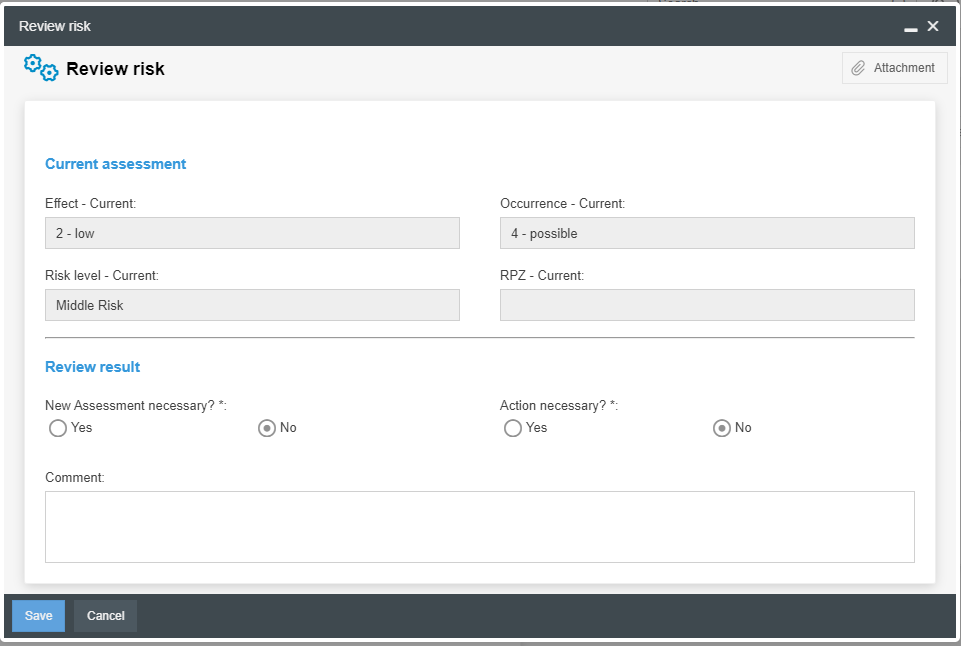
Thus, after the 'Review risk' task, either a reassessment of the risk, the creation of an action, or no further activity can be performed.
Regardless of the activities initiated, the case will eventually land back in front of the 'Review risk' task and send the risk owner a reminder email on the calculated date.
- In monitoring (Green) -> The next review is not yet due. The case will wait until the date of the "Reminder on" field is reached.
- Review required (Orange) -> The reminder date has already been reached and the risk owner has been notified for the first time. However, the due date has not yet been reached.
- Review due (Red) -> The due date has been reached and the risk owner has been notified the second time.
Evaluation
Risk matrix
With the installation of the Risk Management module, the saved report Risk Matrix is also provided.
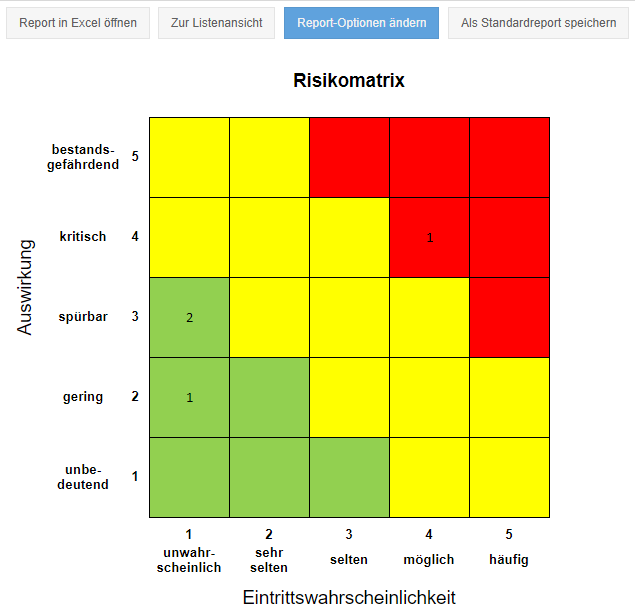
In the 5x5 matrix all risk cases are placed in a square based on their last evaluation of effect and probability of occurrence. The number in the square reflects the number of risks to be classified in the corresponding area.
For example, in the screenshot, 2 risks are currently rated with an effect of 3 and probability of occurrence of 1.
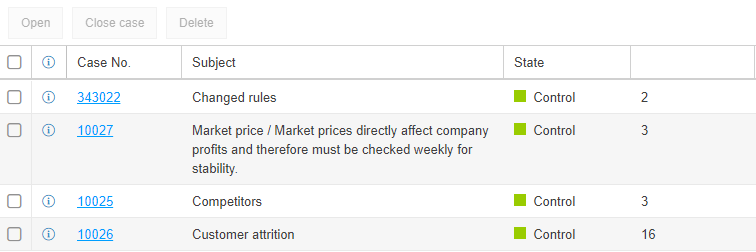
With the button 'Switch to list view' you can see more details like the names and the Risk priority of the risks.
Development of risks over time
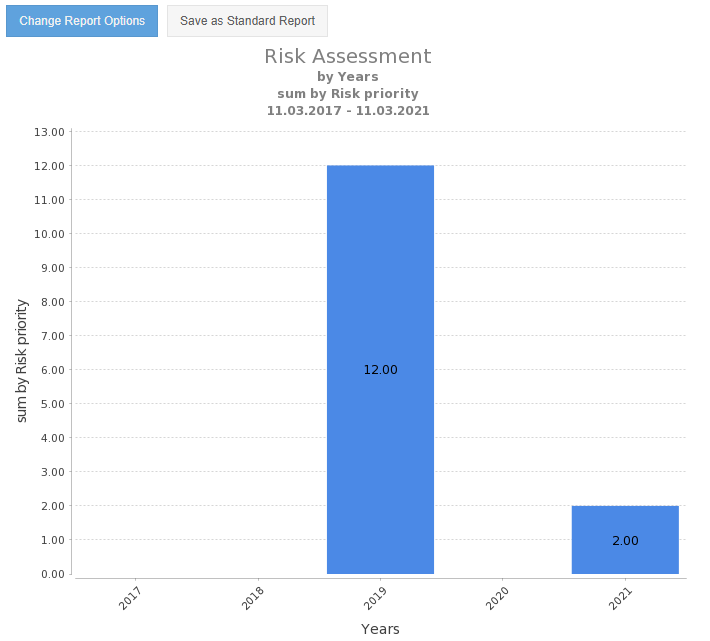
Because the 'Risk Assessment' task can be performed more than once, it is possible to track the development of key figures such as the Risk priority over time.
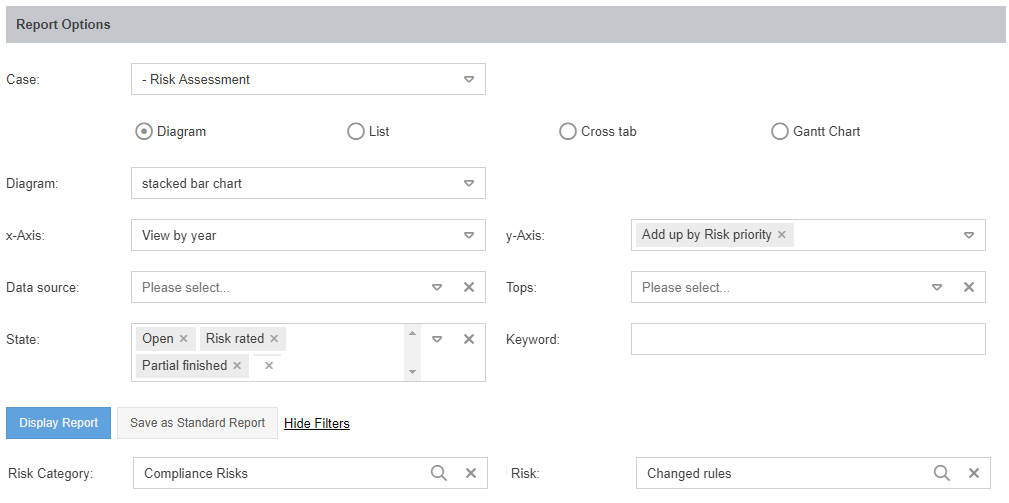
For example, the following report configuration graphically displays the Risk priority per year of the risk 'Changed rules'.
How did we do?
Training management
