Table of Contents
Contacts
In the Contacts menu, you can store the contact data of your customers, suppliers and other business partners or stakeholders. You can also use the contacts you have entered during case processing. M…

Table of Contents
In the Contacts menu, you can store the contact data of your customers, suppliers and other business partners or stakeholders. You can also use the contacts you have entered during case processing.
Manage contacts
On the left side in the contacts menu you have the possibility to filter your customers and suppliers according to various criteria. With the button <Search> you can start the filtering according to the set criteria.
On the right side all contacts found during the search are displayed. With a click on the name of a contact you can edit their data.
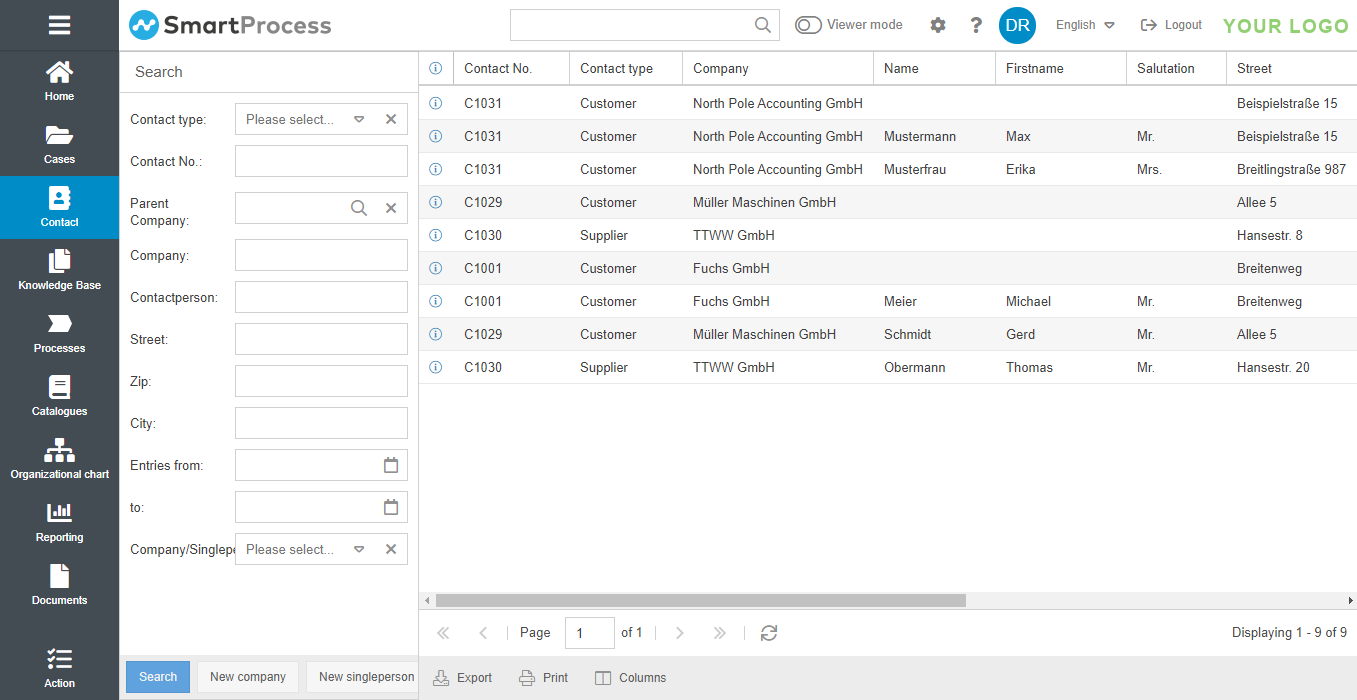
In contact management, a distinction is made between the contact classes "Company" and "Contact person", whereby several contact persons can be assigned to a company. Via the buttons <New Company> or <New single person> beneath the filter criteria you can create a new item in the contacts.
Company
In a contact of the "Company" class, the basic contact data for a business partner is entered. When you create a new company or edit an existing company, the information is divided into different sections in the editing window:
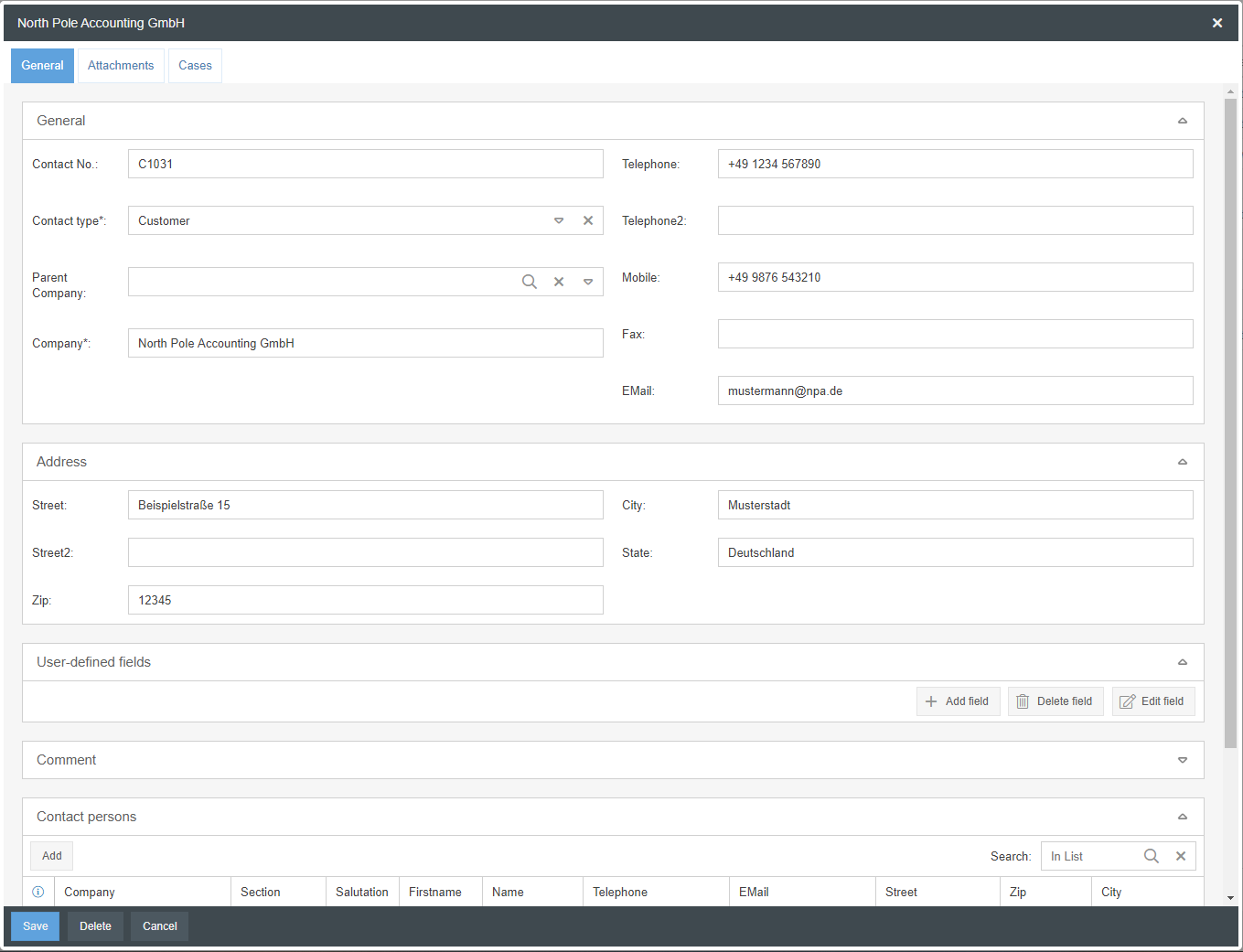
Section | Special fields & explanation |
General | Contains the master data of the company as well as general contact data or the contact data of the main contact person. Special fields are here:
In the settings you can define as many other contact types as you like, such as authorities or other stakeholders. |
Adress | Contains the address data of the (main) location of the company. |
User defined fields | If you want to enter additional information about contacts, e.g. the start date of the business relationship with the customer/supplier, you can create as many user-defined fields as you like and filter the contacts according to this information. Creating and managing these fields corresponds to the procedure described in the article User-defined fields for processes. |
Comment | A comment can be stored for each company in a multi-row text field. |
Contact Persons
In the editing window of a company contact, all contact persons of that company can be managed in the "Contact persons" area. A new contact person can be added via the button <Add>.

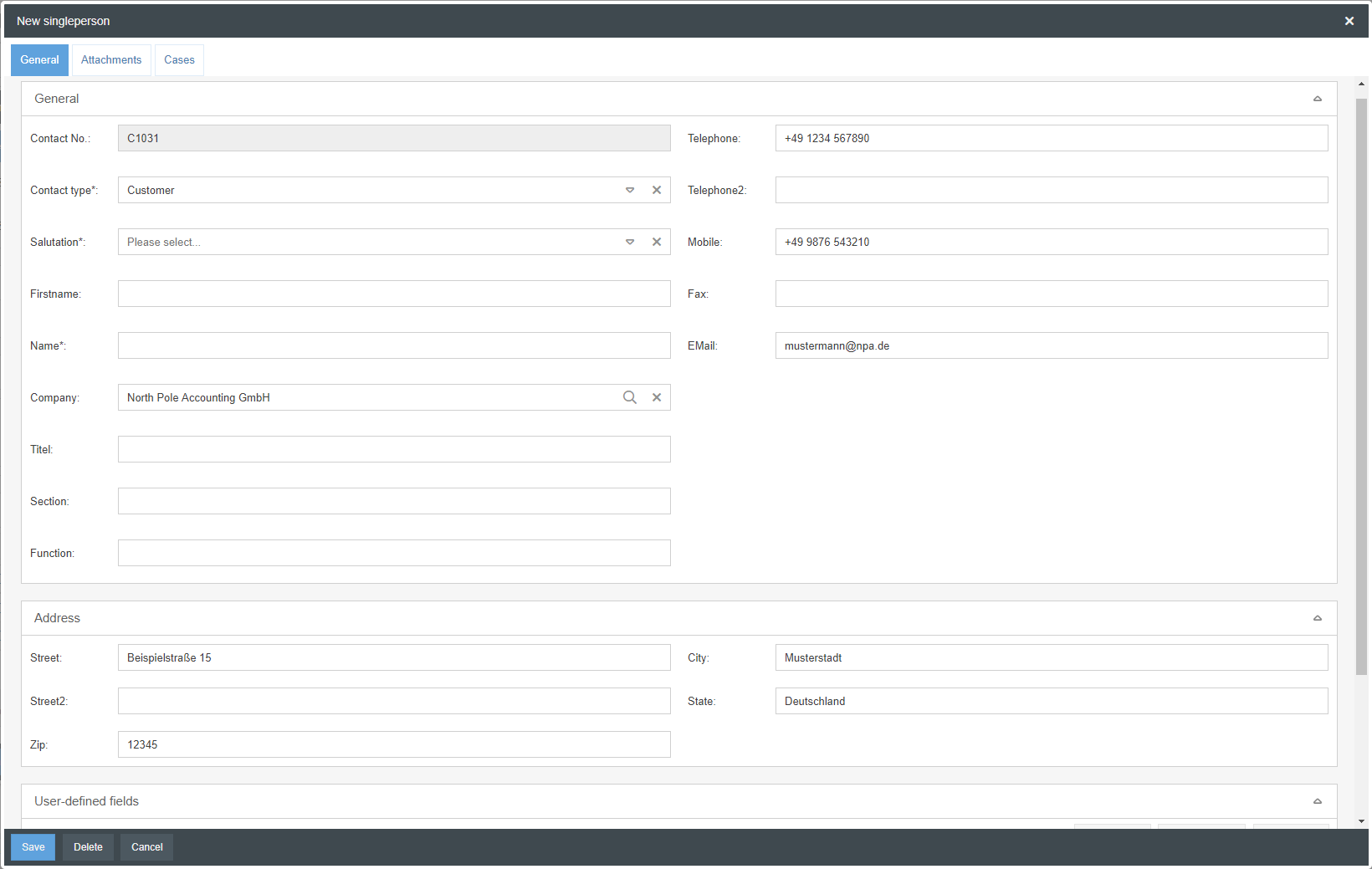
When a contact person is added, the contact number, contact type and name of the company are automatically transferred from the company to the person for a unique assignment.
Similarly, the data concerning telephone number, e-mail and address will initially be automatically transferred to the contact person if the fields have been filled in at the company contact. However, this data can be individualized for each contact person if required.
In addition to the contact data, personal information such as the function within the company or assignment to a department can also be recorded. Additional user-defined fields can also be created for persons if required.
Import of contacts
The general procedure of importing data is described in the article Import of data.
The specifics and points of attention when importing contacts are described in the article Contact import.
Use contacts in cases
When configuring a workflow form, contact fields can also be inserted. If these fields are available, the contact management can be opened with a click on the magnifying glass when creating or editing a case.

A company or a person can be selected there, for which several pieces of information are then stored in the case window.
The information on how often a company has submitted a complaint can be used for evaluations in reporting.
Similar cases
In the workflow settings of a workflow, you can define whether the number of similar cases per contact should be displayed when processing a case.
If this is activated, the "Similar cases" label shows how often the currently selected company has already triggered such a case.
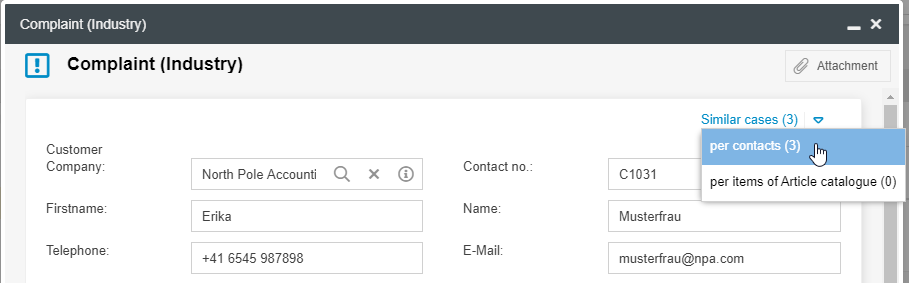
The example shows that the system already contains 3 complaint cases in which the company North Pole Accounting GmbH was also entered as the contact. Click on <per contacts> to display the previous customer complaints for this company.
Tabs Attachments & Cases
In the editing window of a contact there are other tabs besides the tab "General", where the contact and address data are managed.
Attachements
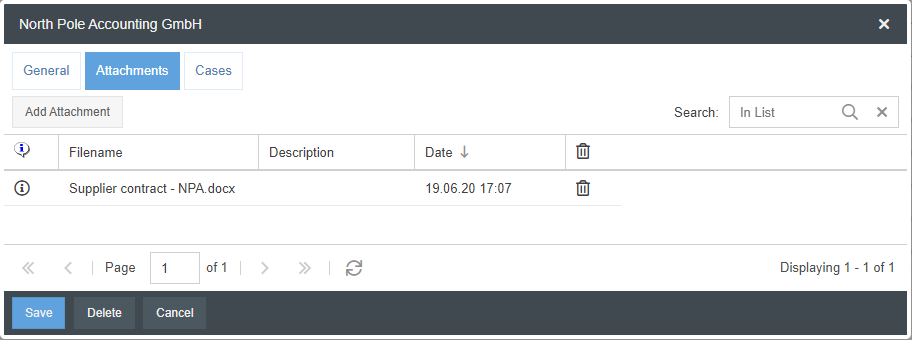
In the Attachments tab, various documents related to the customer / supplier can be added, such as contractual agreements. The following options are available:
- With the button <Add Attachment> you can select one or more files from your drive or documents from SmartProcess and add them to the contact
- With a click on the line you download the file attachment
- Using the <i-Button> in each line, you can see the name of the file as well as which user added the attachment at what time
- Via the <trashcan symbol> you can delete the attachment again
- If you have a particularly large number of file attachments, you can use the Search in list to filter the files by name
Cases
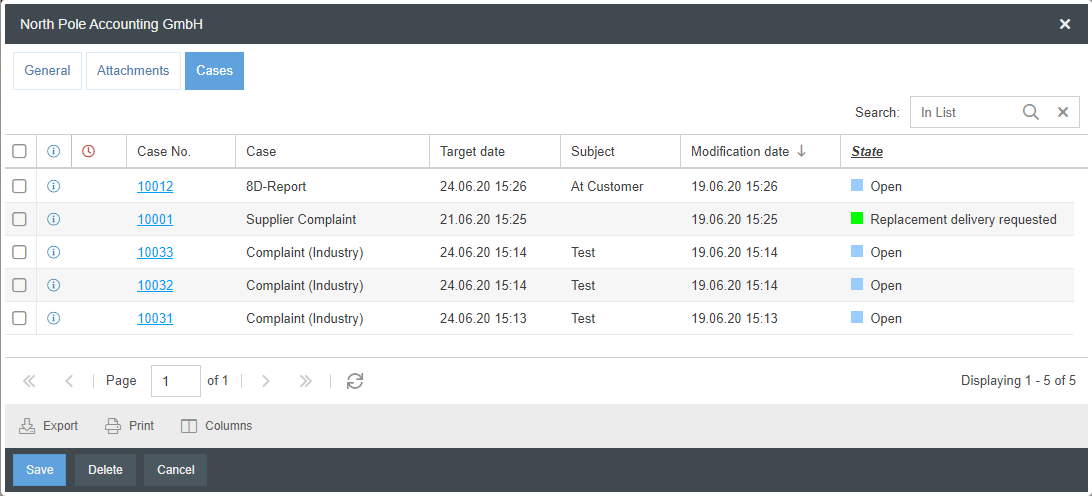
The cases tab lists all current and completed cases related to this contact.
The reference from a case to a contact is established by modeling contact fields in the workflow form, in which a company was then selected (see "Use contacts in cases" above).
How did we do?
HTML field
File attachments in SmartProcess
