Table of Contents
Training management (until version 24.9)
With the standard application Training, the execution of training courses can be prepared and documented. Additional functions integrated into the workflow allow different forms of involvement of the…

Table of Contents
With the standard application Training, the execution of training courses can be prepared and documented. Additional functions integrated into the workflow allow different forms of involvement of the training participants.
Document training courses
There are several ways to start the documentation of a training course:
- Via the menu Cases -> Create -> Training
- Via the menu item Training -> Create
If you cannot find the menu item there either, you do not have the authorization to create new training cases.
The training workflow can be used for the pure documentation of conducted trainings or can be made more interactive by selecting some extra functions. This is determined when the training case is created and can be subsequently adjusted via <Edit details>.
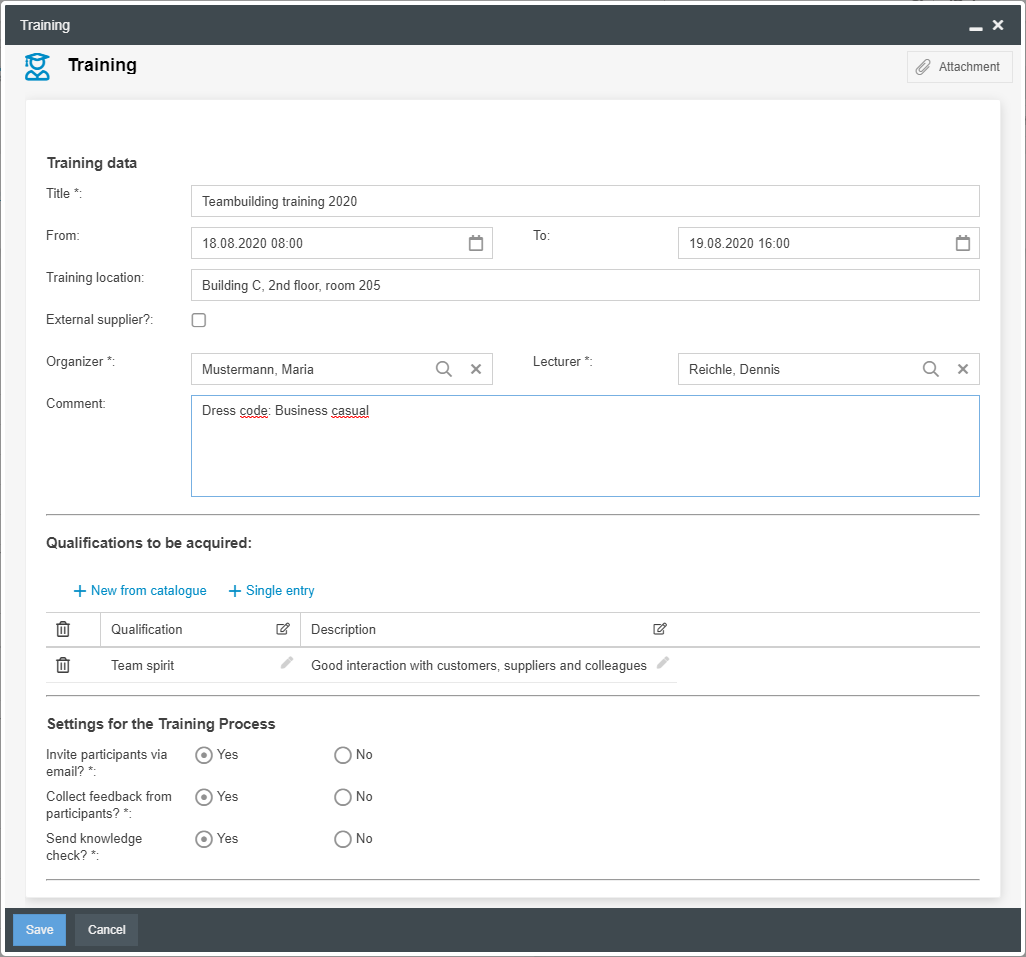
In addition to general master data, such as the title, date and location of the training course, further data can be entered that affect the course of the case:
External / Internal | In the case of internal training, a distinction is made between the organizer and the lecturer. In the standard workflow, the organizer creates the participant list and completes the course after it has been held. The lecturer documents the training course and who attended it. If the checkbox <External supplier> is selected, contact fields are displayed, allowing the contact data of the externally commissioned lecturer to be selected from the contact management. |
Qualifications to be acquired | Via <+ New from catalogue> you can select several qualifications from the qualification catalogue which will be covered in the training. For each user who successfully attends the training course, these qualifications are transferred to his or her qualification profile as Exists or Valid. |
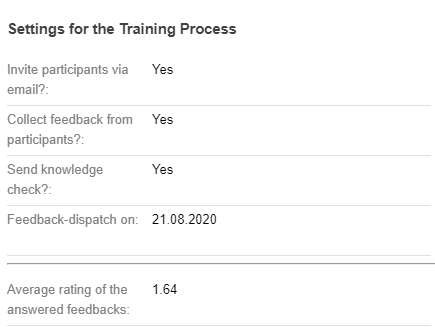
Settings for the training process | Here you can decide whether:
|
Sequence without extra functions
Prepare training
After creation, the case is forwarded to the organizer. The organizer is informed in the case window that all participants should be added to the list at the bottom of the case window via <+ Training participant>.
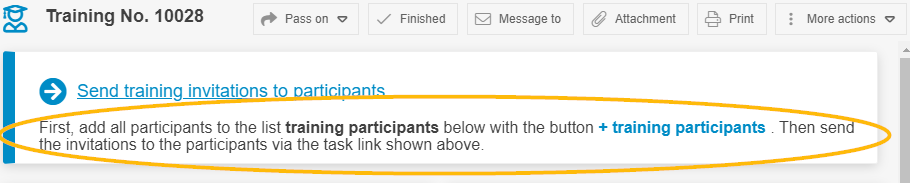
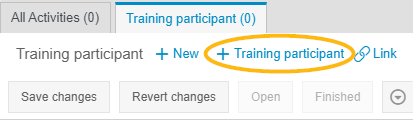
If some employees are not to be actively involved in SmartProcess, a user without a login option can be created for them.
The training participant catalogue opens, which lists all users and contacts. The special feature of this catalogue are the columns Skill confirmed? and Subsequent training required until.
The first column indicates whether the person has entered one of the qualifications to be trained as a target qualification in his or her own profile (Skill needed) or whether he or she has already acquired it (Skill is confirmed). If the user has neither acquired nor requires the qualification according to his or her profile, Not specified is displayed. If no qualification profile has been created for the user, No qualification profile is displayed.
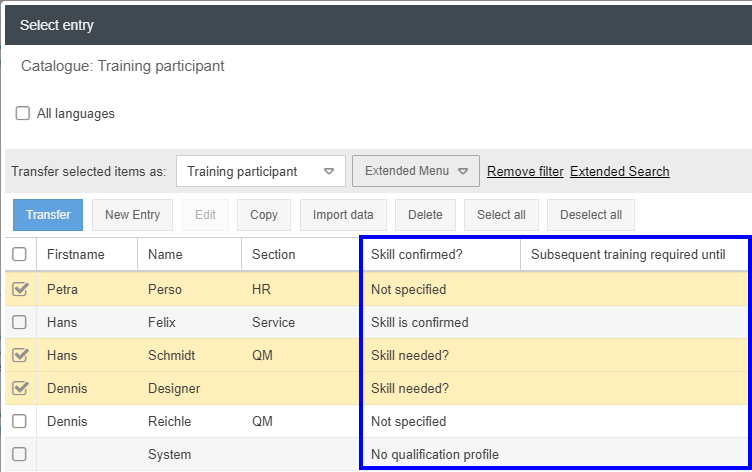
In the second column, if the qualifications are valid, a list is displayed with a check interval, showing until when the employee's qualification is still valid. If the validity is about to expire, it may be useful to invite the employee to the training course.
Select the desired participants in the window and add them via <Transfer>. When all participants have been inserted, you can confirm the task link <Send training invitations to participants> in the header of the case window.

Even after the task has been confirmed, additional participants can be added.
Conduct of training
In the case of an internal training course, the case is now forwarded to the selected lecturer so that he or she can prepare and conduct the training. For external training, the tool can be used to write an e-mail to the external lecturer with the most important information about the training and the list of participants as an attachment.
In both cases, the next task in the training case is to document which persons have successfully participated after the training has been completed. In the header of the case window, the person responsible receives a note about this.

The entry is made in the field Participation is completed?, which can be edited directly in the list of training participants. This list also provides you with an overview of the current state of the individual training participants at all times.
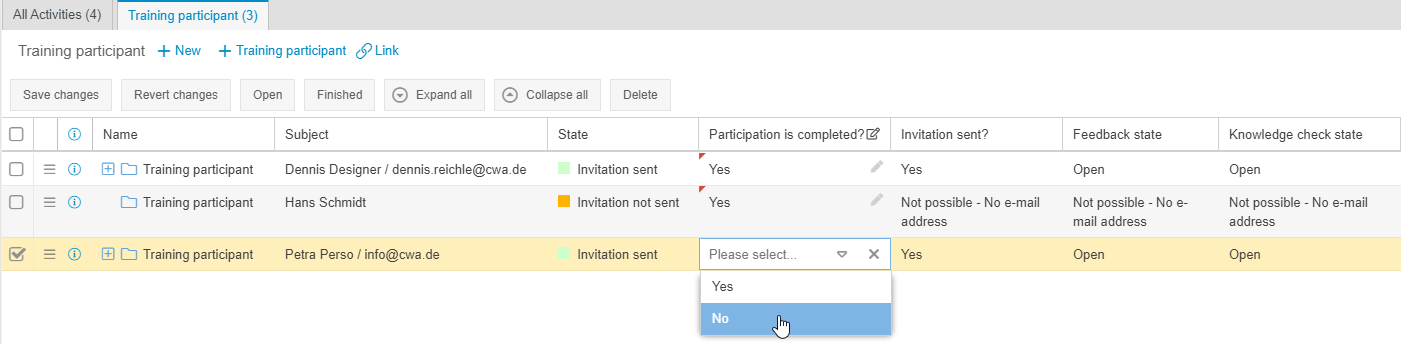
As soon as this field has been filled in for each participant and confirmed with the button <Save changes>, you can execute the task <Training conducted> in the header of the case window.

If the option Send knowledge check was activated when creating the training, you have the additional option of determining questions and answer options as well as the time for sending the knowledge check in the form of the task <Training conducted>. (details see below)
Complete the training
In this case the last task <Complete training and transfer qualifications> can be performed. When you confirm this task, the training case is completed and the qualifications are transferred to the qualification profiles.
Extra functions
Feedback
After completing the task <Training conducted>, an email containing a link to a feedback form is sent to all training participants who meet the following requirements:
- "Yes" is entered in the field "Participation is completed?"
- An e-mail address is stored in the participant's user profile
In the task window you will receive a corresponding note for the upcoming dispatch.
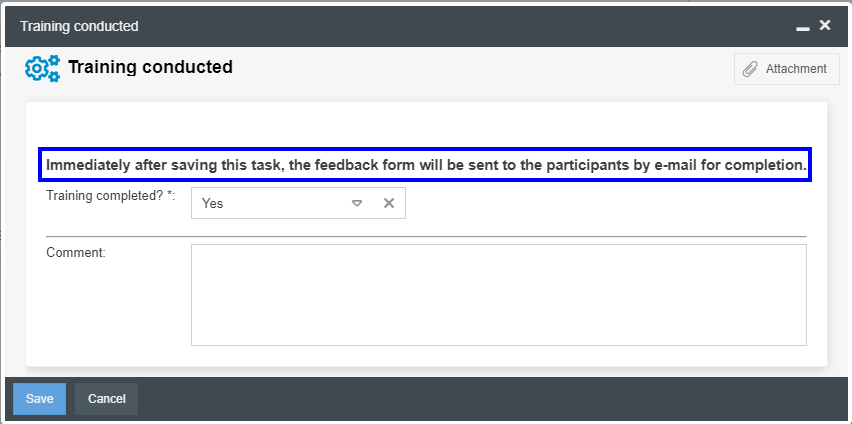
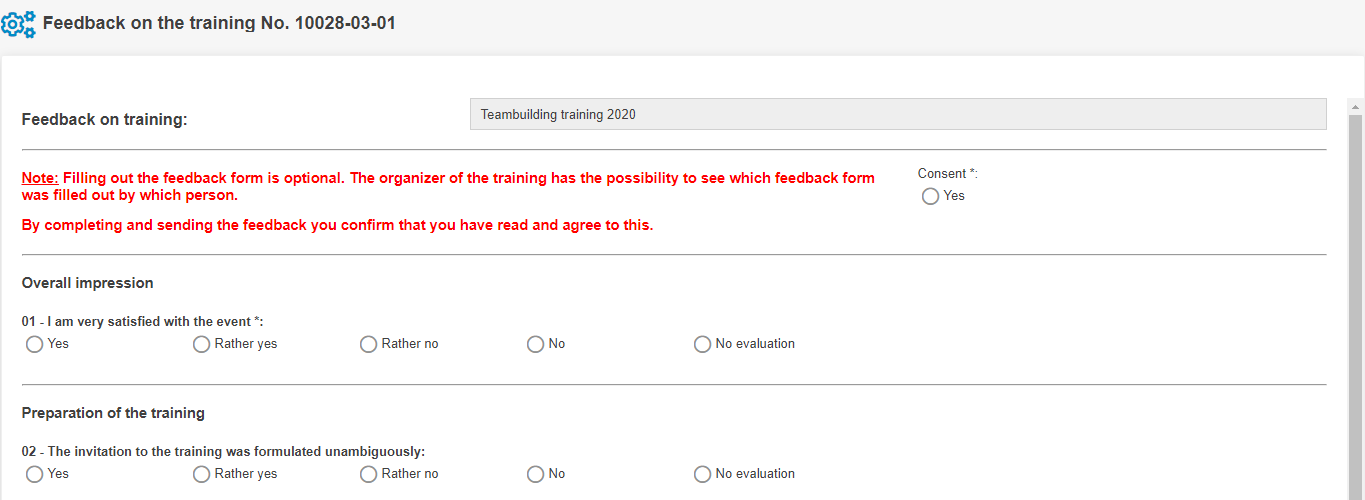
If the link in the e-mail is clicked, the feedback form opens in the browser.
Therefore, there is a note at the beginning of the feedback form which must be actively confirmed by the training participant.
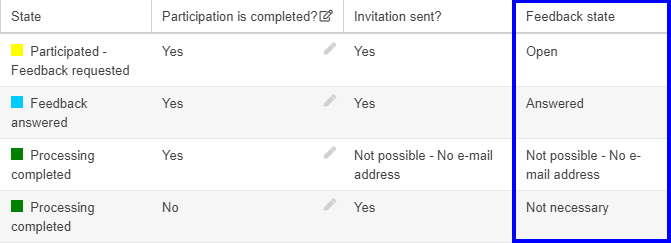
The organizer and lecturer can use the Feedback state column in the participant list in the case window to see which users have answered a feedback form.
In addition, an average score is calculated from all submitted feedback and displayed in the case window of the training.
Knowledge check
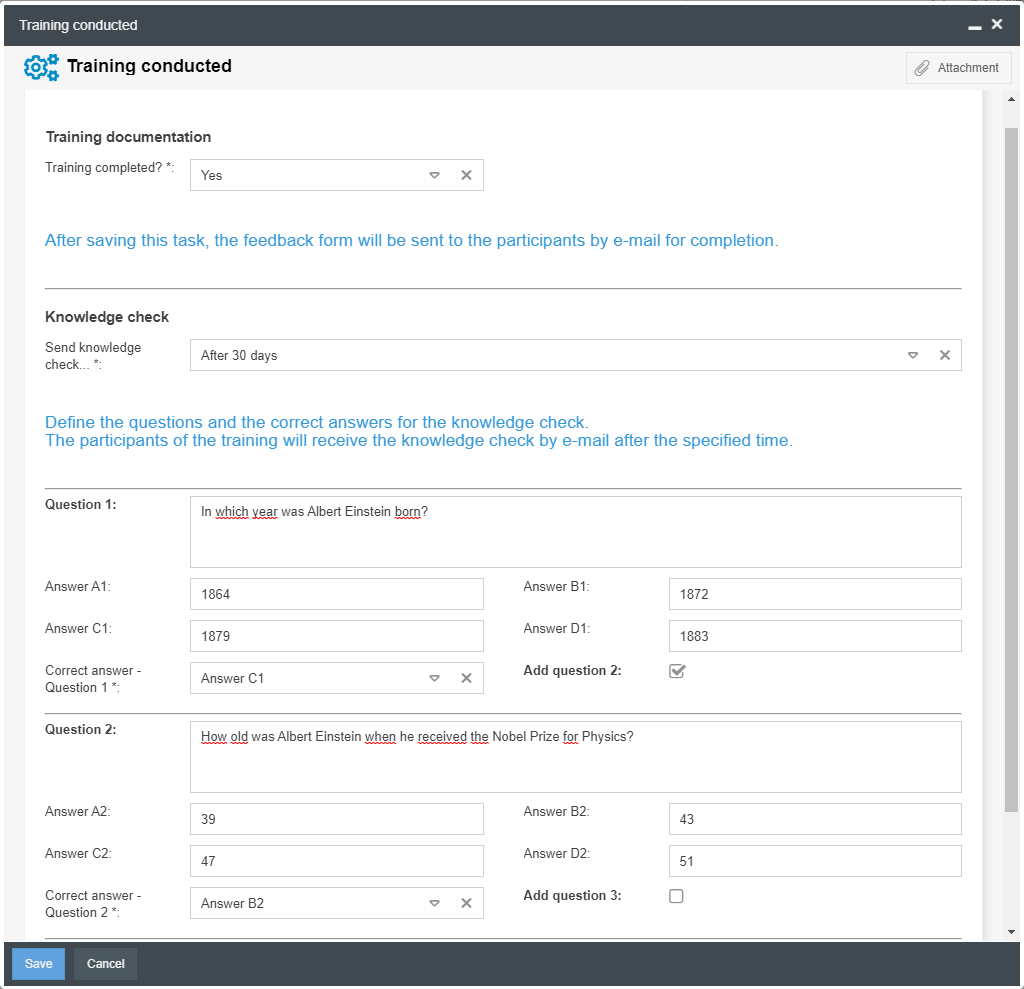
In this case, the form of the task <Training conducted> is extended. First select the time period after which the knowledge check should be sent. In the example, 30 days after confirming the task, an e-mail with a link to the knowledge check is sent to all training participants who meet the following requirements:
- "Yes" is entered in the field "Participation is completed?"
- An e-mail address is stored in the participant's user profile
The knowledge check consists of questions with 4 possible answers, which you can freely define at this point. In the dropdown field, select which of the answer options is the correct one. Using the checkbox <Add question X> you can create a total of up to 3 questions for knowledge check.
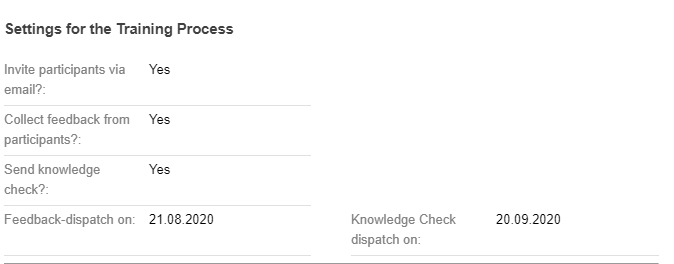
The state of the case and a note indicate that you have successfully configured the Knowledge check and that it will be sent automatically to the participants after the desired time period. In the case window of the training course, the field Knowledge check dispatch on also displays the exact dispatch date.

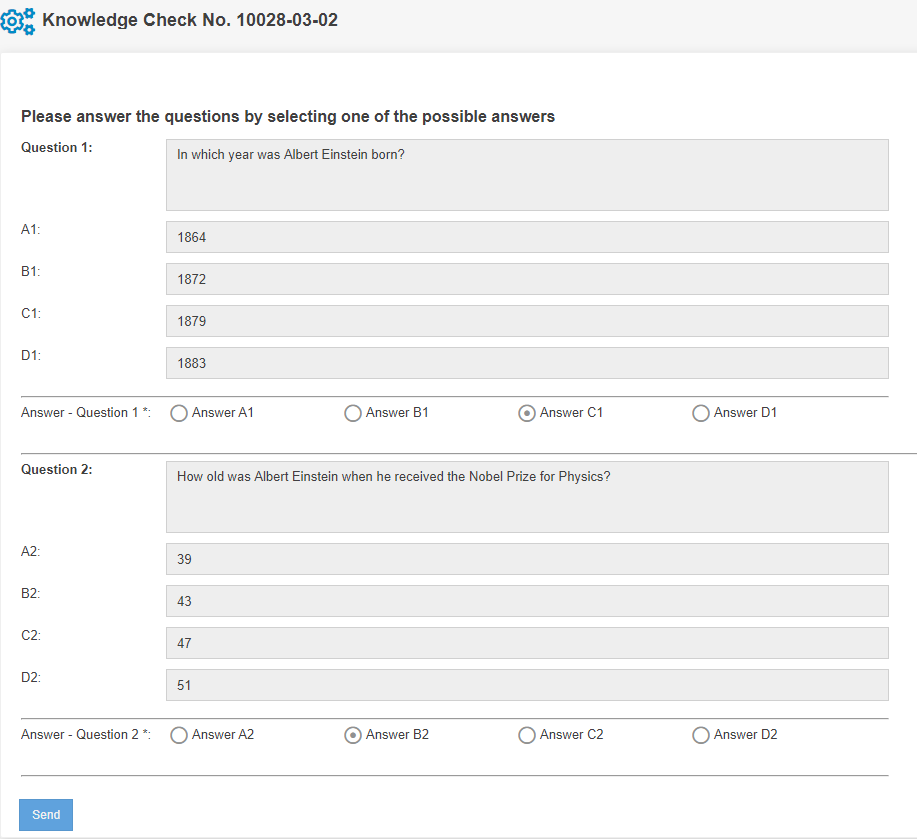
When the user receives the e-mail after 30 days and clicks the link in it, the knowledge check opens in the browser. The questions and answer options are now displayed in read-only mode and the user can only select one answer option.
Which participant has already completed the knowledge check can be tracked in the list of training participants using the Knowledge check state column. There, it is also shown how many questions the participant has answered correctly.
When the knowledge check has been completed, there are 2 possible results:
- Passed -> Participant answered all questions correctly -> The participant's trained qualifications will be transferred to the qualification profile upon completion of the training.
- Failed -> Participant did not answer all questions correctly -> The participant will not have the trained qualifications transferred to the qualification profile after completion of the training.
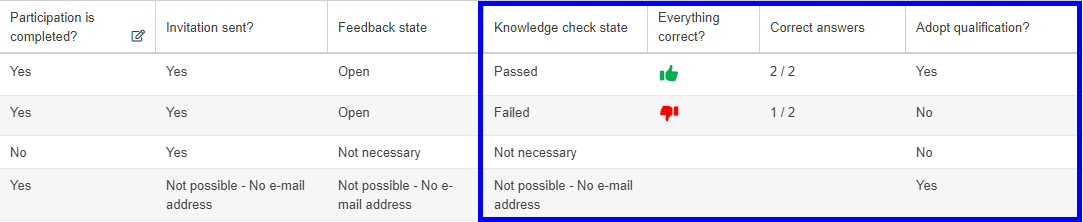
Transferring qualifications to the qualification profile
Whether a participant has a qualification transferred to his or her qualification profile depends on various factors. The cases in which the qualification is successfully transferred are listed in the following table.
With knowledge check | Without knowledge check |
Alternative:
|
|
Evaluation
PDF reports
In the case window of the training course, two Word reports are available in the Reports and prints area to assist you with the training documentation.
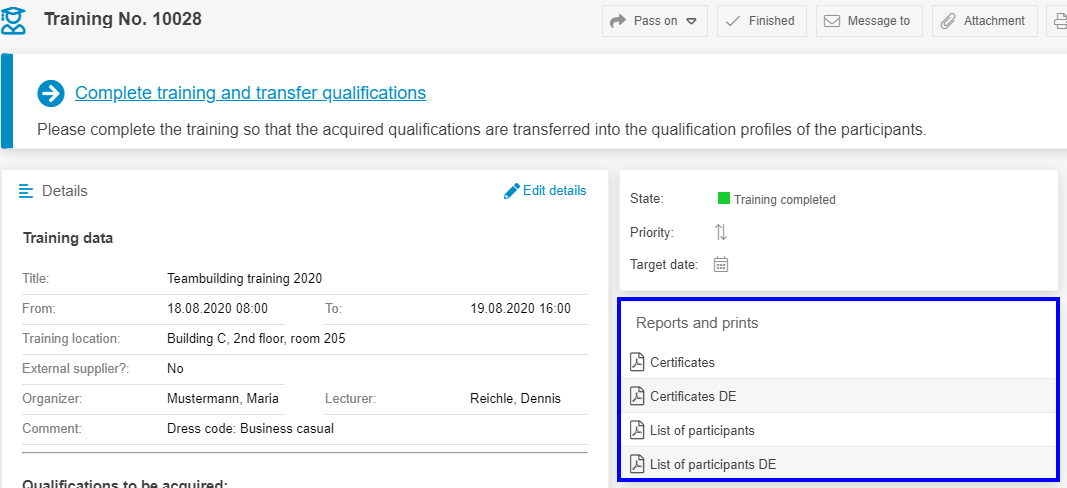
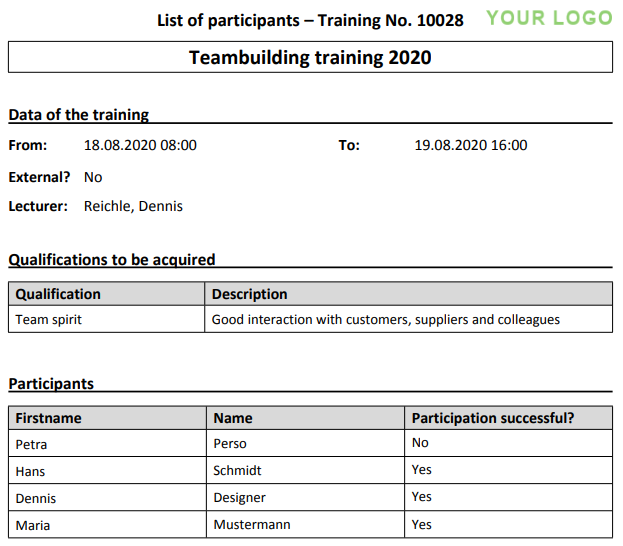
List of participants
A list of participants can be generated for the preparation of the training. If you have already entered whether the participants have taken part in the course, this is also noted in the participant list.
Certificates
The Word Report Certificates generates a PDF file, in which for each training participant, where the field "Participation is completed? = Yes is selected, a certificate for the successful training participation is included. These can be downloaded or printed as individual pages if required.

Reporting
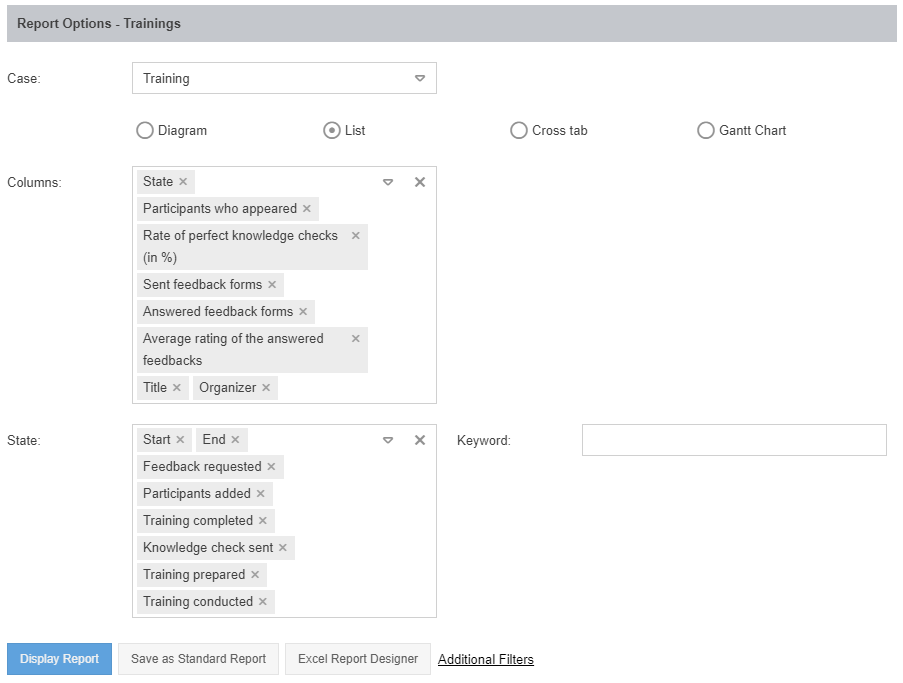
To evaluate training cases, follow the description in the article Reporting for cases. To filter the cases you can always use the fields from the respective workflow - in this case the fields from the main form of the training workflow.
The following example shows the configuration and result view of a list report, in which detailed information about the feedback forms and knowledge checks is displayed.

How did we do?
