Table of Contents
Export archive
The Export archive feature allows you to export various types of SmartProcess data from the application. All data is exported in a.zip archive, within which one ore more files are created for each da…

Table of Contents
The Export archive feature allows you to export various types of SmartProcess data from the application. All data is exported in a .zip archive, within which one ore more files are created for each data record. The sections below, which describe the respective contents, explain what data is included in these exports and in what format.
Regardless of the exported content, the .zip file always contains an export-info file that records which user performed the archive export, when it was performed, and which filter settings were used.
Export cases
Configuring case export
To export data from cases, you must first select the workflow whose data you want to export. If you have a large number of workflows in use, you can filter the list as needed with the Search for main case in the upper-right corner.
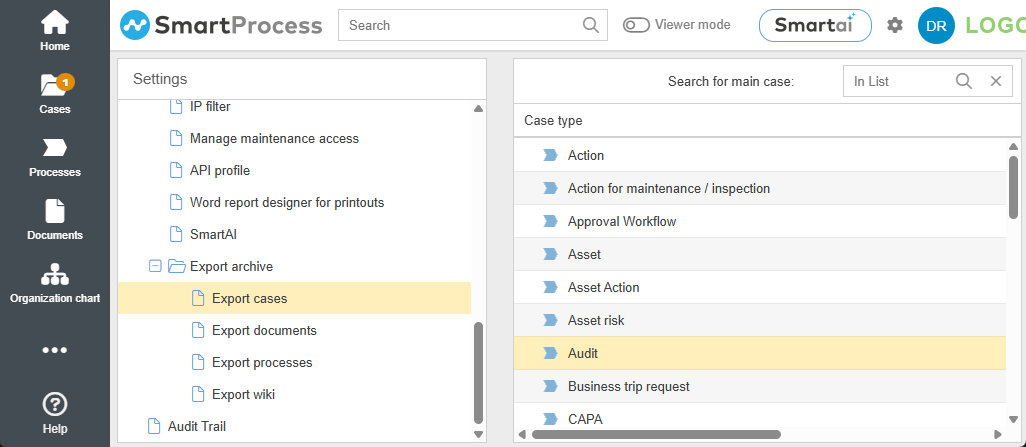
After selecting the main case (e.g., Audit), an area opens where you can configure the export using the following options:
Language | This determines the language in which labels for multilingual case data, such as field names, status names, or values from drop-down menus, will be displayed in the PDF files. |
Report (optional) | However, if needed, you can select a predefined and saved report. When exporting the data, the filters from the selected report are then applied. This allows you to pre-filter which case data should actually be exported (e.g., only process audits or only closed audit cases). |
Include deleted objects | If this checkbox is selected, an additional folder named Deleted is created in the .zip archive. This folder contains only cases that were in the state Deleted at the time of export. |
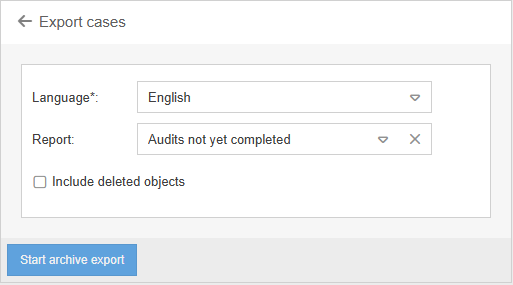
By clicking Start archive export, the generation of the .zip archive begins. Once it is complete, the download can be started by clicking Download archive export.
Result of the case export
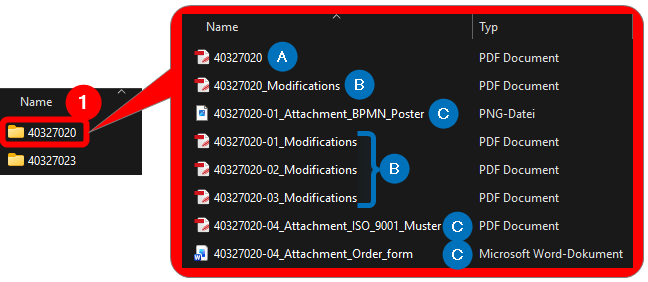
The case export outputs the following:
- A separate folder for each main case (in the example, one folder for each audit). Since the folder name corresponds to the case number, information can be easily retrieved after the data has been exported and stored. Inside this folder, you’ll find:
- One PDF file containing all case data and activity data as of the time of export (for an audit case, this includes the data from the start form and all data from the subordinate audit questions and actions). The name of the PDF file corresponds to the case number.This file can also be obtained by manually clicking the Print button in a SmartProcess case.
- For the main case and each individual activity, a separate PDF file containing the changes made to the case or activity data over time. The name of the PDF files corresponds to the case number followed by the suffix “_Modifications”.
- All attachments that were added to the respective case or activity in SmartProcess at the time of export, in their original format. The file names correspond to the case number followed by the suffix “_Attachment” and the title of the attachment.
- One PDF file containing all case data and activity data as of the time of export (for an audit case, this includes the data from the start form and all data from the subordinate audit questions and actions). The name of the PDF file corresponds to the case number.
Export documents
Configuring the document export
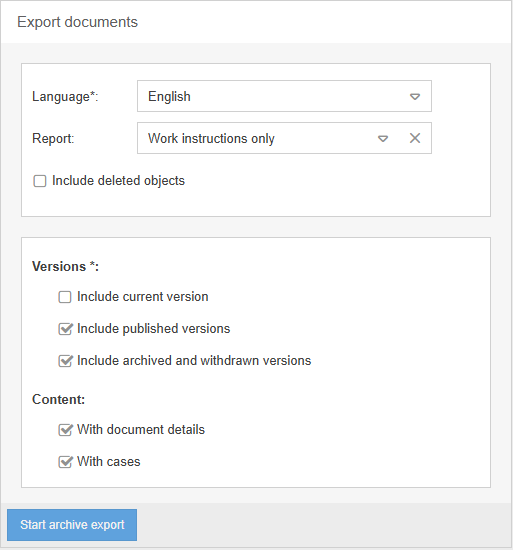
When you click Export documents, an area opens where you can configure the export using the following options.
Language / Report
Language | Select the language in which the document’s multilingual properties should be displayed, such as:
This is not an option that filters documents by the Language field. |
Report (optional) | If no selection is made here, no individual pre-filtering of the documents to be exported will take place. However, if necessary, a predefined and saved report can be selected. When the data is exported, the filters from the selected report will then be applied. This allows you to pre-filter which documents should actually be exported (e.g., only documents of the type “Checklist” or only documents created before 2026). |
Include deleted objects | If this checkbox is selected, an additional folder named Deleted is created in the .zip archive. This folder contains only versions of documents that were deleted at the time of export. If any versions of these deleted documents were ever published, those previously published versions are also exported. For each document to which this description applies, a separate folder containing all versions ever published is created within the Deleted folder. |
Versions
Here, you can specify the scope of the export by selecting which versions of the document should be exported.
Include current version | If this checkbox is selected, the most recent available version of a document is exported. This can be either a published version or a version with the state Draft / Not published. |
Include published versions | If this checkbox is selected, the currently published version of a document is exported. If this option is selected together with Include current version, several scenarios are possible: - There is no published version --> Only the most recent version with the state “Draft” is exported. - The most recent version is published --> Only this published version is exported. - There is a published version that has since been edited without the changes being republished (state Unpublished changes) --> Both the currently published version and the most recent version with the status “Draft” are exported. |
Include archived and withdrawn versions | If this checkbox is selected, the export will also include all versions of the document that were once published but have since been archived or withdrawn. If version 3.00 of the document is currently published, the export will also include the archived versions 1.00 and 2.00. |
Content
Here you specify the content to be exported in addition to the document attachments.
With document details | If this checkbox is selected for each document version, an additional PDF file is generated that displays the document’s metadata for that version (e.g., document type, publication date, validity history, etc.) |
With cases | If this checkbox is selected during export for each document, an additional folder is created containing a list of all cases ever associated with that document (e.g., approval workflows, feedback workflows, validity workflows, read confirmations). For each individual case, a subfolder containing multiple PDF files is created. The exported PDF files correspond to the description in the Result of the case export section above. |
By clicking Start archive export, the generation of the .zip archive begins. Once it is complete, the download can be started by clicking Download archive export.
Result of the document export
Essentially, this export bundles the file attachments of the documents and downloads them in their original format in a structured manner. Depending on which checkboxes are selected, additional files may also be exported, such as those related to the document’s cases (e.g., approval workflows, feedback workflows, etc.), previously published versions of the document, or a PDF file containing metadata about the document version.
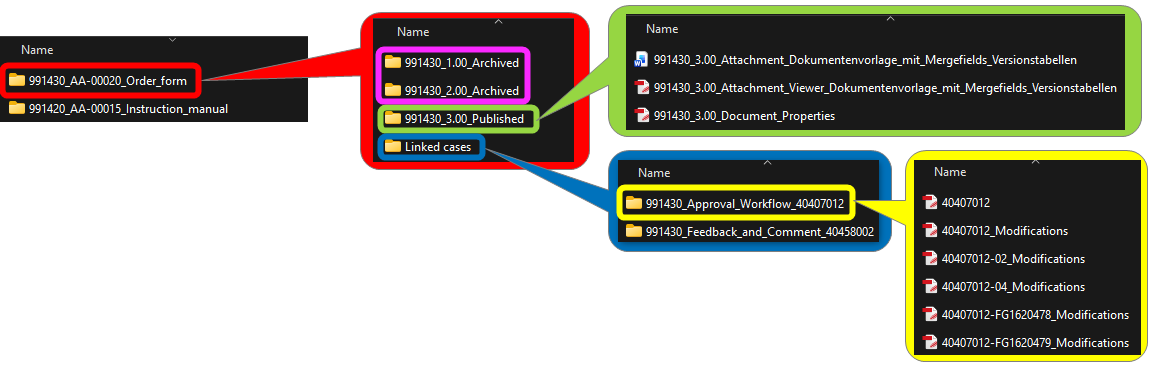
The following section shows and explains an example of an export with the following settings:
Red: A folder created for each exported document. The name consists of the ID, the document number (if available), and the document name.
Pink: One folder for each version of the document that was ever published and has since been archived or withdrawn. These exist because the checkbox Include archived and withdrawn versions was selected.
Green: A folder for the most recent published version of the document. This folder exists because the Include published versions checkbox was selected.
Blue: One folder per document containing all cases ever created for that document. These folders are included because the Include cases checkbox was selected during export.
Yellow: For each case related to this document, a PDF is included containing all case data, activity data, changes over time, and any file attachments associated with these cases and tasks (see also the section Result of the case export for more details).
Export processes
Configuring the process export
Clicking Export processes opens a area where you can configure the export using the following options.
Language / Report
Language | Select the language in which the respective process descriptions and case summaries are to be exported. |
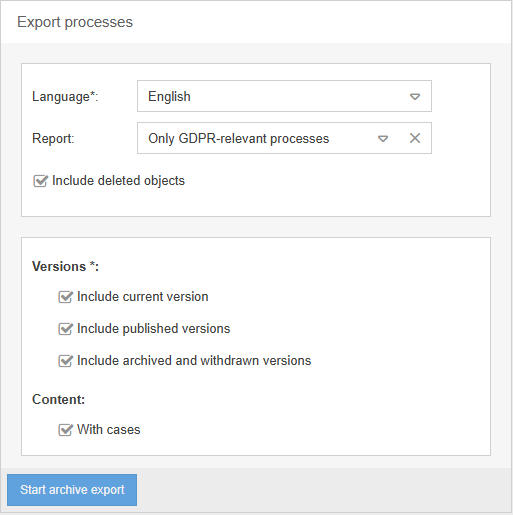
Report (optional) | If no selection is made here, no individual pre-filtering of the processes to be exported will take place. However, if necessary, you can select a predefined and saved report. When the data is exported, the filters from the selected report will be applied. This allows you to pre-filter which processes should actually be exported (e.g., only “Checklist” processes or only GDPR-relevant processes created since 2026). |
Include deleted objects | If this checkbox is selected, an additional folder named Deleted is created in the .zip archive. This folder contains only versions of processes that were deleted at the time of export. If any versions of these deleted processes were ever published, those previously published versions are also exported. For each process to which this description applies, a separate folder containing all versions ever published is created within the Deleted folder. |
Versions
Here, you can specify the scope of the export by selecting which versions of the process should be exported.
Include current version | If this checkbox is selected, the most recent available version of a process is exported. This can be either a published version or a version with the state Draft / Not published. |
Include published versions | If this checkbox is selected, the currently published version of a process is exported. If this option is selected together with Include current version, several scenarios are possible: - There is no published version --> Only the most recent version with the state “Draft” is exported. - The most recent version is published --> Only this published version is exported. - There is a published version that has since been edited without the changes being republished (state Unpublished changes) --> Both the currently published version and the most recent version with the status “Draft” are exported. |
Include archived and withdrawn versions | If this checkbox is selected, the export will also include process descriptions of all versions of the process that were once published but have since been archived or withdrawn. If version 3.00 of the document is currently published, the export will also include the archived versions 1.00 and 2.00. |
Content
Here you specify the content to be exported in addition to the process descriptions.
With cases | If this checkbox is selected, an additional folder is created for each process during export, listing all cases ever performed for that process (e.g., approval workflows, feedback workflows, validity workflows, read confirmations). For each individual case, a subfolder containing multiple PDF files is created. The exported PDF files correspond to the description in the Result of the case export section above. |
By clicking Start archive export, the generation of the .zip archive begins. Once it is complete, the download can be started by clicking Download archive export.
Result of the process export
Essentially, this export bundles the process descriptions of the processes into PDF files and downloads them in a structured format. Depending on which checkboxes are selected, additional files are also exported, such as cases related to this process (e.g., approval workflows, feedback workflows, etc.) and previously published versions of the process.
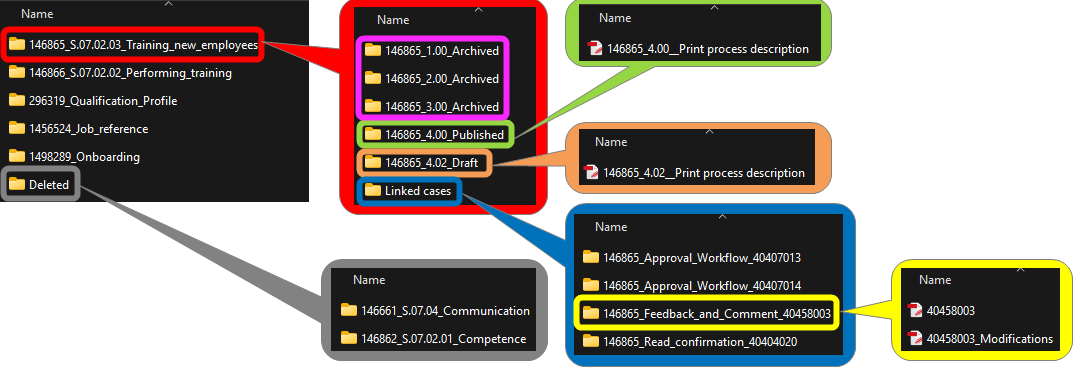
The following section shows and explains an example of an export with the following settings:
Red: A folder created for each exported process. The name consists of the ID, the process number (if available), and the process name.
Pink: One folder for each version of the process that was ever published and has since been archived or withdrawn. These exist because the checkbox Include archived and withdrawn versions was selected.
Green: A folder for the most recent published version of the process. This folder exists because the Include published versions checkbox was selected.
Orange: A folder containing the process description for the current, unpublished version of the process. Because the Only published versions (including archived and withdrawn) checkbox was not selected, this folder - containing the latest, unpublished version - is also included for each process.
Blue: One folder per process containing all cases that have ever been created for that process. These folders are included because the With cases checkbox was selected during export.
Yellow: For each case related to this process, a PDF is included containing all case data, activity data, changes over time, and any file attachments for these cases (see also the section Result of the case export).
Grey: The “Deleted” folder contains the process descriptions for all processes that once had published versions but have since been withdrawn and deleted. This folder is included because the Include deleted objects checkbox was selected during the export.
Export wiki
Configuring the wiki export
Clicking Export wiki opens a new area. In this area, you must select the language in which the wiki’s categories and entries are to be exported.
By clicking Start archive export, the generation of the .zip archive begins. Once it is complete, the download can be started by clicking Download archive export.
Result of the wiki export
The export essentially replicates the folder structure from the Wiki menu as it existed at the time the archive was created, with a subfolder created for each category and a PDF file for every entry containing the content of each wiki article included.

How did we do?
Audit Trail
