Table of Contents
SmartAI process assistant
This article describes how to use the AI module SmartAI process assistant. General information about the credit system, technical notes, and settings for SmartProcess’s AI modules can be found in the…

Table of Contents
Using the feature
With the SmartAI process assistant, you can use AI support to create new processes based on manual text descriptions, documents, or images, and directly add task descriptions and responsibilities to them.
The SmartAI process assistant uses only the following BMPN symbols to generate processes:
- Tasks
- Swimlanes (without assigning organizational units or roles to the swimlanes!)
- Events
- Gateways
Whenever a new process is created in the menu of the same name using any of the available methods, the Create with SmartAI toggle button is available.
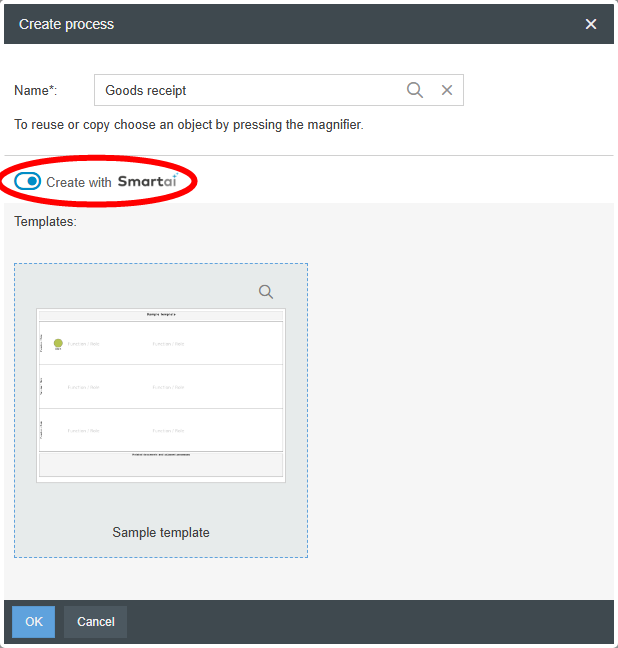
After assigning a name to the process and clicking the Create with SmartAI button, you can open the process assistant window by clicking OK. This window offers various ways to provide SmartAI with content for the process generation and to specify a few options for process creation.
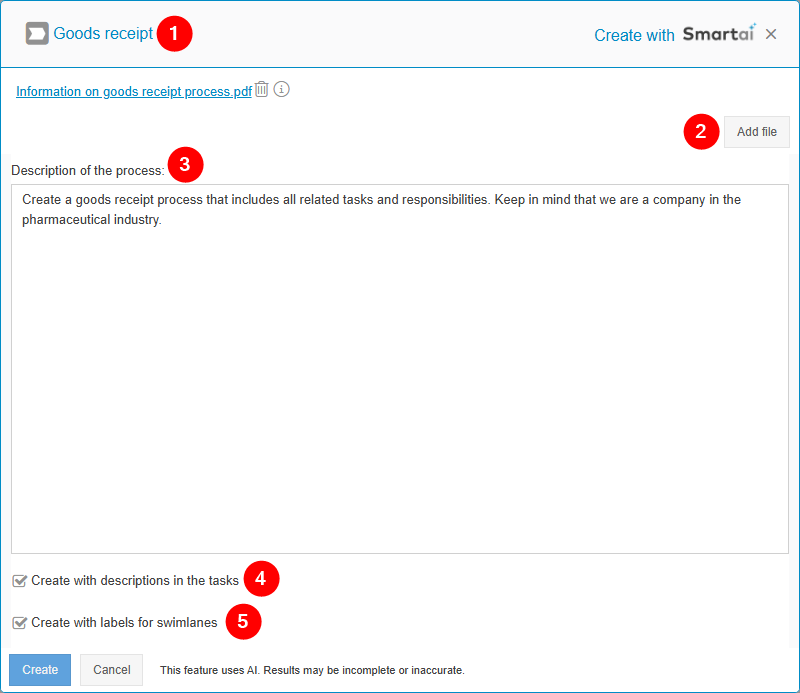
| The header of the SmartAI process assistant displays the name previously assigned to the process being created. |
| In this window, you can upload various files to provide the SmartAI process assistant with important data for process generation. These can include, for example, textual descriptions in Word or PDF format. However, the SmartAI process assistant can also interpret image files in common formats such as JPG or PNG and incorporate them into the process creation. Files can either be added using the Add file button or placed in the window via drag-and-drop - the latter even allows multiple files to be added at once. |
| You can also help the SmartAI process assistant capture the relevant details of the process by providing a manual description of the process in text form. Options 2 and 3 are not mutually exclusive. This means you can upload multiple files and enter a description of the process at the same time. |
| If this checkbox is selected, the SmartAI process assistant will automatically generate a detailed task description for each created task. |
| If this checkbox is selected, the SmartAI process assistant will assign labels to the swimlanes in the process model. In this case, the process assistant will create new swimlanes. If you want to reuse existing swimlanes in the AI-generated process, you must manually replace them after creation, or you can simply leave this checkbox unchecked. |
Once all relevant information has been added and all options have been configured, the process can be generated by clicking Create.
Please note that CWA assumes no liability for the accuracy, legal admissibility or completeness of the content generated by the AI.
Demonstration video
How did we do?
SmartAI chatbot
SmartAI knowledge questions assistant
