Table of Contents
Import workflow templates
With the workflow templates, CWA offers simple standard solutions for workflow-supported processing of a wide variety of company cases. You can download the workflow templates free of charge from thi…

Table of Contents
With the workflow templates, CWA offers simple standard solutions for workflow-supported processing of a wide variety of company cases.
You can download the workflow templates free of charge from this page and import them into your SmartProcess installation.
Install Workflow Templates
- The downloadable workflow templates are only compatible with the latest version of SmartProcess. Check in advance if your installed version of SmartProcess corresponds to the listed version at the download files.
- Download the desired workflow template at the end of this article. The file will be saved in the Downloads folder.
- Catalog configurations including tree structure, if catalog fields are used in the workflow forms (see Attention points).
- Text modules created for the workflow and its activities
- Word reports that were created for the workflow and its activities
- Be sure to check the attention points listed in this article before performing the import!
- Log into your SmartProcess installation and navigate to the Processes menu.
- Select the path Import/Export -> Import -> SmartProcess in the navigation area
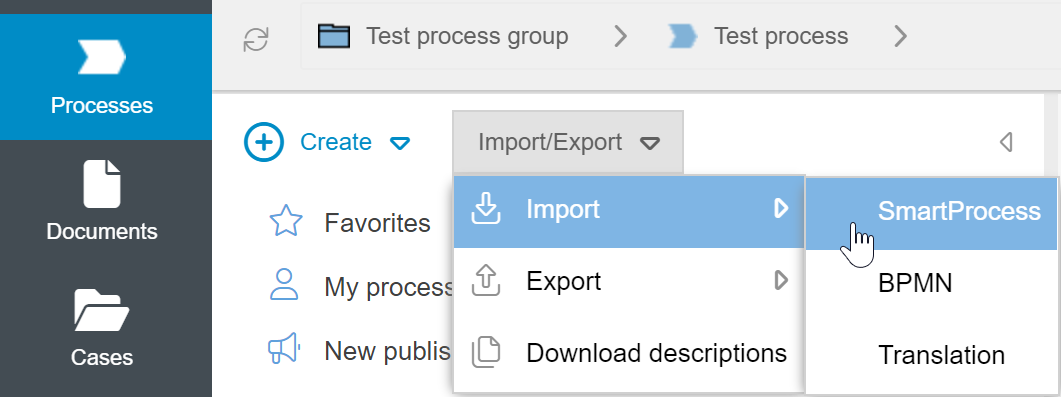
- Browse your drive for the workflow template, select it and click <Import>. The import will start and may take a few seconds. Afterwards, you will see the newly imported workflow in the Process Explorer and you can move it to any process group.
Attention points
Be aware of duplicate catalogs | When importing the workflow templates, the configuration of catalogs used in the workflow forms is also imported (the catalog entries are not imported). There is no check if this catalog already exists in your installation. Example: - In the workflow template 'Onboarding' fields from a "Qualification catalog" are used. - In your standard installation of SmartProcess, there is already a "Qualification catalog". - When importing the 'Onboarding' template, a second qualification catalog is created in your installation. - If the original and imported catalog have the same name, the name of the imported catalog is extended by an extension and is then called "Qualification catalog - Imported". To avoid working with different catalogs on the same topic in your workflows, the imported catalog should be cleaned up before using the template. To do this, delete the fields of the imported catalog in the form designer of the imported workflow template (and also in the forms of the workflow activities, if required) and then insert the fields of the 'original' catalog. Afterwards, the imported catalog can be deleted in the configuration. Continuation of the example: - After the import, open the form designer of the 'Onboarding' workflow and delete from the field group the catalog fields that refer to the "Qualifications catalog - Imported". - Then insert the fields from the original 'Qualifications catalog' into the form. - When all catalog fields have been replaced, the imported qualifications catalog can be deleted in the configuration. |
Be aware of redundant sub-workflows | Some workflow templates contain sub-workflows that may already exist in your SmartProcess installation. For example, the standard action workflow is used as a sub-workflow in various workflow templates. Importing these templates will therefore create a second action workflow in your installation! This applies to the following workflows: - Audit - Claim - Opportunity - Meeting - Risk - Corporate objective - Suggestion for improvement - Recurring acrtion To avoid working with two different workflows on the same topic, this duplication should be cleaned up. Continuation of the example: - To maintain centralized action management with a unique action workflow, the additional action workflow imported with the workflow template should be removed and replaced with the original. - To do this, edit the process model of the imported template, e.g. of the workflow 'Suggestion for improvement'. - In the process designer, remove the icon of the action and insert the original action workflow via the 'Processes and tasks' tab in the icon area from the 'Workflows' folder. 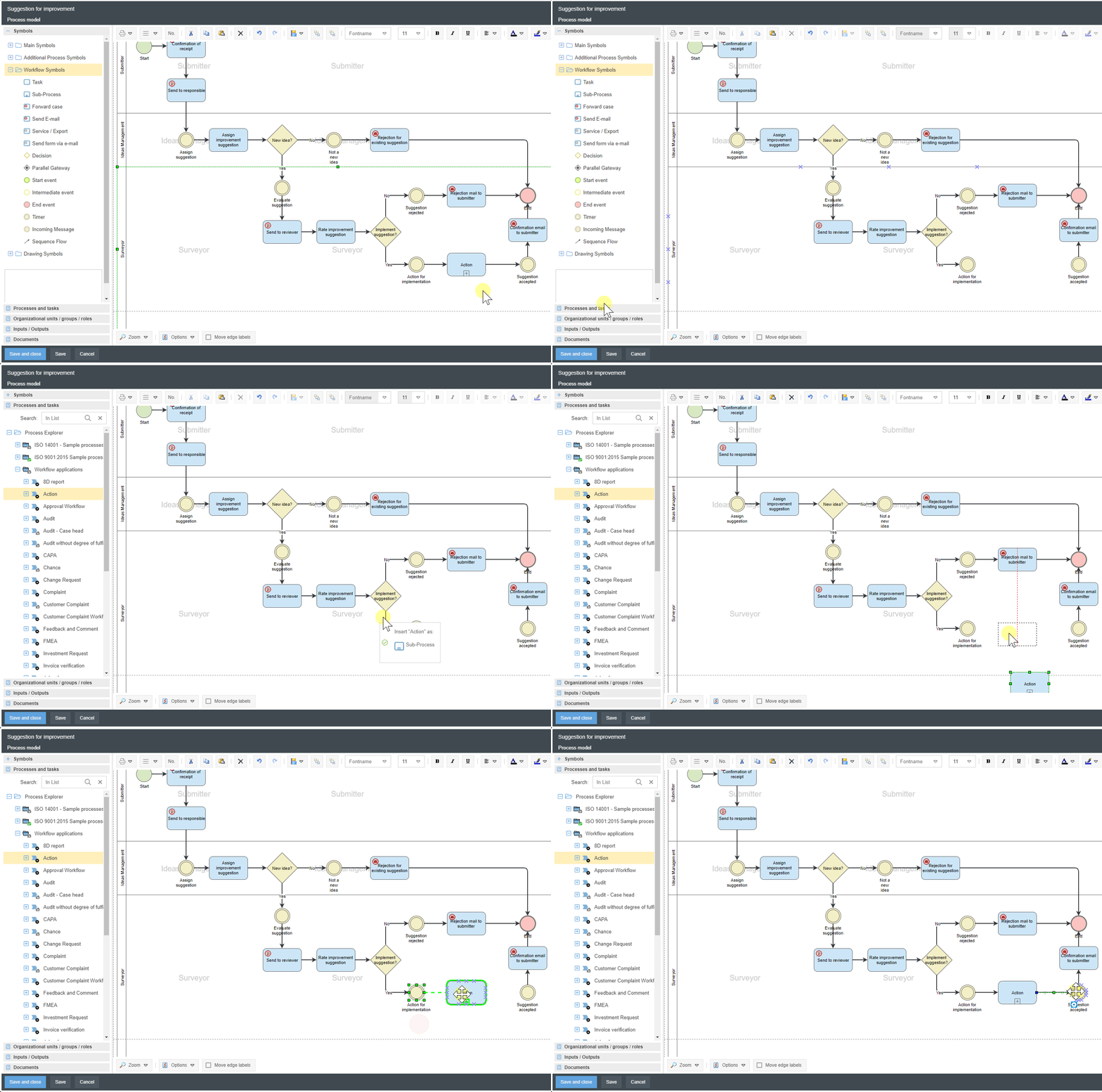 |
If the names are the same, the imported objects get a suffix | If catalogs, catalog tree structures, text modules or Word reports are imported with a workflow template, which already exist under the name in your system, the name of the imported object is extended by the indication "- Imported". Example: The Onboarding workflow template is used to import a 'Qualifications catalog'. If there is already a catalog with this name in your system, the imported catalog is given the name 'Qualification catalog - Imported' for better differentiation. |
After the import, the workflow is initially inactive | In the inactive state, the workflow is not yet available to users. In this way, after importing you can first try out the workflow with test cases via the workflow settings. If you want to release the workflow for the users, you can switch the state to Active in the workflow settings. |
Training on the workflows or workflow customizations can be ordered as a consulting service. Contact us for this at smartprocess@cwa.de if required.
Download Workflow-Templates
The workflow templates contain translations for German and English. If you use other system languages, the fields and process models must be translated into the other languages by yourself.
Further information on the individual templates can be found on our website.
Name of the workflow template | Download version 26.7 | Download version 25.11 | Download version 25.3 | Download version 24.9 |
- | - | |||
- | - | |||
Asset management | ||||
- | - | |||
Business trip request | ||||
CAPA | ||||
Change Management | ||||
Claim | ||||
Complaint | ||||
Corporate objectives | - | |||
Document suggestion | - | |||
- | - | - | ||
- | - | |||
Hazardous Materials Management | ||||
Idea management | ||||
Investment request | ||||
Invoice verification | ||||
Job reference | ||||
- | - | |||
Meeting | - | |||
Onboarding new employees | ||||
Operating & test equipment | ||||
Opportunity | - | - | ||
Recurring action | - | - | ||
Sales management | ||||
Supplier management | - | - | ||
Vacation request |
* When importing read confirmation, please refer to the following help article: Read confirmation
How did we do?
