Table of Contents
Manage users
Search users. If you select the menu item Users in the settings, a list of all existing users appears first. Either filter above the list according to specific properties, such as user name and last…

Table of Contents
Search users
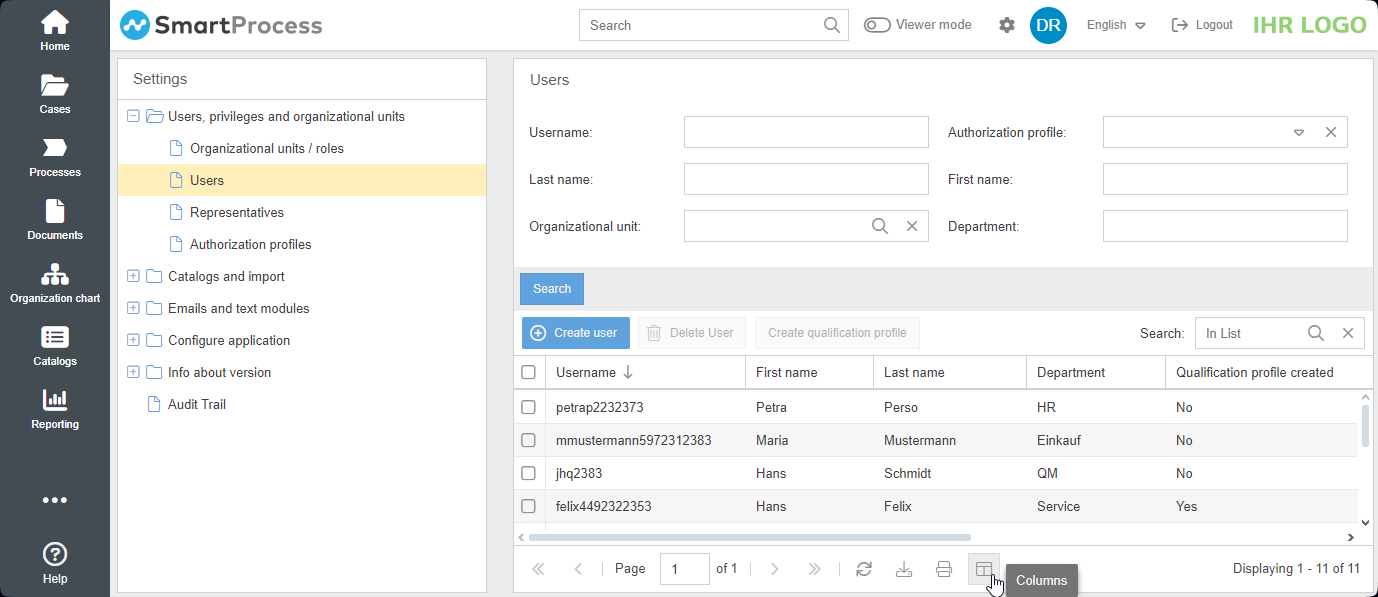
If you select the menu item Users in the settings, a list of all existing users appears first.
Either filter above the list according to specific properties, such as user name and last name, or use the Search In List to search all displayed columns in the user list for a keyword.
Using the button <Columns> you can also decide which information about the users should be displayed.
Create / edit user
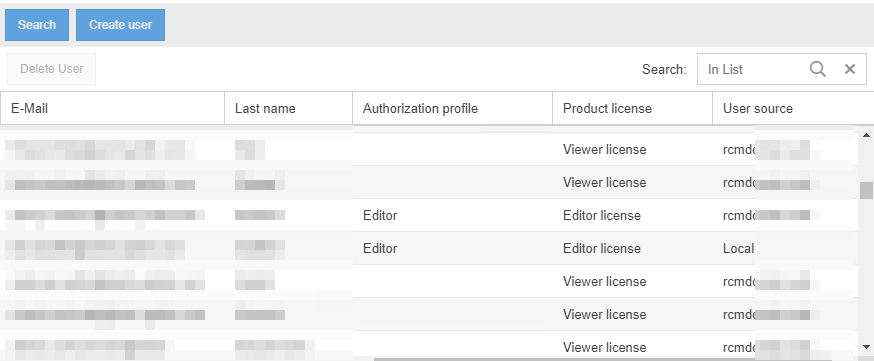
With the button <Create user> you can add a new user. For a new user in the system, at least the fields marked with an asterisk must be filled. After saving, the login information will be sent to the users email address.
You can use the "Language" field to specify the language in which SmartProcess should initially communicate with the new user. After the first login, each user can decide while changing the system language via the application header whether they want to receive all future emails in this language.
- The assigned license determines the maximum rights that can be assigned to the user.
- The assignment of the authorization profile ultimately determines which of these maximum possible rights the user may actually use. These authorizations are managed in the Authorization Profiles menu.

Transfer users from Active Directory (AD)
If an AD is connected to SmartProcess using an LDAP profile (see Directory services), you can also search for persons from the AD and add them as users in SmartProcess.
To create the person as a user in SmartProcess, click on the name and fill in the missing data. This includes the salutation, the authorization profile, the product license and at least the assignment of an Org. unit as Main group* (see below).
After you have confirmed the entries with <Save>, the user is created in SmartProcess. The user data is now automatically synchronized with the Active Directory and the user can also login to SmartProcess with his Windows login data.
Spot the difference between local and AD users
User-defined fields
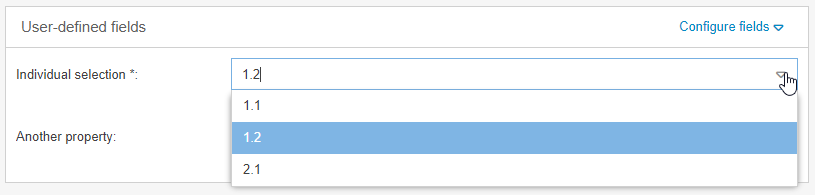
Below the General area, you can create additional fields in which further information can be entered for each user. The creation and management of these fields is explained in the article User-defined fields.
Assign organizational units / groups
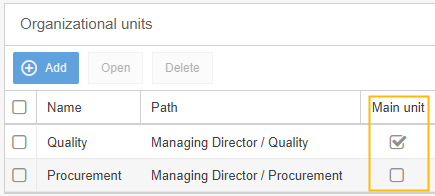
To create and save a new user, an organizational unit must be assigned. To do this, click <Add> and select an organizational unit from the organization chart. If more than one organizational unit is to be assigned to a user, one of them must be selected as the Main unit.
Optionally, the user can also be granted access to cases of other organizational units:

Assignment of the user | Description |
Organizational units (in general) + if set as Main unit | Processes: If the Org. unit is entered as Process owner or in the Process participants list, the process is displayed to the user in the area "My processes" and the user is notified when a new version of the process is published. Documents: If the Org. unit is entered as Document responsible or in the Document users list, the document is displayed to the user in the area "My documents" and the user is notified when a new version of the document is published. Cases:
|
Write access to cases | Processes & Documents: No effects Cases:
|
Read access to cases | Processes & Documents: No effects Cases:
|
E-mail for missed deadlines | Processes & Documents: No effects Cases:
|
Assign roles
Here you can assign roles to the user. Roles are created in the Organizational chart menu, in the special Roles catalogue, or in the settings in the Organizational units and roles menu.

Multi-factor authentication (MFA)
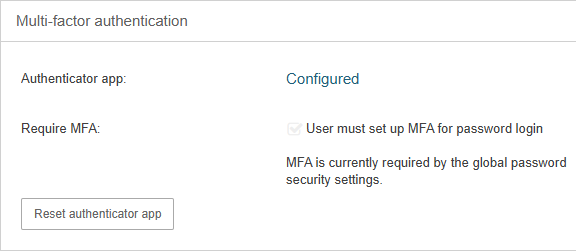
Here, you can specify that this user must authenticate not only with their username and password but also via multi-factor authentication (MFA) using a code from an authenticator app every time they log in.
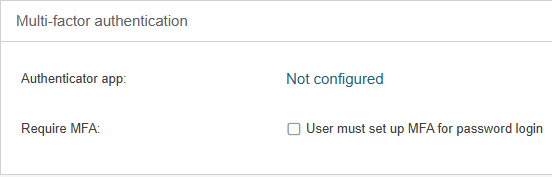
In addition, the system displays whether or not the user currently has an authenticator app set up for MFA. If so, the user’s currently configured authenticator app can be reset if necessary. In this case, the user will need to set up an authenticator app again the next time they attempt to log in.
E-Mail Notifications
Here you can specify the events in SmartProcess for which the user should receive automatic e-mail notifications from the system, e.g. when the user is assigned a new case for processing, the deadline for processing one of his cases has been exceeded, or a new version of a process / document relevant to the user has been published.
Default settings for e-mail notifications
In the settings menu under User notifications you can set default values for the e-mail notifications.
When creating new users, these default values are then initially preset. The current e-mail settings of already existing users are not affected by this setting.
User without login possibility
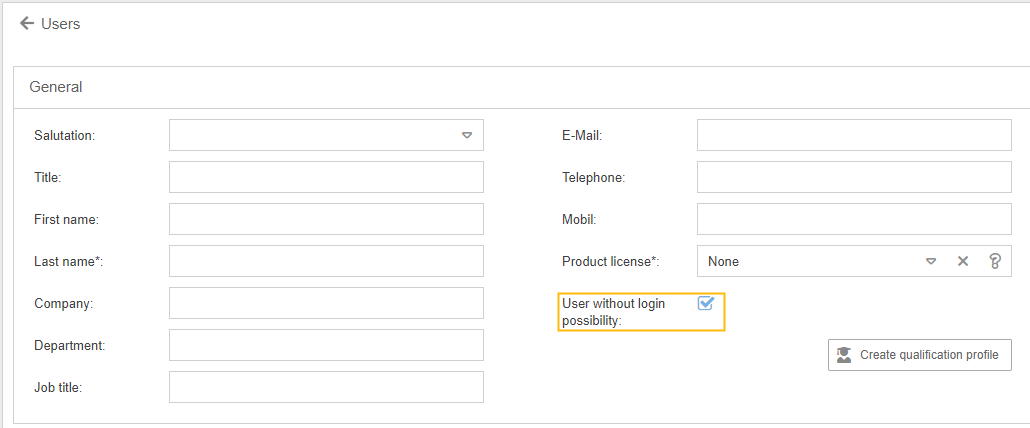
To create a user without system access, activate the checkbox <User without login possibility>.
If this checkbox is activated, only the salutation and the last name are mandatory entries. There is no need to enter an e-mail address for this user and he/she does not need to be assigned a product license.
Furthermore, the windows for the assignment to the organizational chart and the e-mail notifications are hidden.
Only roles can still be assigned to this user, since these are used in the qualification management.
Additional options for users
When a user is edited, additional options are located at the bottom of the editing window.

Besides the possibility to save the changed data of the user, delete the user or cancel the editing of the user without saving, there are additional options:
- Generate password link -> If the user has forgotten his password, you can help them out to restore it by clicking the button. In this case, the user will receive an e-mail with a link that can be used to set a new password.
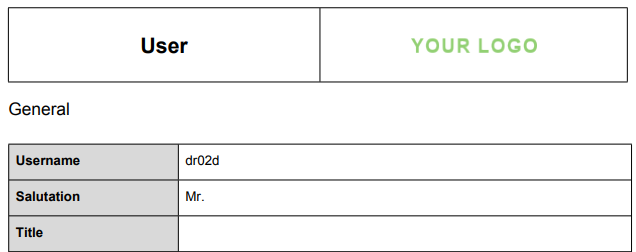
- View user report -> A standard PDF report is generated which contains all data of the user. This can be used, for example, for settings during on/off-boarding.
Tab Processes and Documents
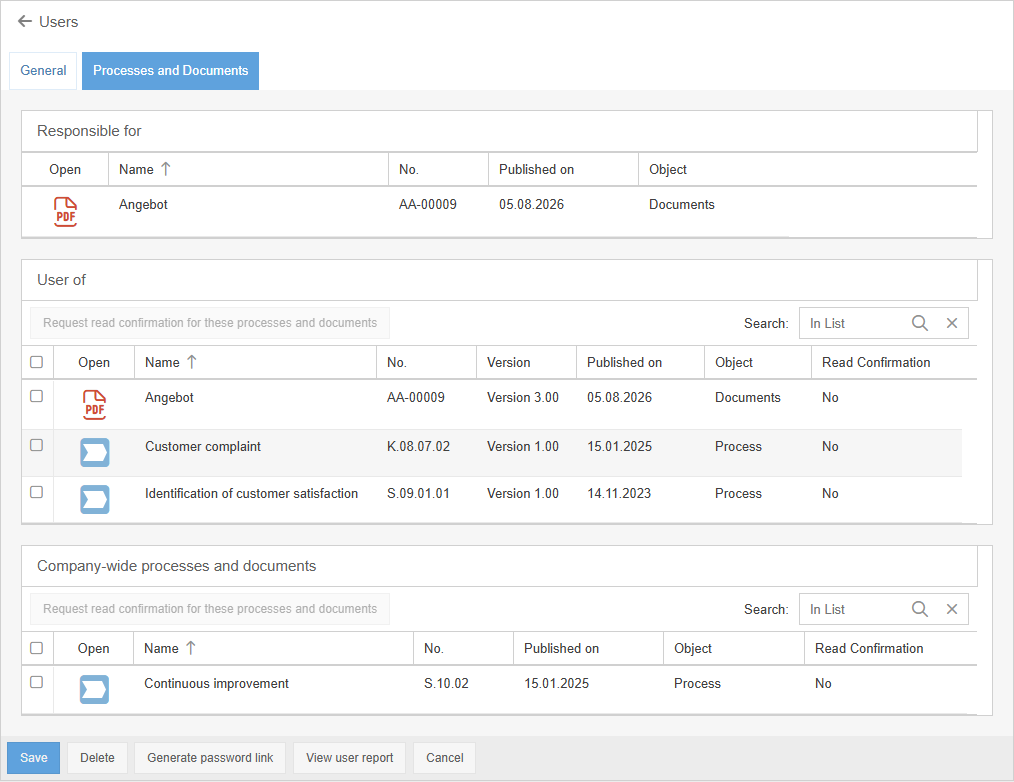
When a user is edited, the Processes and Documents tab is located next to the General tab. This tab lists in 2 separate tables for which processes and documents the user is responsible for or user of.
- The display under Responsible for occurs if the user or an Organizational unit / Role of the user has been entered as process owner for a process or as responsible for a document.
- The display under User of occurs if an Organizational unit / Role of the user has been entered as a process participant in a process or as a document user in a document.
- The display under Company wide processes and documents occurs when Company-wide has been selected under Process participants for a process or under Document users for a document.
How did we do?
Organizational units and roles
Representative
